How to extract data from the Fabric Metrics App – Part 2

In this mini series I’m walking you through how to extract data from the Fabric Metrics App to, for example, create a monthly chargeback report based on it. In my last blog post, I showed how to trace the required DAX Statement. In the second part, I will show how we can use Microsoft Fabric Notebooks and the DAX statement from Part 1 to extract the data and store them into OneLake. For that, I’ll follow the medallion Architecture (Bronze – Silver – Gold) to store and prepare the data.

Prerequisites

For this solution we need following services and licenses:

  • Microsoft Fabric or Power BI Premium Capacity
  • Workspace in a Fabric / Premium capacity
  • Lakehouse
  • Notebook
  • Python Skills

Let’s get started

My first action is to create a new Lakehouse in the Microsoft Fabric Capacity Metrics workspace which I call “FabricMetricsApp”. This will be used to store the output of the Metrics App. Important for this approach: create it in the Metrics App workspace as we’re going to connect to the Semantic Model via Python to it with Semantic Link.

Next, I create a Notebook and as usual, I import the required libraries. On top, I also set the spark configuration following best practices. As bonus, I also configure the Power BI Catalog. This way, I can write SQL Statements on top of my Semantic Model if needed!

#Import required libraries

%pip install semantic-link
%load_ext sempy
import pandas as pd
import sempy.fabric as fabric
from datetime import date, datetime, timedelta
from pyspark.sql.types import StructType, StructField, StringType, IntegerType, FloatType, TimestampNTZType

spark.conf.set("sprk.sql.parquet.vorder.enabled", "true")
spark.conf.set("spark.microsoft.delta.optimizeWrite.enabled", "true")
spark.conf.set("spark.microsoft.delta.optimizeWrite.binSize", "1073741824")
spark.conf.set("spark.sql.catalog.pbi", "com.microsoft.azure.synapse.ml.powerbi.PowerBICatalog")

My next cell defines the required parameter. Here, I’m giving the Semantic Model (dataset) name, which is the given name of the Fabric Metrics App. The Semantic Model has different tables and one of them is called “Capacities” which lists all the capacities in the environment to which I have access to. This way, I could also loop through all capacities to extract the required data. Further, I’m defining a timepoint start date which is dynamically yesterday’s date. I’m also defining a bronze, silver, and gold layer files structure and add a DataFrame Schema at the end.

#Define required parameters
dataset = 'Fabric Capacity Metrics' #Default name of the Semantic Model
talbe_name = 'Capacities' #Table Name to get all Capacities
today = datetime.today() #Get Today's date
timepoint_start = today - timedelta(days=1) #Get yesterday's date on which we will extract all details
path_bronze = 'Files/01 Bronze/'
path_silver = 'Files/02 Silver/'
path_gold = 'Files/03 Gold/'
dataframe_schema = StructType([
                StructField("BillingType", StringType(), nullable=True),
                StructField("Status", StringType(), nullable=True),
                StructField("OperationStartTime", TimestampNTZType(), nullable=True),
                StructField("OperationEndTime", TimestampNTZType(), nullable=True),
                StructField("User", StringType(), nullable=True),
                StructField("Operation", StringType(), nullable=True),
                StructField("OperationID", StringType(), nullable=True),
                StructField("WorkspaceName", StringType(), nullable=True),
                StructField("Item", StringType(), nullable=True),
                StructField("ItemName", StringType(), nullable=True),
                StructField("TimepointCUs", FloatType(), nullable=True),
                StructField("DurationInS", IntegerType(), nullable=True),
                StructField("TotalCUInS", FloatType(), nullable=True),
                StructField("Throttling", IntegerType(), nullable=True),
                StructField("PercentageOfBaseCapacity", FloatType(), nullable=True),
                StructField("capacityId", StringType(), nullable=True),
                StructField("Timepoint", TimestampNTZType(), nullable=True),
                StructField("OperationType", StringType(), nullable=True)
            ])

In my third cell, I get all the capacities from the Semantic Model.

#Get all capacities
df_capacities = spark.sql("""
    SELECT c.capacityId

    FROM pbi.`""" + dataset + """`.Capacities c
""")

For testing purposes, I’m filtering the capacities down to just one in my next block of code. If you wish to get through all of your capacities, just remove the filter statement (line 3).

#For testing purpose filtering it down to only one capacity
capacity_id = '...'
df_capacities = df_capacities[df_capacities['capacityId'] == capacity_id]

display(df_capacities)

As next step, I create two functions – one for the background and one for the interactive operations – for reusability purpose. As this piece of code is quite huge, let me split it up in smaller junks.

First, I define the function for the background operation. The function itself requires two parameters – date and Capacity ID. I also add a small description of the function to document it.

def generate_dax_background_operation(date_today, capacity_id):
    """
    Generate the DAX statement which is used to get the background operations of the Metrics App for a given Capacity and day. 
    
    Arguments required: 
        date_today (datetime) - Date on which the background operation should be extracted
        capacity_id (string) - Capacity ID on which the background operation should be extracted

    Returns:
        DAX Statement (string)

    """

Next piece of code is to set the right starting timepoint. For that, I use the input parameter and set it to midnight. As I just want to test the code for a few timepoints, I’m replacing the timepoint_start with a hardcoded date. Obviously, this piece of code should be deleted.

    #timepoint_start = date_today.replace(hour=0, minute=0, second=0, microsecond=0) #Set timepoint to the beginning of the day
    timepoint_start = date_today.replace(day=25, month=3, year=2024, hour=16, minute=54, second=00, microsecond=00) #Use this timepoint to get a specific one - used for testing purpose
    timepoint_next = timepoint_start
    i = 0 #Initialising iteration count to check if all timepoints (2880 in total for a day) has been covered

Moving on, I need now a loop to go through from the first timepoint to the last one of the day. My logic checks if the current timepoint is still on the same day as the initial timepoint and if so, it will proceed. Again, as I’m just interested in a few timepoints, I hardcoded until when the loop should work. Lastly, I extract and convert the timepoint details like year, month, etc. into a string as I’ll need them later on.

    #while timepoint_next.day == timepoint_start.day: #As long as the day of the next timepoint is the same as start timepiont, loop will continue and add 30seconds at the end
    while timepoint_next <= datetime.strptime('25.03.2024 16:56:00', "%d.%m.%Y %H:%M:%S"): #Use this filter to get some specific timepoints only - used for testing purpose
        current_year = str(timepoint_next.year)
        current_month = str(timepoint_next.month)
        current_day = str(timepoint_next.day)
        starting_hour = str(timepoint_next.hour)
        starting_minutes = str(timepoint_next.minute)
        starting_seconds = str(timepoint_next.second)

My next parameter defines the DAX statement for the background operations. I’m making it as dynamic as possible to get the right data for the right timepoint. Remember, the DAX Statement was defined in the first part of this series.

        dax_background_operation = '''
                    DEFINE
                        MPARAMETER 'CapacityID' = "''' + capacity_id + '''"
                        MPARAMETER 'TimePoint' = (DATE(''' + current_year + ''', ''' + current_month + ''', ''' + current_day + ''') + TIME(''' + starting_hour + ''', ''' + starting_minutes + ''', ''' + starting_seconds + '''))

                        VAR varFilter_Capacity = TREATAS({"''' + capacity_id + '''"}, 'Capacities'[capacityId])	
                        VAR varFilter_TimePoint = 
                            TREATAS(
                                {(DATE(''' + current_year + ''', ''' + current_month + ''', ''' + current_day + ''') + TIME(''' + starting_hour + ''', ''' + starting_minutes + ''', ''' + starting_seconds + '''))},
                                'TimePoints'[TimePoint]
                            )		
                        VAR varTable_Details =
                            SUMMARIZECOLUMNS(
                                'TimePointBackgroundDetail'[OperationStartTime],
                                'TimePointBackgroundDetail'[OperationEndTime],
                                'TimePointBackgroundDetail'[Status],
                                'TimePointBackgroundDetail'[Operation],
                                'TimePointBackgroundDetail'[User],
                                'TimePointBackgroundDetail'[OperationId],
                                'TimePointBackgroundDetail'[Billing type],
                                'Items'[WorkspaceName],
                                'Items'[ItemKind],
                                'Items'[ItemName],
                                
                                varFilter_Capacity,
                                varFilter_TimePoint,
                                
                                "Timepoint CU (s)", SUM('TimePointBackgroundDetail'[Timepoint CU (s)]),
                                "Duration (s)", SUM('TimePointBackgroundDetail'[Duration (s)]),
                                "Total CU (s)", CALCULATE(SUM('TimePointBackgroundDetail'[Total CU (s)])),
                                "Throttling", CALCULATE(SUM('TimePointBackgroundDetail'[Throttling (s)])),
                                "% of Base Capacity", CALCULATE(SUM('TimePointBackgroundDetail'[% of Base Capacity]))
                            )
                                
                    EVALUATE  SELECTCOLUMNS(
                        varTable_Details,
                        "BillingType", [Billing type],
                        "Status", [Status],
                        "OperationStartTime", [OperationStartTime],
                        "OperationEndTime", [OperationEndTime],
                        "User", [User],
                        "Operation", [Operation],
                        "OperationID", [OperationId],
                        "WorkspaceName", [WorkspaceName],
                        "Item", [ItemKind],
                        "ItemName", [ItemName],
                        "TimepointCUs", [Timepoint CU (s)],
                        "DurationInS", [Duration (s)],
                        "TotalCUInS", [Total CU (s)],
                        "Throttling", [Throttling],
                        "PercentageOfBaseCapacity", [% of Base Capacity]	
                    )'''
        

Next, I want to evaluate the DAX statement and store the result into a DataFrame but only if the DataFrame is not empty and therefore having some results. I’m not interested in storing empty files. To make sure I can identify the capacity, timepoint, and operation type, I’m adding those fields to the DataFrame. Afterwards, I define the filename by using the timepoint name and save the result into OneLake using the date as subfolder name. This way I’m partitioning it already by day. Lastly, I add 30 seconds to the timepoint as Microsoft Fabric timepoints are calculated in 30 seconds junks and add a 1 to my i parameter to count how many runs have been made. This way, I can make sure that all timepoints have been evaluated.

As a timepoint consists of 30 seconds, a day has 2880 timepoints (2 timepoints per minute * 60 minutes * 24 hours = 2880)

        df_dax_result = fabric.evaluate_dax(
            dataset,
            dax_background_operation
            )
        
        df_dax_result['capacityId'] = capacity_id
        df_dax_result['Timepoint'] = timepoint_next
        df_dax_result['OperationType'] = 'background'

        #Set path and file name
        subfolder = str(timepoint_next.date()) + '/'
        file_name = timepoint_next.strftime("%H-%M-%S")

        #Convert Fabric DataFrames into Spark DataFrames
        df_dax_result_spark = spark.createDataFrame(df_dax_result, schema=dataframe_schema)

        #Save DataFrames to OneLake
        df_dax_result_spark.write.mode("overwrite").format("parquet").save(path_bronze + 'Background Operation/' + subfolder + file_name)
        
        #Don't change timepoint intervals, as 30sec intervals are given
        timepoint_next = timepoint_next + timedelta(seconds = 30)

        i = i + 1

    return i

To make sure the code is probably copied, here is the full cell.

#Create a function to get Background Operations of the Metrics App

def generate_dax_background_operation(date_today, capacity_id):
    """
    Generate the DAX statement which is used to get the background operations of the Metrics App for a given Capacity and day. 
    
    Arguments required: 
        date_today (datetime) - Date on which the background operation should be extracted
        capacity_id (string) - Capacity ID on which the background operation should be extracted

    Returns:
        DAX Statement (string)

    """

    #timepoint_start = date_today.replace(hour=0, minute=0, second=0, microsecond=0) #Set timepoint to the beginning of the day
    timepoint_start = date_today.replace(day=24, month=4, year=2024, hour=9, minute=00, second=00, microsecond=00) #Use this timepoint to get a specific one - used for testing purpose
    timepoint_next = timepoint_start
    i = 0 #Initialising iteration count to check if all timepoints (2880 in total for a day) has been covered

    #while timepoint_next.day == timepoint_start.day: #As long as the day of the next timepoint is the same as start timepiont, loop will continue and add 30seconds at the end
    while timepoint_next <= datetime.strptime('24.04.2024 09:02:00', "%d.%m.%Y %H:%M:%S"): #Use this filter to get some specific timepoints only - used for testing purpose
        current_year = str(timepoint_next.year)
        current_month = str(timepoint_next.month)
        current_day = str(timepoint_next.day)
        starting_hour = str(timepoint_next.hour)
        starting_minutes = str(timepoint_next.minute)
        starting_seconds = str(timepoint_next.second)

        dax_background_operation = '''
                    DEFINE
                        MPARAMETER 'CapacityID' = "''' + capacity_id + '''"
                        MPARAMETER 'TimePoint' = (DATE(''' + current_year + ''', ''' + current_month + ''', ''' + current_day + ''') + TIME(''' + starting_hour + ''', ''' + starting_minutes + ''', ''' + starting_seconds + '''))

                        VAR varFilter_Capacity = TREATAS({"''' + capacity_id + '''"}, 'Capacities'[capacityId])	
                        VAR varFilter_TimePoint = 
                            TREATAS(
                                {(DATE(''' + current_year + ''', ''' + current_month + ''', ''' + current_day + ''') + TIME(''' + starting_hour + ''', ''' + starting_minutes + ''', ''' + starting_seconds + '''))},
                                'TimePoints'[TimePoint]
                            )		
                        VAR varTable_Details =
                            SUMMARIZECOLUMNS(
                                'TimePointBackgroundDetail'[OperationStartTime],
                                'TimePointBackgroundDetail'[OperationEndTime],
                                'TimePointBackgroundDetail'[Status],
                                'TimePointBackgroundDetail'[Operation],
                                'TimePointBackgroundDetail'[User],
                                'TimePointBackgroundDetail'[OperationId],
                                'TimePointBackgroundDetail'[Billing type],
                                'Items'[WorkspaceName],
                                'Items'[ItemKind],
                                'Items'[ItemName],
                                
                                varFilter_Capacity,
                                varFilter_TimePoint,
                                
                                "Timepoint CU (s)", SUM('TimePointBackgroundDetail'[Timepoint CU (s)]),
                                "Duration (s)", SUM('TimePointBackgroundDetail'[Duration (s)]),
                                "Total CU (s)", CALCULATE(SUM('TimePointBackgroundDetail'[Total CU (s)])),
                                "Throttling", CALCULATE(SUM('TimePointBackgroundDetail'[Throttling (s)])),
                                "% of Base Capacity", CALCULATE(SUM('TimePointBackgroundDetail'[% of Base Capacity]))
                            )
                                
                    EVALUATE  SELECTCOLUMNS(
                        varTable_Details,
                        "BillingType", [Billing type],
                        "Status", [Status],
                        "OperationStartTime", [OperationStartTime],
                        "OperationEndTime", [OperationEndTime],
                        "User", [User],
                        "Operation", [Operation],
                        "OperationID", [OperationId],
                        "WorkspaceName", [WorkspaceName],
                        "Item", [ItemKind],
                        "ItemName", [ItemName],
                        "TimepointCUs", [Timepoint CU (s)],
                        "DurationInS", [Duration (s)],
                        "TotalCUInS", [Total CU (s)],
                        "Throttling", [Throttling],
                        "PercentageOfBaseCapacity", [% of Base Capacity]	
                    )'''
        
        df_dax_result = fabric.evaluate_dax(
            dataset,
            dax_background_operation
            )

        if not df_dax_result.empty:
        
            df_dax_result['capacityId'] = capacity_id
            df_dax_result['Timepoint'] = timepoint_next
            df_dax_result['OperationType'] = 'background'

            #Set path and file name
            subfolder = str(timepoint_next.date()) + '/'
            file_name = timepoint_next.strftime("%H-%M-%S")

            #Convert Fabric DataFrames into Spark DataFrames
            df_dax_result_spark = spark.createDataFrame(df_dax_result, schema=dataframe_schema)

            #Save DataFrames to OneLake
            df_dax_result_spark.write.mode("overwrite").format("parquet").save(path_bronze + 'Background Operation/' + subfolder + file_name)
            
        #Don't change timepoint intervals, as 30sec intervals are given
        timepoint_next = timepoint_next + timedelta(seconds = 30)

        i = i + 1

    return i

The next cell is going through the same logic but for interactive operations. Therefore, I’m just providing the full code.

#Create a function to get Interactive Operations of the Metrics App

def generate_dax_interactive_operation(date_today, capacity_id):
    """
    Generate the DAX statement which is used to get the interactive operations of the Metrics App for a given Capacity and day. 
    
    Arguments required: 
        date_today (datetime) - Date on which the interactive operation should be extracted
        capacity_id (string) - Capacity ID on which the interactive operation should be extracted

    Returns:
        DAX Statement (Pandas DataFrame)

    """

    #timepoint_start = date_today.replace(hour=0, minute=0, second=0, microsecond=0) #Set timepoint to the beginning of the day
    timepoint_start = date_today.replace(day=24, month=4, year=2024, hour=9, minute=00, second=00, microsecond=00) #Use this timepoint to get a specific one - used for testing purpose
    timepoint_next = timepoint_start
    i = 0 #Initialising iteration count to check if all timepoints (2880 in total for a day) has been covered

    #while timepoint_next.day == timepoint_start.day: #As long as the day of the next timepoint is the same as start timepoint, loop will continue and add 30seconds at the end
    while timepoint_next <= datetime.strptime('24.04.2024 09:02:00', "%d.%m.%Y %H:%M:%S"): #Use this filter to get some specific timepoints only - used for testing purpose
        current_year = str(timepoint_next.year)
        current_month = str(timepoint_next.month)
        current_day = str(timepoint_next.day)
        starting_hour = str(timepoint_next.hour)
        starting_minutes = str(timepoint_next.minute)
        starting_seconds = str(timepoint_next.second)

        dax_interactive_operation = '''
                    DEFINE
                        MPARAMETER 'CapacityID' = "''' + capacity_id + '''"
                        MPARAMETER 'TimePoint' = (DATE(''' + current_year + ''', ''' + current_month + ''', ''' + current_day + ''') + TIME(''' + starting_hour + ''', ''' + starting_minutes + ''', ''' + starting_seconds + '''))

                        VAR varFilter_Capacity = TREATAS({"''' + capacity_id + '''"}, 'Capacities'[capacityId])	
                        VAR varFilter_TimePoint = 
                            TREATAS(
                                {(DATE(''' + current_year + ''', ''' + current_month + ''', ''' + current_day + ''') + TIME(''' + starting_hour + ''', ''' + starting_minutes + ''', ''' + starting_seconds + '''))},
                                'TimePoints'[TimePoint]
                            )		
                        VAR varTable_Details =
                            SUMMARIZECOLUMNS(
                                'TimePointInteractiveDetail'[OperationStartTime],
                                'TimePointInteractiveDetail'[OperationEndTime],
                                'TimePointInteractiveDetail'[Status],
                                'TimePointInteractiveDetail'[Operation],
                                'TimePointInteractiveDetail'[User],
                                'TimePointInteractiveDetail'[OperationId],
                                'TimePointInteractiveDetail'[Billing type],
                                'Items'[WorkspaceName],
                                'Items'[ItemKind],
                                'Items'[ItemName],
                                
                                varFilter_Capacity,
                                varFilter_TimePoint,
                                
                                "Timepoint CU (s)", SUM('TimePointInteractiveDetail'[Timepoint CU (s)]),
                                "Duration (s)", SUM('TimePointInteractiveDetail'[Duration (s)]),
                                "Total CU (s)", CALCULATE(SUM('TimePointInteractiveDetail'[Total CU (s)])),
                                "Throttling", CALCULATE(SUM('TimePointInteractiveDetail'[Throttling (s)])),
                                "% of Base Capacity", CALCULATE(SUM('TimePointInteractiveDetail'[% of Base Capacity]))
                            )
                                
                    EVALUATE  SELECTCOLUMNS(
                        varTable_Details,
                        "BillingType", [Billing type],
                        "Status", [Status],
                        "OperationStartTime", [OperationStartTime],
                        "OperationEndTime", [OperationEndTime],
                        "User", [User],
                        "Operation", [Operation],
                        "OperationID", [OperationId],
                        "WorkspaceName", [WorkspaceName],
                        "Item", [ItemKind],
                        "ItemName", [ItemName],
                        "TimepointCUs", [Timepoint CU (s)],
                        "DurationInS", [Duration (s)],
                        "TotalCUInS", [Total CU (s)],
                        "Throttling", [Throttling],
                        "PercentageOfBaseCapacity", [% of Base Capacity]	
                    )'''
        
        df_dax_result = fabric.evaluate_dax(
            dataset,
            dax_interactive_operation
            )
        
        if not df_dax_result.empty:

            df_dax_result['capacityId'] = capacity_id
            df_dax_result['Timepoint'] = timepoint_next
            df_dax_result['OperationType'] = 'interactive'
            
            #Set path and file name
            subfolder = str(timepoint_next.date()) + '/'
            file_name = timepoint_next.strftime("%H-%M-%S")

            #Convert Fabric DataFrames into Spark DataFrames
            df_dax_result_spark = spark.createDataFrame(df_dax_result, schema=dataframe_schema)

            #Save DataFrames to OneLake
            df_dax_result_spark.write.mode("overwrite").format("parquet").save(path_bronze + 'Interactive Operation/' + subfolder + file_name)

        #print(i, timepoint_next, "interactive")
        
        #Don't change timepoint intervals, as 30sec intervals are given
        timepoint_next = timepoint_next + timedelta(seconds = 30)

        i = i + 1

    return i

After the two functions have been created, they have to be called. This is what I do in my next piece of code. I also store the iteration number into a parameter which I can check if all timepoints have been extracted for the two different operation types.

#Get for each capacity background and interactive operations
for row in df_capacities.toLocalIterator():
    capacity_id = row['capacityId']
    
    i_background = generate_dax_background_operation(timepoint_start, capacity_id)
    i_interactive = generate_dax_interactive_operation(timepoint_start, capacity_id)

Once the data is extracted into separate files for each timepoint, I’m reading the whole folder for a day to combine all timepoint files into one and store the result into the silver layer.

#Set Subfolder and file name
subfolder = str(timepoint_start.date()) + '/'
file_name = str(timepoint_start.date())

#Read folder
df_background_bronze = spark.read.parquet(path_bronze + 'Background Operation/' + subfolder + '/*')
df_interactive_bronze = spark.read.parquet(path_bronze + 'Interactive Operation/' + subfolder + '/*')

#Save DataFrames to OneLake Silver layer
df_background_bronze.write.mode("overwrite").format("parquet").save(path_silver + 'Background Operation/' + file_name)
df_interactive_bronze.write.mode("overwrite").format("parquet").save(path_silver + 'Interactive Operation/' + file_name)

Next, I read the data from the silver layer and combine the background and interactive operations into one file saving it into the Gold Layer.

#Read folder from Silver layer
df_background_silver = spark.read.parquet(path_silver + 'Background Operation/' + file_name)
df_interactive_silver = spark.read.parquet(path_silver + 'Interactive Operation/' + file_name)

#Combine background and interactive operations into one DataFrame
df_all_operations = df_background_silver.unionByName(df_interactive_silver)

#Save DataFrame into Gold Layer of OneLake
df_all_operations.write.mode("overwrite").format("delta").save(path_gold + file_name)

Now, I just read the file from the Gold layer and save the result as table within my Lakehouse. This way I make sure Power BI can consume the data. Keep in mind, I’m appending the result to the table to make sure I’m not losing any history. If you run the code twice within a day, you will have duplicates in your Table!

df_all_operations_gold = spark.read.parquet(path_gold + file_name)
df_all_operations_gold.write.mode("append").format("delta").save('Tables/AllOperations')

And that’s it! I extracted now the Metrics App data and stored it into my Lakehouse. Of course, I could create further Tables (e.g. Capacities), create a Semantic Model, and build a report on top!

Please let me know if this post was helpful and give me some feedback. Also feel free to contact me if you have any questions.

If you’re interested in the files used in this blog check out my GitHub repo https://github.com/PBI-Guy/blog

How to extract data from the Fabric Metrics App – Part 1

In recent discussions with my customers about Microsoft Fabric, the questions pops up how to create an internal and fair charge-back mechanism. There are different possibilities, from user-based, item-based, or usage-based scenarios, which you can leverage. From my point of view, the usage-based model would be the fairest one. In such a scenario, creators of items are eager to optimize their workload to reduce the usage on a capacity and therefore save some cost. But how can you create such a charge-back report? Let me walk you through in a this blog post how to set the basics and in my next one how a possible solution can look like.

Prerequisites

To be able to collect the necessary data and create a charge-back report, we will need some tools and items.

Let’s get started

The Fabric Capacity Metrics App is the best way to get an overview of who created how much load with which items on your capacity. The Microsoft documentation shows how easy it is to install and use it. Once installed, I switch to the Workspace called Microsoft Fabric Capacity Metrics and change the workspace settings to assign a capacity to the workspace. In my case, I use a Fabric one but a Premium, Premium per User, or Embedded would work as well.

Once done, I refresh the Semantic Model and open the report afterwards. Now, I have already an overview of the usage of the last 14 days. I would be able to filter now for example on a specific day to see what kind of items have produced how much load. But as I wish to have in detail who created the load, I need to drill-down to a specific data point. For that, I select on the top right visual a data point and hit the Explore button.

On the next page, I have a good overview of all interactive and background operations that have happened on my capacity (the two table visuals in the middle). If you’re interested in what kind of operations are considered as interactive resp. background, feel free to check the Microsoft documentation.

The issue right now is that on one hand we have only the last 14 days data and usually a monthly charge-back report is needed. An on the other hand, the details are only per Timepoint, which is a 30 second interval, available. Therefore, I need to extract the data to have a longer history and do that for each timepoint of the day. Let me start with extracting the data first.

Capture the DAX statement

I could connect with DAX Studio to the Semantic Model as the workspace is sitting now in a capacity and try to write my own DAX statement to get the required details. But as I’m efficient (not lazy as Patrick LeBlanc from Guy in a Cube says ;)), I’ll capture rather the DAX statement and adjust it if needed. To do so, I’ll use the SQL Profiler and connect to the Semantic Model. To get the connection string, I switch back to the Workspace settings, select Premium, and scroll down until I see the connection string. By hitting the button to the right, I copy it.

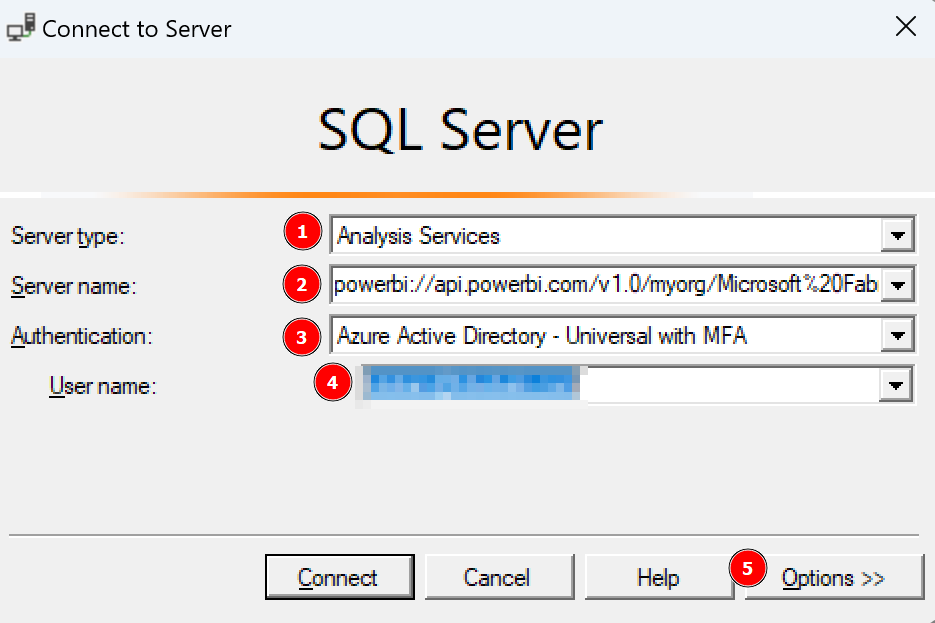
Now, I open SQL Server Profiler and put the connection string as Server name, select Azure Active Directory – Universal with MFA as authentication method, put in my mail as User name and hit Options.

Once the window extends, I select Connection Properties, specify Fabric Capacity Metrics as database to which I wish to connect, and hit Connect.

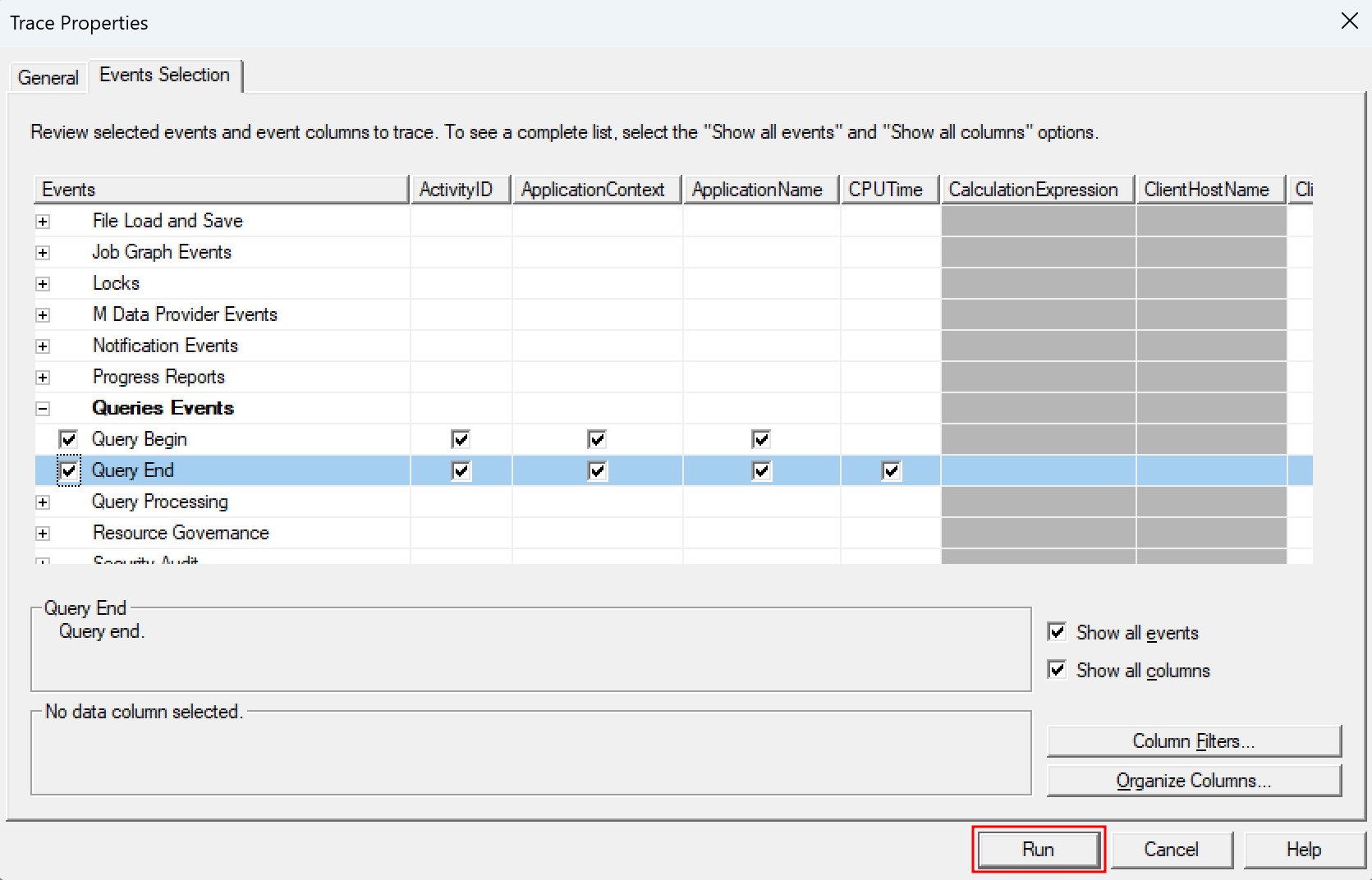
On the next screen, I go directly to Events Selection at the top, extend Queries Events, and select Query Begin and Query End.

With that, I’m prepared to capture the DAX query but I don’t hit Run yet. I wish to make sure to get the right query so I switch back to the Power BI Report and enter the edit mode. Now, I just delete all the visuals except the Interactive Operations table. This way, I make sure no other query is executed and I capture only what I need.

Once prepare, I switch back to SQL Profiler and hit Run.

After our tracer is running, I switch one more time back to the Power BI Report and hit the refresh button at the top right.

Now I see two operations in my Tracer – Query Begin and Query End. If I select one of it, I have now the DAX Query for the interactive Operations.

DEFINE
	MPARAMETER 'CapacityID' = 
		"9C3E7404-D2DA-4CB6-B93F-9873BDD3D95A"

	MPARAMETER 'TimePoint' = 
		(DATE(2024, 3, 20) + TIME(15, 59, 0))

	VAR __DS0FilterTable = 
		TREATAS({"9C3E7404-D2DA-4CB6-B93F-9873BDD3D95A"}, 'Capacities'[capacityId])

	VAR __DS0FilterTable2 = 
		TREATAS({"Dataset"}, 'Items'[ItemKind])

	VAR __DS0FilterTable3 = 
		TREATAS(
			{(DATE(2024, 3, 20) + TIME(15, 59, 0))},
			'TimePoints'[TimePoint]
		)

	VAR __DS0Core = 
		SUMMARIZECOLUMNS(
			ROLLUPADDISSUBTOTAL(
				ROLLUPGROUP(
					'TimePointInteractiveDetail'[OperationStartTime],
					'TimePointInteractiveDetail'[OperationEndTime],
					'TimePointInteractiveDetail'[Status],
					'TimePointInteractiveDetail'[Operation],
					'TimePointInteractiveDetail'[User],
					'TimePointInteractiveDetail'[OperationId],
					'TimePointInteractiveDetail'[Billing type],
					'TimePointInteractiveDetail'[Start],
					'TimePointInteractiveDetail'[End],
					'Items'[IsVirtualArtifactName],
					'Items'[IsVirtualWorkspaceName],
					'Items'[WorkspaceName],
					'Items'[ItemKind],
					'Items'[ItemName]
				), "IsGrandTotalRowTotal"
			),
			__DS0FilterTable,
			__DS0FilterTable2,
			__DS0FilterTable3,
			"SumTimepoint_CU__s_", CALCULATE(SUM('TimePointInteractiveDetail'[Timepoint CU (s)])),
			"SumThrottling__s_", CALCULATE(SUM('TimePointInteractiveDetail'[Throttling (s)])),
			"SumDuration__s_", CALCULATE(SUM('TimePointInteractiveDetail'[Duration (s)])),
			"SumTotal_CU__s_", CALCULATE(SUM('TimePointInteractiveDetail'[Total CU (s)])),
			"Sumv__of_Base_Capacity", CALCULATE(SUM('TimePointInteractiveDetail'[% of Base Capacity]))
		)

	VAR __DS0PrimaryWindowed = 
		TOPN(
			502,
			__DS0Core,
			[IsGrandTotalRowTotal],
			0,
			[SumTimepoint_CU__s_],
			0,
			'TimePointInteractiveDetail'[Billing type],
			0,
			'TimePointInteractiveDetail'[OperationStartTime],
			1,
			'TimePointInteractiveDetail'[OperationEndTime],
			1,
			'TimePointInteractiveDetail'[Status],
			1,
			'TimePointInteractiveDetail'[Operation],
			1,
			'TimePointInteractiveDetail'[User],
			1,
			'TimePointInteractiveDetail'[OperationId],
			1,
			'TimePointInteractiveDetail'[Start],
			1,
			'TimePointInteractiveDetail'[End],
			1,
			'Items'[IsVirtualArtifactName],
			1,
			'Items'[IsVirtualWorkspaceName],
			1,
			'Items'[WorkspaceName],
			1,
			'Items'[ItemKind],
			1,
			'Items'[ItemName],
			1
		)

EVALUATE
	__DS0PrimaryWindowed

ORDER BY
	[IsGrandTotalRowTotal] DESC,
	[SumTimepoint_CU__s_] DESC,
	'TimePointInteractiveDetail'[Billing type] DESC,
	'TimePointInteractiveDetail'[OperationStartTime],
	'TimePointInteractiveDetail'[OperationEndTime],
	'TimePointInteractiveDetail'[Status],
	'TimePointInteractiveDetail'[Operation],
	'TimePointInteractiveDetail'[User],
	'TimePointInteractiveDetail'[OperationId],
	'TimePointInteractiveDetail'[Start],
	'TimePointInteractiveDetail'[End],
	'Items'[IsVirtualArtifactName],
	'Items'[IsVirtualWorkspaceName],
	'Items'[WorkspaceName],
	'Items'[ItemKind],
	'Items'[ItemName]

I could use this query already and execute it in DAX Studio – just to make sure it works as expected.

Make sure to remove the [WaitTime: 0 ms] at the end of the query if you’re copying it from SQL Profiler.

Looks good! I repeat the same steps for the background operations and test is as well in DAX Studio. Once done, I close SQL Server Profiler as tracing is not necessary anymore.

As a next step, let me analyze the generated query and optimize it. I will start this time with the background operations. The first variable defined is a MPARAMETER for the Capacity ID. The second one is as well a MPARAMETER for the Timepoint including the conversion. MPARAMETERS are so-called binding parameters which are passed through from the Power BI report to Power Query. DAX.guide has a great explanation and example here: https://dax.guide/st/mparameter/ This means we have to pass those two values to retrieve the correct result.

Going further, three different variables are defined which are used later on to filter. We have again the Capacity ID, Timepoint, and an Item filter to get only Datasets. As I don’t need the Item filter, I just delete it. For readability reasons, I also renamed the other two variables going from __DS0FilterTable to varFilter_Capacity and from DS0FilterTable3 to varFilter_TimePoint.

My first block of DAX looks like this.

DEFINE
	MPARAMETER 'CapacityID' = 
		"9C3E7404-D2DA-4CB6-B93F-9873BDD3D95A" --add your capacity ID here

	MPARAMETER 'TimePoint' = 
		(DATE(2024, 3, 20) + TIME(15, 59, 0))

	VAR varFilter_Capacity = 
		TREATAS({"9C3E7404-D2DA-4CB6-B93F-9873BDD3D95A"}, 'Capacities'[capacityId]) --add your capacity ID here

	VAR varFilter_TimePoint = 
		TREATAS(
			{(DATE(2024, 3, 20) + TIME(15, 59, 0))},
			'TimePoints'[TimePoint]
		)

Replace the three dots with your Capacity ID.

The next big block is a simple group by logic based on different columns and summarizes different KPIs on top. I simplify and store it as well into a variable.

VAR varTable_Details =
		SUMMARIZECOLUMNS(
			'TimePointBackgroundDetail'[OperationStartTime],
			'TimePointBackgroundDetail'[OperationEndTime],
			'TimePointBackgroundDetail'[Status],
			'TimePointBackgroundDetail'[Operation],
			'TimePointBackgroundDetail'[User],
			'TimePointBackgroundDetail'[OperationId],
			'TimePointBackgroundDetail'[Billing type],
			'Items'[WorkspaceName],
			'Items'[ItemKind],
			'Items'[ItemName],
			
			varFilter_Capacity,
			varFilter_TimePoint,
			
			"Timepoint CU (s)", SUM('TimePointBackgroundDetail'[Timepoint CU (s)]),
			"Duration (s)", SUM('TimePointBackgroundDetail'[Duration (s)]),
			"Total CU (s)", CALCULATE(SUM('TimePointBackgroundDetail'[Total CU (s)])),
			"Throttling", CALCULATE(SUM('TimePointBackgroundDetail'[Throttling (s)])),
			"% of Base Capacity", CALCULATE(SUM('TimePointBackgroundDetail'[% of Base Capacity]))
		)

Lastly, we need an EVALUATE to get a result.

EVALUATE  SELECTCOLUMNS(
    varTable_Details,
    "BillingType", [Billing type],
    "Status", [Status],
    "OperationStartTime", [OperationStartTime],
    "OperationEndTime", [OperationEndTime],
    "User", [User],
    "Operation", [Operation],
    "OperationID", [OperationId],
    "WorkspaceName", [WorkspaceName],
    "Item", [ItemKind],
    "ItemName", [ItemName],
    "TimepointCUs", [Timepoint CU (s)],
    "DurationInS", [Duration (s)],
    "TotalCUInS", [Total CU (s)],
    "Throttling", [Throttling],
    "PercentageOfBaseCapacity", [% of Base Capacity]	
)

This way, we have now an optimized and more readable DAX statement for the Background operations. To get the same optimized query for interactive operations, I only need to replace the TimePointBackgroundDetail table with TimePointInteractiveDetail and I’m already good to go! The whole DAX statement can be found in my GitHub repo.

Now, we have everything on hand to extract the required details on a – for example – daily base. There are various options to achieve it – from Power Automate Flows, to Microsoft Fabric Pipelines, and / or Python Notebooks (Databricks or Microsoft Fabric), and many more. In my next blog post, I’ll walk you through one possible option to store the data into OneLake.

Please let me know if this post was helpful and give me some feedback. Also feel free to contact me if you have any questions.

If you’re interested in the files used in this blog check out my GitHub repo https://github.com/PBI-Guy/blog

How to get automatically notified about new Tenant Settings

From time to time I got asked how Fabric admins can automatically get notified if a new Tenant Setting appear as they don’t wish to manually check the UI on a regular base. Even with the new “New” indicator, it’s still a manual process. Luckily, back in May 2023, we introduced a GetTenantSettings API which we can leverage to create an automated notification process! In this blog post I’ll show you how to leverage the different Microsoft Fabric components to get a Teams notification once a new Setting is available.

Prerequisites

Following things are needed for this solution:

  • Microsoft Fabric Capacity (F2 or above, or a Trial license)
  • Service Principal with sufficient permission
  • Python skills
  • basic knowledge of REST API calls

Let’s get started

In my case, I created a simple F2 capacity in the Azure Portal (see https://learn.microsoft.com/en-us/fabric/enterprise/buy-subscription#buy-an-azure-sku) and assigned my PBI Guy Premium Workspace to it. In there, I created a new Lakehouse called PBI_Guy_Lakehouse. Once created, I create a new Notebook to get started with my Python code. Before I begin, I rename it to “Get Tenant Settings”.

As usual, in my first cell I import all required libraries.

#Import necessary libraries

import msal
import requests
import json
from datetime import datetime
from pyspark.sql.functions import col, explode_outer

Next, I need to get an access token to authenticate against Fabric. I showed in my previous blog posts (e.g. https://pbi-guy.com/2023/11/17/export-power-bi-reports-as-pdf-via-rest-api/) how to do so. In this specific case, I create a separate Notebook to leverage the code for future development and call it “Get Fabric Access Token”. As I stored the secret in Azure Key vault, I use following code to get it.

#Define paramter
key_vault_uri = ''
client_id = ''
authority_url = "https://login.microsoftonline.com/..." #replace three dots with your organization
scope = ["https://analysis.windows.net/powerbi/api/.default"]
#Get Secret from Azure Key Vault
client_secret = mssparkutils.credentials.getSecret(key_vault_uri,client_id)
#Use MSAL to grab token
app = msal.ConfidentialClientApplication(client_id, authority=authority_url, client_credential=client_secret)
token = app.acquire_token_for_client(scopes=scope)

#Create header with token
if 'access_token' in token:
access_token = token['access_token']
header = {'Content-Type':'application/json', 'Authorization':f'Bearer {access_token}'}

Back to my “Get Tenant Settings” Notebook, I add following code as my second cell.

%run Get Fabric Access Token

Next, I specify my parameters I wish to reuse.

#Set Tenant API URL
url = 'https://api.fabric.microsoft.com/v1/admin/tenantsettings'

#Get Current datetime
now = datetime.now()

I got used to create functions for calling APIs. Looks like an overhead right now as we’re just calling the API once, but always good to be ready for future improvements. Therefore, I add following cell.

#Define Request Functions
#Get Request
def get_request(url, header):
api_call = requests.get(url=url, headers=header)
return api_call

#Post Reuqest
def post_request(url, header, body):
api_call = requests.post(url=url, headers=header, json=body)
return api_call

Each function expects a URL and a header. The Post request also requires a body. Now that I defined all parameters and successfully got a token to authenticate, I can call the GetTenantSettings API. Afer retrieving the result, I convert it to a PySpark DataFrame and show the result.

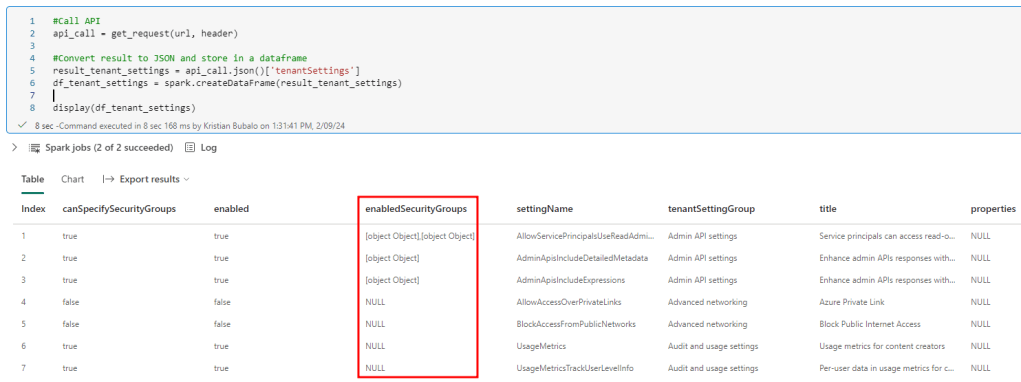
#Call API
api_call = get_request(url, header)

#Convert result to JSON and store in a dataframe
result_tenant_settings = api_call.json()['tenantSettings']
df_tenant_settings = spark.createDataFrame(result_tenant_settings)

display(df_tenant_settings)

Looking at the result, I see the enabledSecurityGroup column is an Array holding the Security Group GUID and name. This is very well documented here: https://learn.microsoft.com/en-us/rest/api/fabric/admin/tenants/get-tenant-settings

There are two possible ways to extract and store this data now. Either, I can create a separate DataFrame holding only the Setting and assigned Security Groups to it, or I wish to extract the values and pivot the result. This means I add two new columns – GUID and Name – and add one row for each Security Group within the Tenant setting. From a reporting point of view and following best practice for Star-Schema, I would def. recommend the first approach. Nevertheless, as we’re working here with a very small set of data, I choose the second option to easy things up. For that reason, I have to use the explode_outer function. “Explode” wouldn’t work as all settings without a Security Group assigned (null values) will be filtered out. On top, because I want to specify which columns my DataFrame should include, I create a new parameter called columns passing all the columns I’m interested in. Lastly, I name the two columns SGUID and SGName, where SG stands for Security Group.

#Specify Columns
columns = ["settingName", "title", "enabled", "tenantSettingGroup", "properties", "canSpecifySecurityGroups",]

df_tenant_settings = df_tenant_settings.select(
*columns,
explode_outer("enabledSecurityGroups").alias("Exploded_SG")
).select(
*columns,
col("Exploded_SG.graphId").alias("SGUID"),
col("Exploded_SG.name").alias("SGName")
)

# Show the result
display(df_tenant_settings)

I specifically didn’t add the enabledSecurityGroup column as it’s not needed anymore.

Checking the result now, I got everything I need and the values of SGUID and SGName are extracted.

As a last step, I create a third Notebook called “Save Tenant Settings”. In there, I call the Get Tenant Settings Notebook and add a second cell to save my DataFrame now as a Table in my Lakehouse with following code.

%run Get Tenant Settings
#Save Dataframe as table to Lakehouse
df_tenant_settings.write.mode('overwrite').format('delta').saveAsTable('fabric_tenant_settings')

This table can now also be used to track changes for example and get a notification if a Tenant Setting has been changed. Also, as all Security Groups are included, you can track if a SG is added or removed from a specific tenant setting.

I separated the last code specifically from the Get Tenant Settings Notebook to make sure I can run a save once needed and not every time I run the code. Further, I can leverage the Get Tenant Settings Notebook now for my diff analysis and notifications.

Let’s build a Diff Analysis

The beauty of spark is, how easy you can achieve your goal in some cases. To be able to create a Diff Analysis, we will need just a few lines of code. For that, I create a new Notebook called Diff Analysis Tenant Settings and execute the Get Tenant Settings Notebook in the first cell.

%run Get Tenant Settings

Afterwards, I select only the settingName column as this is my main focus.

#Select only settingName column
df_actual_tenant_settings = df_tenant_settings.select("settingName")

Next, I read the saved tenant settings and store them into a separate DataFrame. For my test purpose, I filter UsageMetrics out to make sure I have a difference. Obviously, this line should be deleted in a prod environment otherwise you’ll get always a notification.

#Read saved tenant settings to compare against
df_saved_tenant_settings = spark.sql("SELECT settingName FROM PBI_Guy_Lakehouse.fabric_tenant_settings")

#For testing purpose, filter out Usage Metrics. Delete this line for production environment
df_saved_tenant_settings = df_saved_tenant_settings.filter(df_saved_tenant_settings.settingName != 'UsageMetrics')

Lastly, I use the subtract function to compare the two DataFrames.

df_diff = df_actual_tenant_settings.subtract(df_saved_tenant_settings)
display(df_diff)

Showing the result, I see only UsageMetrics which I filtered out previously.

One last step we still need to do is to convert the DataFrame into a string, combining all rows comma separated, as the Data Pipeline, which we will create next, do not accept Arrays / Tables as Parameters as of writing this blog post.

from pyspark.sql.functions import concat_ws, collect_list

combined_string = df_diff.groupBy().agg(concat_ws(", ", collect_list("settingName")).alias("CombinedString")).first()["CombinedString"]
mssparkutils.notebook.exit(combined_string)

Now, let’s get notified

After the setup, the only thing missing is to get notified once a difference is analyzed. So let’s build a Pipeline for that! To do so, I select my Workspace, hit +New and select Data pipeline. If you don’t see it in the drop down menu, just select “More Options” and choose it from there. I name the pipeline “Notify new Tenant Settings” and hit create. In the ribbon, I choose “Notebook” as a first action and name it “Get Difference”.

Afterwards, I select the Settings tab and assign the Diff Analysis Tenant Settings to the Notebook action.

Next, I select in the Ribbon the Activities Tab and choose the Teams icon. Once the action is on the screen, I connect my Notebook action with the Teams action on success.

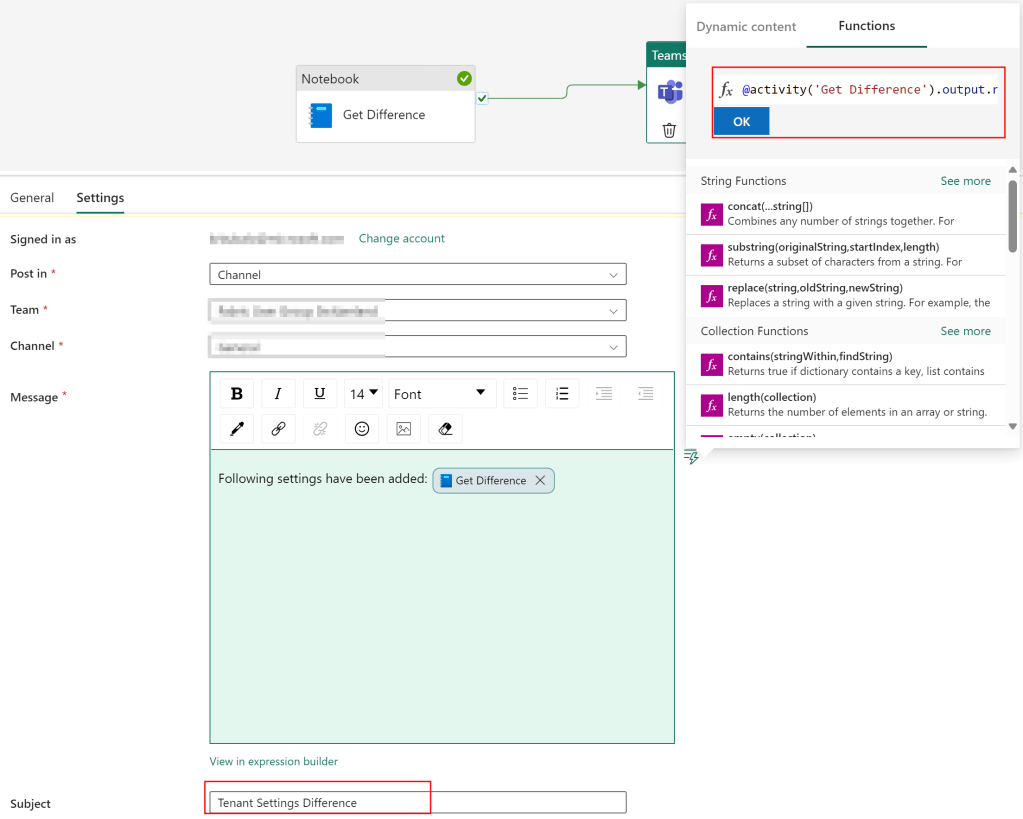
Lastly, I rename the Teams action to “Send Teams message” and switch to the Settings tab. In there, I have to sign in first by clicking the button. A Sign in window will pop up in which you have to sign in as well as allow access so that the Data Pipeline can send messages. After successfully giving access, I only need to specify in which Channel or Group Chat I wish to post the message and provide the Parameter from my Notebook action into the Teams message. I do that by switching to the Functions tab and add following code

@activity('Get Difference').output.result.exitValue

I also provide a nice text in front and add the subject “Tenant Settings Difference”.

Now, I just hit the Run button in the Home Ribbon and wait until it’s executed. If everything works as expected, you’ll see a Succeeded status as well as the message in your Teams.

Some last thoughts

As I haven’t provided a logic to check if new settings are there, I’ll get a Teams notification after every run of the Pipeline. This means I would need to add an if else condition in front of the Teams Message activity to check if the string is empty or not. On the other hand, if I run the pipeline e.g. on a weekly base, I make sure no settings are added and I get notified about it – which I like more in my case.

Further, I’d need to set up a schedule to run the pipeline on a regular base. As this is straight forward and very well documented here (https://learn.microsoft.com/en-us/fabric/data-factory/pipeline-runs#scheduled-data-pipeline-runs), I’m not going to walk you through that as well.

And that’s already it! I can now get automatically notifications about new Tenant Settings.

Please let me know if this post was helpful and give me some feedback. Also feel free to contact me if you have any questions.

If you’re interested in the files used in this blog check out my GitHub repo https://github.com/PBI-Guy/blog

Track Power BI Capacity overloaders with Power Automate

Note from PBI Guy: A few weeks ago I had the pleasure to meet Manel Omani, a colleague of mine, who presented a super interesting solution how she’s tracking Power BI Capacity overloaders via Power Automate and notify automatically the Dataset owner. I thought this has to be shared with the Power BI community and asked here to create a blog post about it. Luckily, she agreed and I’m happy to share the result here.

As a Power BI Capacity administrator, have you ever experienced multiple slowdowns and noticed that too late ? This is a very common issue that capacity administrators face when they track and monitor the usage of memory/CPU of the artifacts. Thankfully, in the capacity setting we still have the possibility to set notifications whenever the load reaches x%, or when it exceeds the available capacity. This notifications are helpful to detect the slowdowns early on, but do not really help to highlight which artifact is consuming more resources than the others. To get this information, you need to check it on  “the Premium metrics app”. 

The idea of this article is to propose ways to combine the Premium metrics app and Power Automate in order to set notification to the owner of the artifact causing slowdowns on the capacity so that they can work on optimizing their data model and prevent future slowdowns. 

Overloaders detection on Power BI Premium: the approach 

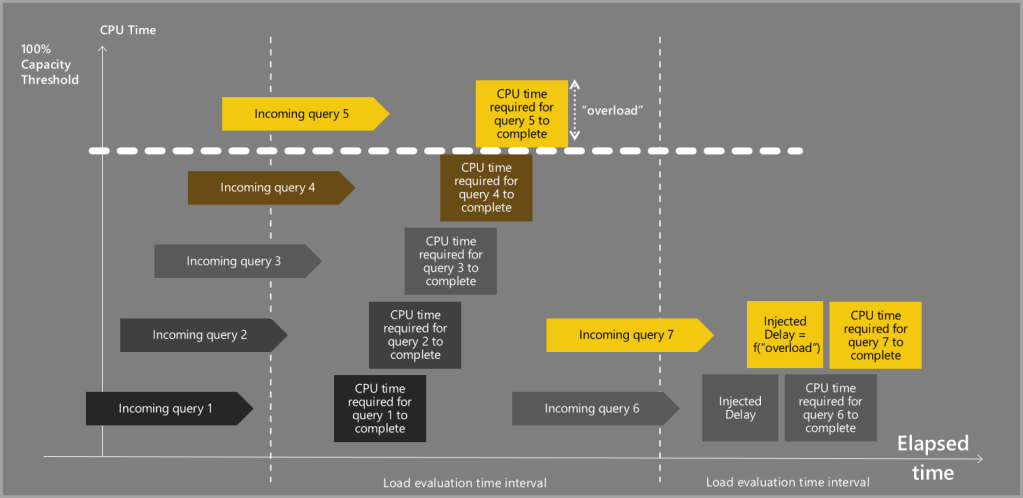
Capacity overload happens when one consumes more CPU in a 30sec interval than what the capacity allows. For instance, if you have a P1 capacity, you can consume 8 cores * 30 sec = 240 sec of CPU time. If you exceed 240 sec CPU time in a 30 sec interval, all the queries that follow with be delayed. 

This overload can be detected on the Premium metrics app on the CPU% chart.

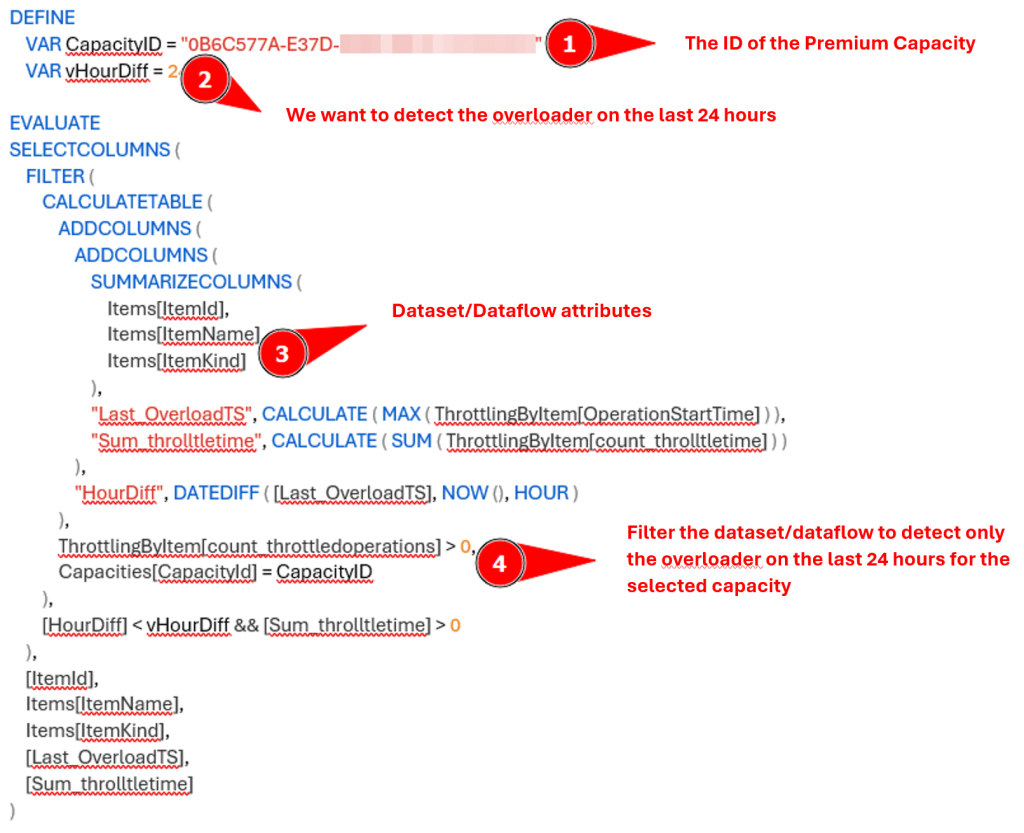
And from the Premium metrics app dataset we can run the following DAX query by using DAX Studio to get the list of overloaders IDs:

Keep in mind that your workspace have to be backed up by a capacity to be able to connect with DAX Studio to your Dataset and execute the statement.

This DAX query gives us the list of artifacts that has raised an overload in the last 24 hours. The results are as follows:

This DAX Query is run on the Data Model of the Premium App Monitoring. Please note that this DAX query may need to be changed if the data model of the App Monitoring is updated.

Now that the overloaders are identified, the objective is to get the owner of these artifacts and the details behind the overloading. As the Premium Capacity app does not hold this data, we need to find another approach to retrieve the owner of the dataset. One way is to use the Power BI Rest API: https://api.powerbi.com/v1.0/myorg/datasets/{datasetId} which can provide the email address of the user who configured the dataset.

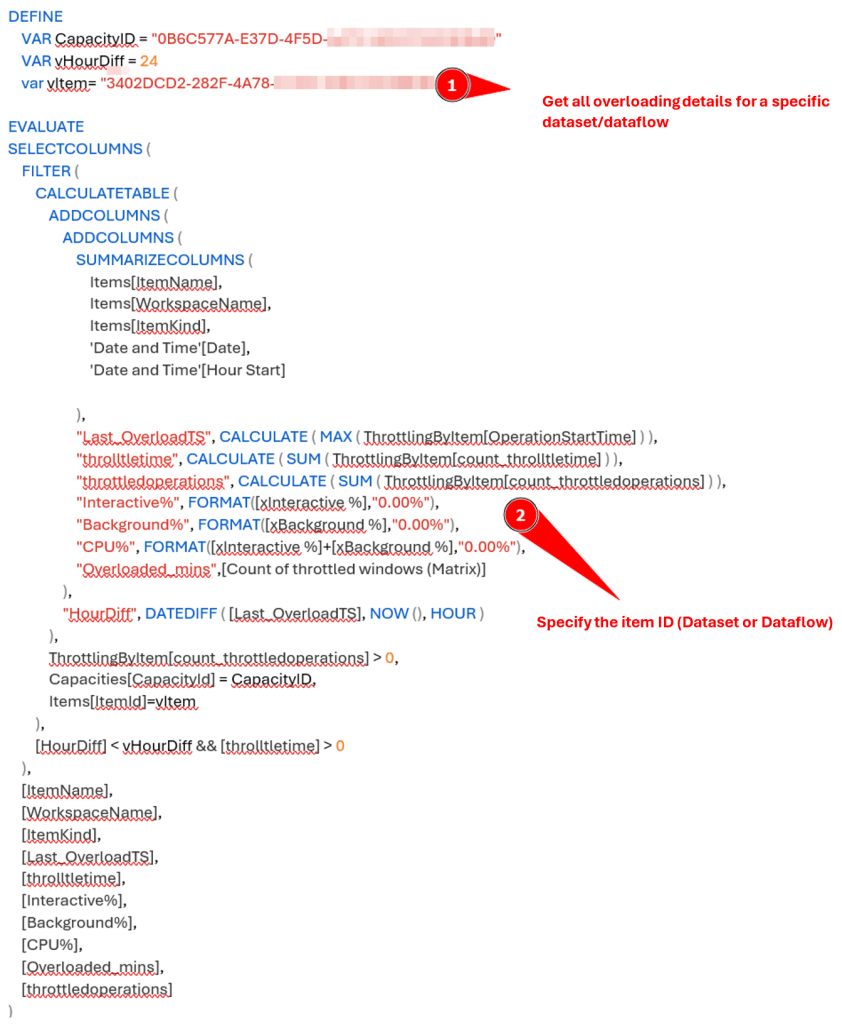
Now, to get the details of the overload, such as “how many times the dataset has raised an overloading” or “how much CPU has been used”, we can run another DAX query over the Premium App monitoring dataset as follows:

The results can be seen below:

With all these information, we can notify through email or a Teams message, the owner of the dataset (extracted from the Power BI rest API), with all the required information to handle the overload. It is also possible to save all these information periodically (in a Blob storage, DWH, CSV files, etc.), so that we can analyze the “bad students” of the Premium capacity and help them optimize their data model.

Overloaders detection on Power BI Premium: Setting the scene with Power Automate

For this example, we are going to use Power Automate to automate the e-mail/Teams notification to the owner of dataset who caused an overload in the last 24 hours with all the dataset consumption details.

Please note that Power Automate offers many ways to send notification or to store the data collected.

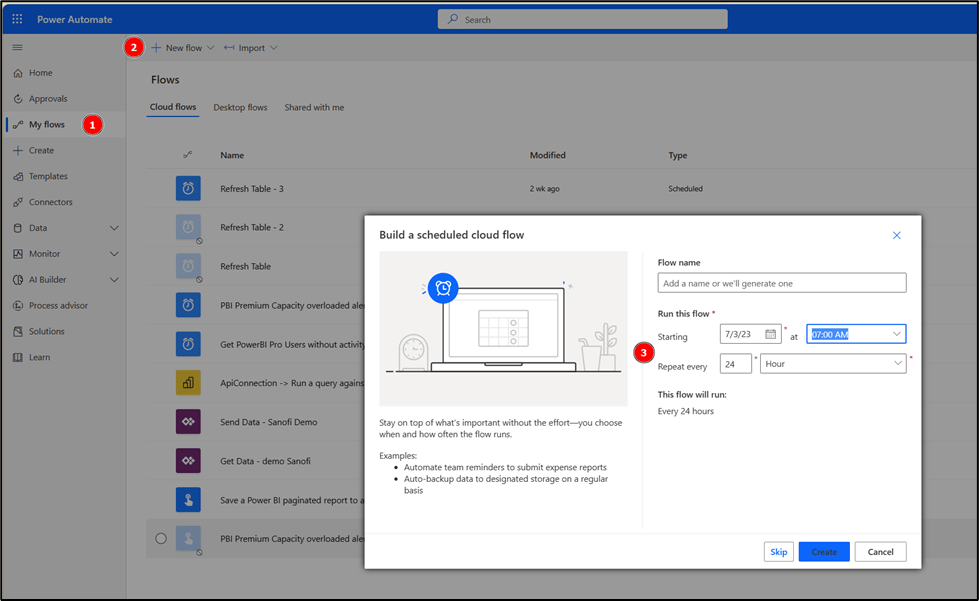
Once I logged into Power Automate, I will start by creating a flow with a scheduled Cloud Flow. The idea again is to run this flow each morning to see the overloaders of yesterday:

Let’s first create 3 variables that will help us later with our configuration:

  1. The first variable “CapacityName” will store the Premium Capacity ID
  2. The second variable “timeDiffrence inHours” will store how many hours I want to look at ( in my case, I’m using 24 hours)
  3. The third variable “Overloader details table” is an empty array that will be used to store the overloading details of each dataset so we can use it to send that to the owner.

After the creation of these variables, we will run our first DAX query in Power Automate by using the “Run a Query against a Dataset” Power BI action as follows:

Now that we have the IDs of the dataset that has caused an overloading in the last 24 hours, we will need to get their owner.

To get this information, I created a custom connector that will call a Power BI REST API : https://api.powerbi.com/v1.0/myorg/datasets/{datasetId}

You can find all the details of creating such connector on this article: Power BI – Custom Refresh with Power Automate
It’s not required to go through a Custom Connector. You could also use the HTTP Action but for reusability purpose it’s much easier with a custom connector.

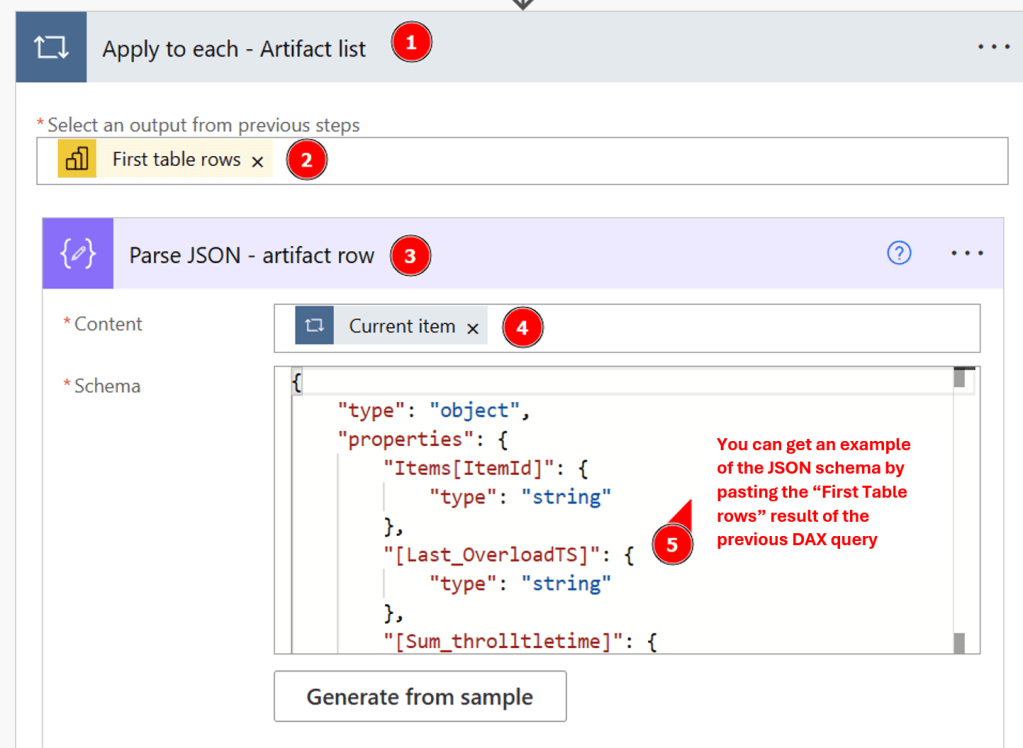
The “run a query against a dataset” action will return a JSON list that contains the IDs of the dataset. We will need to loop on each row in order to get their owner and run a second DAX query that will retrieve the overloading details. To do so, we will use “Apply to each” action in the flow and parse each “First Table rows” as follow:

After parsing the result of the DAX query, we will call the custom connector created earlier in order to get the owner of the dataset:

Now that we have the ID of the dataset parsed (Items[ItemID]) and the Owner of this dataset (ConfiguredBy), we can run our second DAX query to retrieve the details of overload of this dataset as follows:

Same thing here, we will need to parse the query result and use it to initiate our Table variable that will hold the throttling details for each dataset:

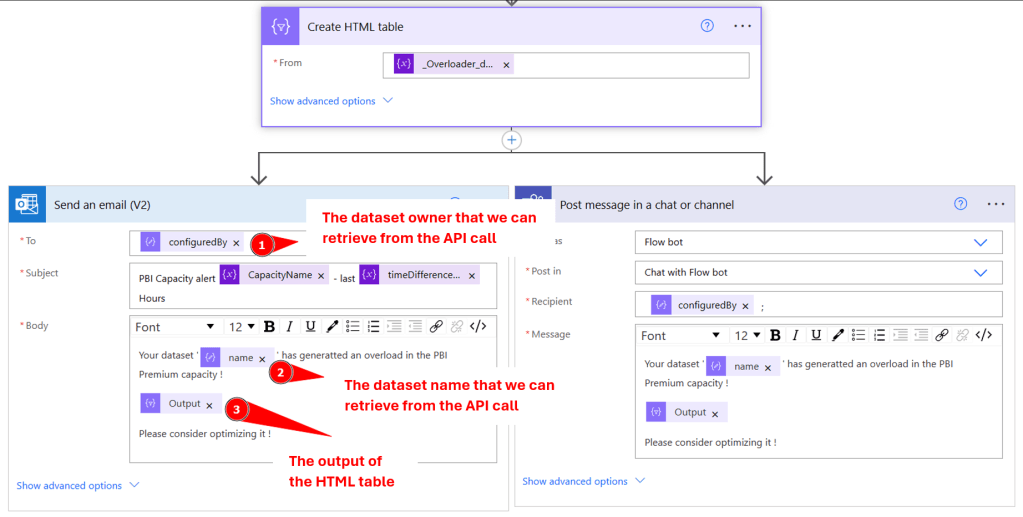
Now that we parsed our data and initiate a Table variable with the throttling detail (for only one dataset), we will create and HTML table that we can use in order to notify the dataset owner with the overloading that he created. Here you have the choice to either send and e-mail or Teams message, or even store the result in a SharePoint or Blob Storage:

The full flow is presented as follow:

For this, we just used some DAX statement to identify the overloaders and combined the information afterwards with a REST API call to retrieve the Dataset owner. Obviously, there are multiple ways to achieve the same goal but I hope I showed you in a low-code manner how to achieve this goal.

Please let me know if this post was helpful and give me some feedback. Also feel free to contact me if you have any questions.

If you’re interested in the files used in this blog check out my GitHub repo https://github.com/PBI-Guy/blog
Assign Power BI workspaces to a capacity automatically

In recent discussions with customers, I was asked if there is an automatic way to assign workspaces to dedicated capacities like Power BI Premium or Embedded. Obviously, you can do it manually through the Power BI Admin Portal, but how can you automate it in a scenario where you have to assign hundreds of workspaces based on different conditions? I’m sure you know my answer for this question: Through the Power BI REST API! Let me walk you through how to achieve it.

Prerequisites

You’ll need a few things to be able to automate this need.

  • Service Principal
  • A dedicated capacity (Power BI Premium, Embedded, or Premium per User license)
  • Python skills
  • Understanding REST APIs

Setting the scene

For my demo purpose I’m going to use a Power BI Embedded capacity – a so-called A-SKU – from the Azure Portal. If you’re interested in how to create an Embedded capacity, follow this link.

Further, I’m going to reuse my already created Service Principal (SP). I blogged about how to create a SP, what kind of settings in your Power BI Service you need to enable, and what kind of permissions are needed here.

Lastly, I have to make sure my SP can assign workspaces to the capacity. Regarding the documentation (see here) the SP needs admin rights on the workspace as well as capacity assignment permissions to that capacity.

Unfortunately, the Admin REST API does not support (yet?) Service Principals to assign workspaces to a capacity. Therefore, we have to make sure that the SP is admin of each workspace we wish to move to a capacity. Luckily, there is an Admin API to assign yourself as Admin or a SP to a workspace (see here). If you’re interested in a blog about assigning a SP to different workspaces, let me know and I’ll be happy to blog about it.

So, let’s make sure the SP has sufficient permissions.

Add SP as Admin to a workspace

This step is pretty easy and straight forward. Just head over to powerbi.com, select your workspace, click on Access, and make sure your SP is added as Admin.

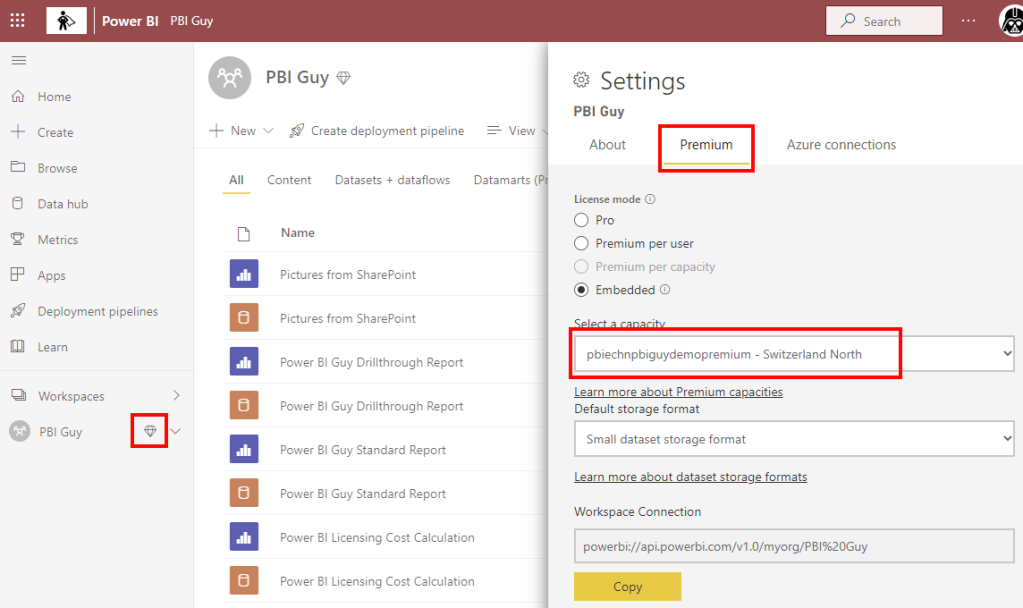
As you can see in the screen shot above, the workspace is not assigned to a capacity yet otherwise it would have a diamond sign right to the workspace name (PBI Guy).

Add SP as Capacity Admin

In the case of Power BI Embedded you can’t differentiate between admins and contributors like with Premium. Therefore, I have to add the SP as admin in the Azure Portal. To do that I just log in to the Azure Portal, select my Power BI Embedded capacity, and click on Power BI capacity administrators. Once there, click + Add, search for your SP and add it. That’s it. Just make sure your Embedded Capacity is running otherwise you can’t add a new admin.

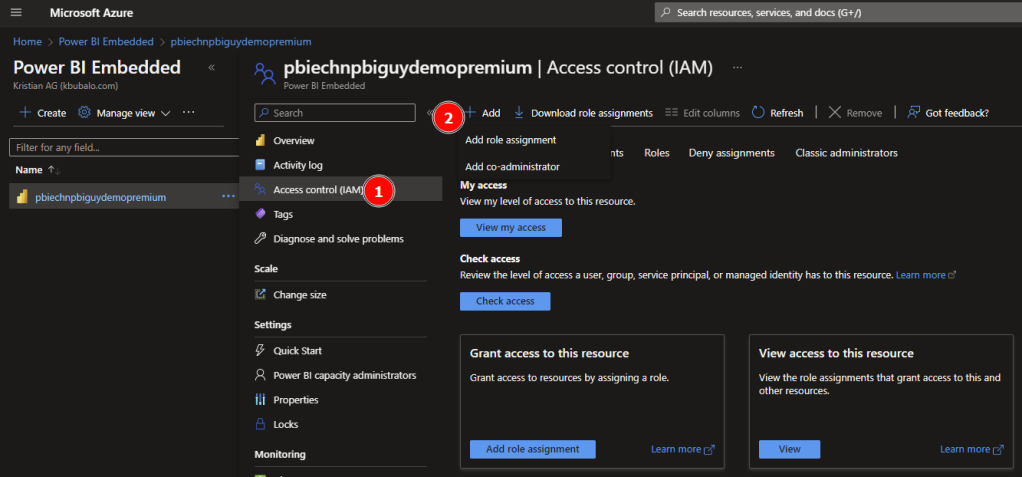
Further, we have to make sure the Service Principal is allowed to start and pause the embedded capacity. This is done through the Access control on the left-hand side of the pane. Once selected, click + Add and select Add role assignment.

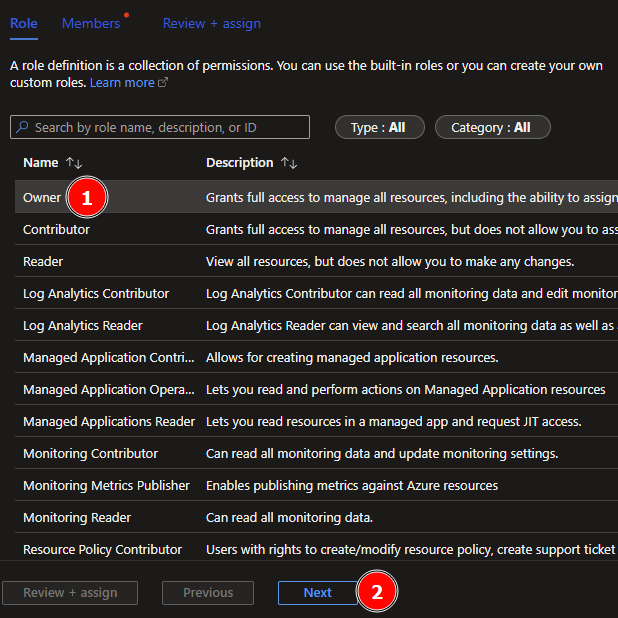
Next, select the needed role. In my case I just give the SP Owner rights but Contributor would be sufficient as well. Once selected, hit next.

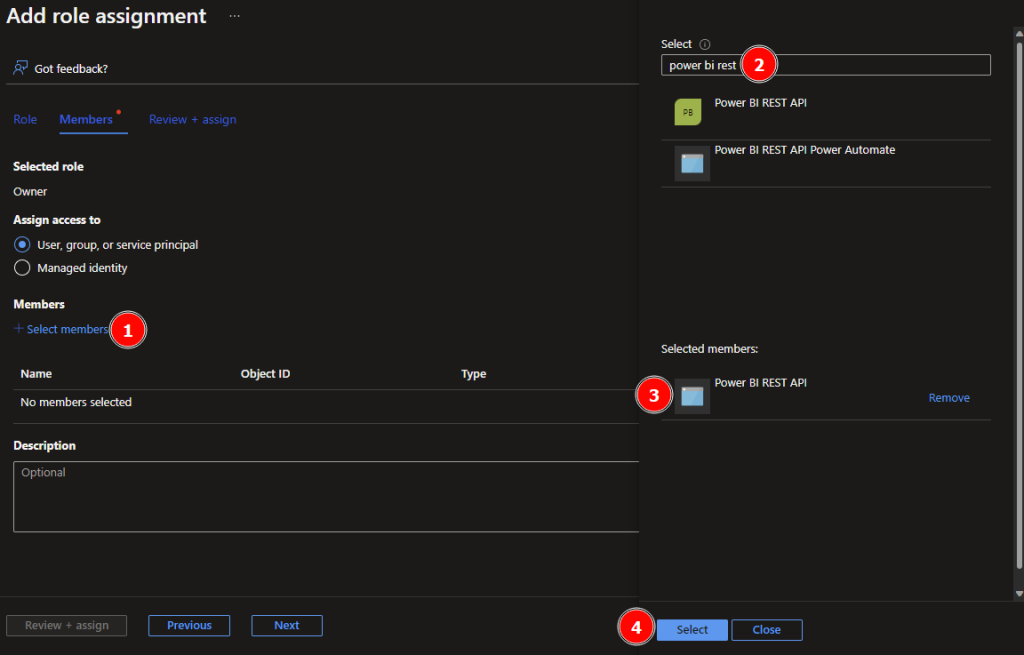
On the next screen just select the + Select members, search and add the SP to it. Click select to proceed.

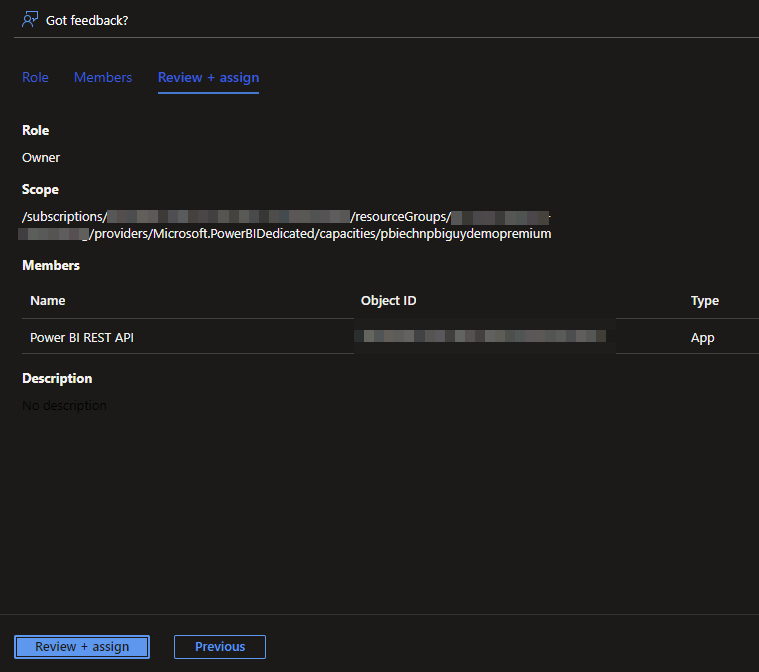
Lastly, hit Review + assign to check your configuration.

If everything looks as expected, hit Review + assign again. We’re now good to go and create our Python script.

It’s time for magic!

As usual, in my first block of code I’m going to import the needed libraries.

#Import necessary libraries

import msal
import requests
import json
import pandas as pd
import time
from azure.identity import DefaultAzureCredential

In my second block, I specify all required variables which we will use later on.

#Set variables

client_id = "" #Service Principal ID
client_secret = "" #Secret from Service Principal
tenant_id = '' #Tenant UID, can also be found in the Service Principal Overview under "Directory (tenant) ID"
domain = '' #Your domain name
authority_url = "https://login.microsoftonline.com/"  + domain
scope = ["https://analysis.windows.net/powerbi/api/.default"]
subscriptionId = '' #Subscription ID on which the PBI Embedded is running
resourceGroupName = '' #Resource Group Name in which the PBI Embedded capacity has been created

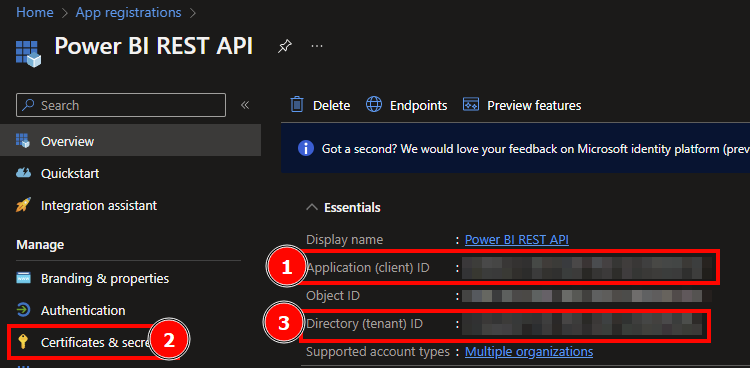
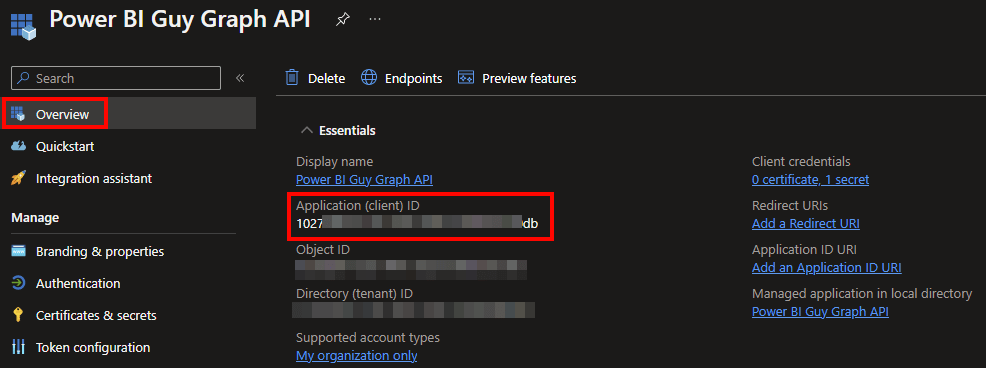
The client id, secret as well as the tenant id can be found in the Overview page of your SP.

The domain is everything behind the @ of your email address, e.g. kristian@pbiguy.com would mean “pbiguy.com”.

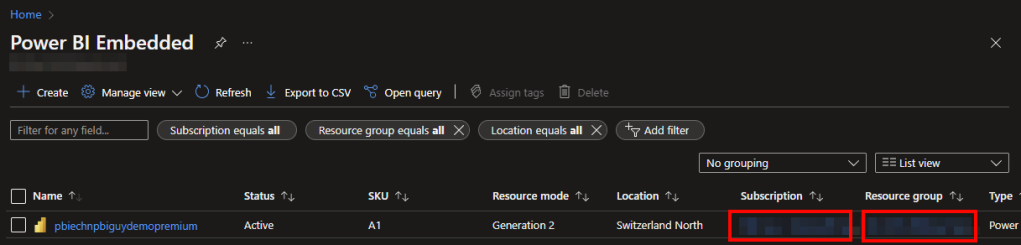
Authority URL and the scope shouldn’t be touched as those are needed to authenticate for the PBI Service. Lastly, the subscription name and resource group name can be found in the Azure Portal on the Power BI Embedded Services overview.

Just keep in mind to use the Subscription ID, not the name!

Next piece of code is to grab a token on behalf of the SP.

#Use MSAL to grab token
app = msal.ConfidentialClientApplication(client_id, authority=authority_url, client_credential=client_secret)
result = app.acquire_token_for_client(scopes=scope)

In my next step, I want to list all capacities I have access to. Because I’ll need to do that twice within the code (explanation will follow), I create a function, so I don’t have to duplicate my code. The function returns a Pandas DataFrame with all capacities incl. further details.

#Function to get all available capacities
#Power BI Premium Per User will also be listed as capacity separately

def get_all_capacities():
    """Get all available capacities the user has access to.
    Power BI Premium per User will be listed separately.
    Returns a Pandas Dataframe with Capacity ID, Name, Admins, SKU, state, User AccessRight, Region, and Users."""
    url_get_all_capacities = "https://api.powerbi.com/v1.0/myorg/admin/capacities"
    
    if 'access_token' in result:
        access_token = result['access_token']
        header = {'Content-Type':'application/json', 'Authorization':f'Bearer {access_token}'}
        api_call = requests.get(url=url_get_all_capacities, headers=header)
        result_value = api_call.json()['value']
        df_all_capacities = pd.DataFrame(result_value)
        return df_all_capacities

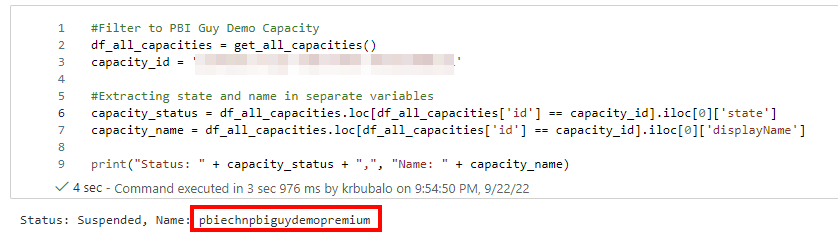
Next, I want to select my desired capacity, which is in my case the Power BI Embedded one. So, I call the function to get all capacities and filter the result, based on the capacity id, to my Embedded one. Making sure the right one is selected, I print out the capacity name as well as the status (is it running or paused).

#Filter to PBI Guy Demo Capacity
df_all_capacities = get_all_capacities()
capacity_id = '163A01FC-6115-4305-9007-A03391B0B151'

#Extracting state and name in separate variables
capacity_status = df_all_capacities.loc[df_all_capacities['id'] == capacity_id].iloc[0]['state']
capacity_name = df_all_capacities.loc[df_all_capacities['id'] == capacity_id].iloc[0]['displayName']

print("Status: " + capacity_status + ",", "Name: " + capacity_name)

The result is as desired, and I only selected my Embedded capacity.

Now that I got the needed capacity, it’s time to get all workspaces I wish to assign to this capacity. Therefore, my next step is to call the REST API to list all workspaces the SP has access to. To get an overview, I display the DataFrame at the end.

#Get all Workspaces the user has access to
url_get_all_workspaces = 'https://api.powerbi.com/v1.0/myorg/groups'

if 'access_token' in result:
    access_token = result['access_token']
    header = {'Content-Type':'application/json', 'Authorization':f'Bearer {access_token}'}
    api_call = requests.get(url=url_get_all_workspaces, headers=header)
    result_value = api_call.json()['value']
    df_all_workspaces = pd.DataFrame(result_value)
    display(df_all_workspaces)

For my purpose, I filter the workspaces to only include those with “BI” in the name. Of course, you can create further conditions and filter options based on your needs.

#Filter to needed workspaces. In this case all workspaces with "BI" in the name will be used.
df_selected_workspaces = df_all_workspaces[df_all_workspaces['name'].str.contains('BI')]
display(df_selected_workspaces)

Again, I display the DataFrame at the end to check my filter and selection. Looks good so far.

Let’s do a quick recap what we achieved so far. We have our capacity selected to which we want to assign our workspaces. We also selected all the workspaces we wish to assign to our capacity. As a next step, we have to assign them. But before doing so, especially in the case of Power BI Embedded, we have to make sure that the capacity is running and not paused. Thus, my next block of code will check the status and if it’s paused (suspended), I’ll start (activate) it. This step is not necessary for Premium capacities as they are always active.

I’ll first create a function to get an Azure token. This one differs from the Power BI one as we have to log in into Azure and not Power BI.

Next, I define a function to create the URL to start or pause the capacity. As the REST API URL is very similar and only the last piece (status variable) differs, it’s much more efficient due to reusability reasons to work with a function in this case.

Lastly, I use the capacity status from my previous code to check if it’s suspended. If so, I call the previously created function to create an Azure Token and call the REST API to resume the capacity. At the end of the code, I print out a message based on the status code received.

#Check status of Capacity
#If Suspended, Resume it to be able to assign workspace

def get_az_token(tenant_id, client_id, client_secret):
    """Function to get an Azure Token.
    3 variables are required: tenant_id, client_id, and client_secret."""
    data = "grant_type=client_credentials&client_id=" + client_id + "&client_secret=" + client_secret + "&resource=https%3A%2F%2Fmanagement.azure.com%2F"
    url = "https://login.microsoftonline.com/" + tenant_id + "/oauth2/token"
    response = requests.post(url, data=data)
    AccessToken = response.json()["access_token"]
    return AccessToken

def create_url (subscriptionId, resourceGroupName, pbiCapacityName, status):
    """Function to change status of capacity.
    Required variables are subscriptionId, resourceGroupName, pbiCapacityName, and status."""
    url = 'https://management.azure.com/subscriptions/' + subscriptionId + '/resourceGroups/' + resourceGroupName + '/providers/Microsoft.PowerBIDedicated/capacities/' + pbiCapacityName + '/' + status + '?api-version=2021-01-01'
    return url

if capacity_status == 'Suspended':
    azToken = get_az_token(tenant_id=tenant_id, client_id=client_id, client_secret=client_secret)
    url = create_url(subscriptionId, resourceGroupName, capacity_name, 'resume')
    header = {'Content-Type':'application/json', 'Authorization':f'Bearer {azToken}'}
    api_call = requests.post(url=url, headers=header)

    if api_call.status_code == 202:
        print('Successfully changed status to resume.')

    if api_call.status_code == 400:
        print('An error occured. Probably the capacity is already in status running.')

    if api_call.status_code == 403:
        print('No sufficient permission to perform this action. Make sure the user has enough right on Capacity.')

As it takes some time to activate the capacity, I’ll check in my next code block if the capacity is really active. Otherwise, I would get an error message trying to assign a workspace to a suspended capacity. Now, I call the get_all_capacities function to get again all capacities, filter down to my desired one, and save the status in a separate variable called capacity_status. Next, I do a while loop if the status is suspended and check all 5 seconds until the status has changed to active. This way I make sure the capacity is really in active stage.

#Check status of Capacity, wait until it changed
df_all_capacities = get_all_capacities()
capacity_status = df_all_capacities.loc[df_all_capacities['id'] == capacity_id].iloc[0]['state']

while capacity_status == 'Suspended':
    print("Capacity is still suspended. Checking status in 5 seconds again.")
    time.sleep(5)
    df_all_capacities = get_all_capacities()
    capacity_status = df_all_capacities.loc[df_all_capacities['id'] == capacity_id].iloc[0]['state']
    if capacity_status == 'Active':
        print("Capacity is active.")
        break

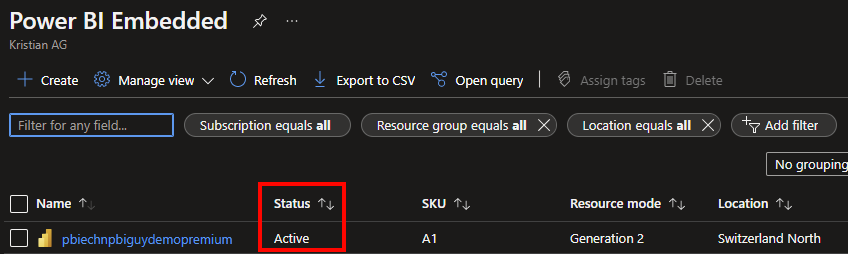
Let’s check in the Azure Portal, if the capacity is really running. I select the general overview of the Power BI Embedded service and see that my embedded capacity has an active status – great!

Finally, I can assign now my workspaces to the capacity. I create a for each loop on my selected workspaces DataFrame to assign each workspace obviously to the capacity (bulk update is not supported through the API). In the loop I extract the workspace ID and the name, update the URL for the REST API call (including the workspace ID), and specify the required body. In there, you’ll find the capacity_id variable specifying to which capacity we wish to assign the workspace. At the end I call the REST API and provide a message based on the status code received. If it’s successful, I print out a message with the workspace and capacity name confirming it worked.

# If you wish to unassign the workspace and move it back to Power BI Service, use the zeros GUID capacity ID
#capacity_id = '00000000-0000-0000-0000-000000000000'
#capacity_name = 'Power BI Service'

for idx, row in df_selected_workspaces.iterrows(): #Iterate through each workspace
    workspace_id = row['id'] #Store the workspace ID in a separate variable
    workspace_name = row['name'] #Store workspace name in a separate variable

    #configure URL to call to remove license from user
    url_assign_to_capacity = "https://api.powerbi.com/v1.0/myorg/groups/" + workspace_id + '/AssignToCapacity'

    body_assign_to_capacity = {
        "capacityId": capacity_id
    }

    if 'access_token' in result:
        access_token = result['access_token']
        header = {'Content-Type':'application/json', 'Authorization':f'Bearer {access_token}'}

        api_call = requests.post(url=url_assign_to_capacity, headers=header, json=body_assign_to_capacity)
        
        if api_call.status_code == 200:
            print('Workspace', workspace_name, 'successfully assigned to new Capacity:', capacity_name)

        if api_call.status_code == 400:
            print("Power BI returned a Bad Request error. Make sure the capacity:", capacity_name, "is running to which you wish to assign the workspace to.")

        if api_call.status_code == 401:
            print("You don't have sufficient permission to assign this workspace to the desired capacity. Please make sure the Service Principal has contributor permission on the capacity and is admin of the workspace.")

If you wish to unassign a workspace from a capacity and put it back to Power BI Service (Shared Capacity), just use the 00000000-0000-0000-0000-000000000000 GUID for the capacity_id variable.

Let’s check in the Power BI Service if it really worked.

Great! First sign that it worked is the diamond icon right to the workspace name. Making sure the workspace is really assigned to the right capacity, I also check the workspace settings. Looks perfect!

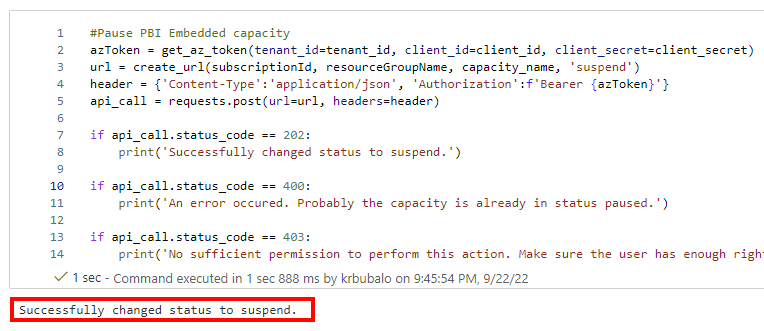
My last step in the Python code is to pause the capacity making sure no additional or unnecessary costs will occur as I’m using the Power BI Embedded one. Depending on the number of workspaces, the Azure Token could be expired. Therefore, I want to make sure I have still an active one and call the get_az_token function again to get a fresh token. Afterwards, I call the create_url function but this time with the suspend status and save it to the url variable. Afterwards I call the REST API to pause it. Lastly, I again print out a message based on the response from the REST API.

#Pause PBI Embedded capacity
azToken = get_az_token(tenant_id=tenant_id, client_id=client_id, client_secret=client_secret)
url = create_url(subscriptionId, resourceGroupName, capacity_name, 'suspend')
header = {'Content-Type':'application/json', 'Authorization':f'Bearer {azToken}'}
api_call = requests.post(url=url, headers=header)

if api_call.status_code == 202:
    print('Successfully changed status to suspend.')

if api_call.status_code == 400:
    print('An error occured. Probably the capacity is already in status paused.')

if api_call.status_code == 403:
    print('No sufficient permission to perform this action. Make sure the user has enough rights on Capacity or make sure the capacity ID is not pointing to the Power BI Service with the zeros GUID.')

Once the code is executed, it looks like the status of the capacity has changed.

Let’s again check in the Azure Portal.

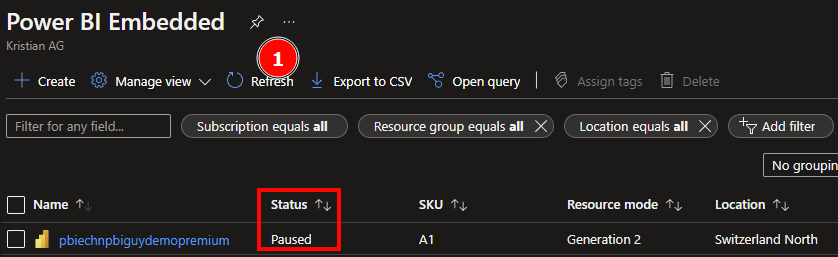
After hitting the refresh button, I see the capacity is really paused – excellent!

With this piece of code, I can automatically assign workspaces based on my needs to a specific capacity! As I worked with an Embedded one, I even automatically started and paused the capacity through the REST API – awesome!

Please let me know if this post was helpful and give me some feedback. Also feel free to contact me if you have any questions.

If you’re interested in the files used in this blog check out my GitHub repo https://github.com/PBI-Guy/blog

Save cost by removing unused (Power BI) licenses

In recent discussions with customers, I almost got every time the same question when we talk about administrating and governing the environment: How do we know who REALLY needs a Power BI Pro license? The root cause of this question is obviously the urge to save cost and not to spend money on unused licenses. On the other hand, if a Power BI admin has to check each user manually if the license is still needed, there is no really cost optimization as the manual work also require time and cost at the end. Therefore, we’re looking for an automated way to solve this need. Luckily, there are REST APIs to support us! Let me walk you through the different steps and how a solution could look like.

What kind of information do we need?

To be able to tell who needs a license there are different information needed:

  • All users with a Power BI license
  • Last activity date for each user (like last log in, viewed report, etc.)
  • Decision how many days / months / years an user can be inactive and still keep a license

Once we got all users with a Power BI license, we can check with the last activity date and decide if the user still requires a license. In my case, I wish to remove the license if the user hasn’t had an activity in the last 90 days, but this can be adjusted based on your needs.

Prerequisites

As I love Python, I’m going to code in Notebooks and call REST APIs. The whole solution could also be done with PowerShell if you prefer this language more.

To get the needed details which user has what kind of license, we have to work with the Microsoft Graph API. Right now, there are two different versions: v1.0 and beta. As recommended by Microsoft documentation, I’m going to use the general available v1.0. Scrolling through the different options of the API, we’ll find the GET /users request which gives us all users in our Azure Active Directory (AAD).

Looking further, the API also offers to list all licenses an individual user has through the GET /users/{id}/licenseDetails where we have to provide the user ID. Combining those two APIs we’ll know which user have what kind of license.

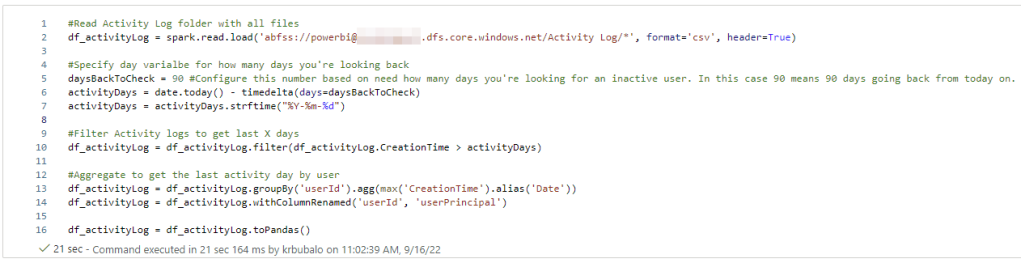
As a next step, we’ll need the activity details as well. You can find a possible solution on my blog how to extract those details here.
Lastly, to be able to call the Graph API I would recommend setting up a Service Principal with the needed permissions. So, let me first walk you through this process.

How to set up a Service Principal for the Graph API

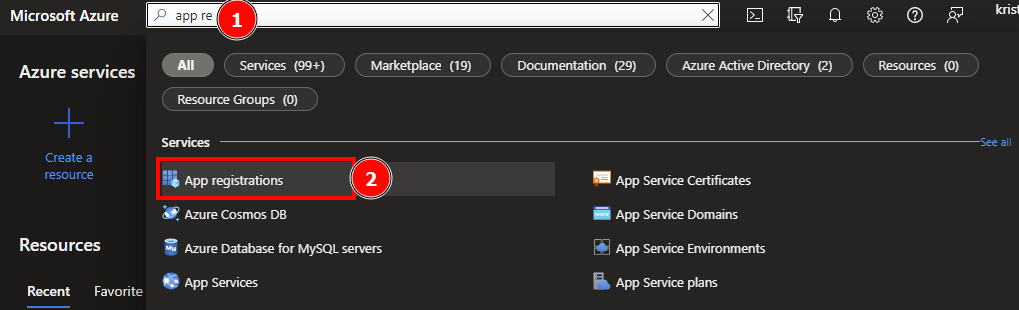
Head over to https://portal.azure.com and search for App registrations in the search bar at the top and select it.

Hit + New registration and give a recognizable name to your Service Principal (SP). In my case I’m going to name it “Power BI Guy Graph API”. As I wish to run the SP only in my directory, I choose the first account type in the list and let the redirect URI empty. Once done, I just hit the “Register” button.

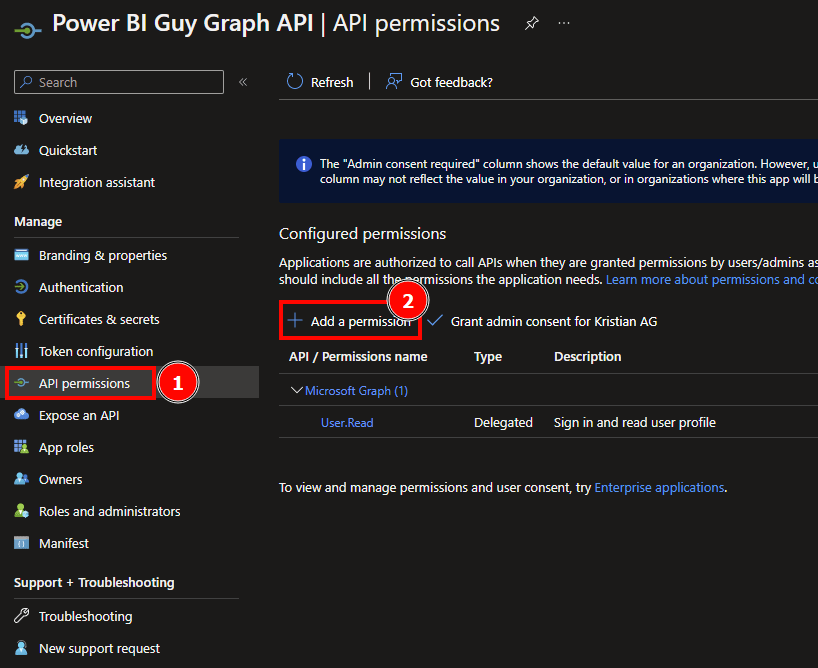
After the SP is registered, we have to give the necessary API permissions. To do so, click on “API permissions” on the left-hand side and select + Add a permission.

Because I want to use the same SP to read all users and check licenses for each user, I’ll give the combined permission of both endpoints. To check which permissions are needed, check the Graph API documentation under the section “Permissions”. As we’re using a SP, we’re interested in the “Application” type of permission. Here’s an example of the list users API.

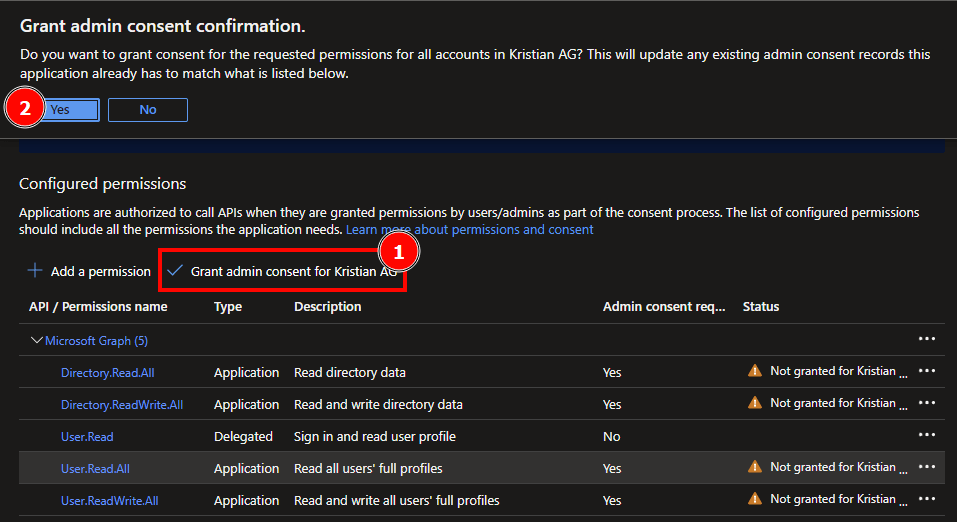
Heading back to the Service Principal, I choose “Microsoft Graph” at top after selecting the + Add a permission button. Because I want to run my app in the background, I choose the “Application permissions”. Once selected, I search for all listed permissions needed for the API. In this case, it’s User.Read.All, User.ReadWrite.All, Directory.Read.All, Directory.ReadWrite.All I just enter the needed permission in the search box and select it. Once all permissions are selected, I hit the Add permissions button.

After the permissions have been added, we have to grant admin consent to be able to call the API and read our necessary information.

When you grant tenant-wide admin consent to an application, you give the application access on behalf of the whole organization to the permissions requested. Granting admin consent on behalf of an organization is a sensitive operation, potentially allowing the application’s publisher access to significant portions of your organization’s data, or the permission to do highly privileged operations. Examples of such operations might be role management, full access to all mailboxes or all sites, and full user impersonation.

https://docs.microsoft.com/en-us/azure/active-directory/manage-apps/grant-admin-consent

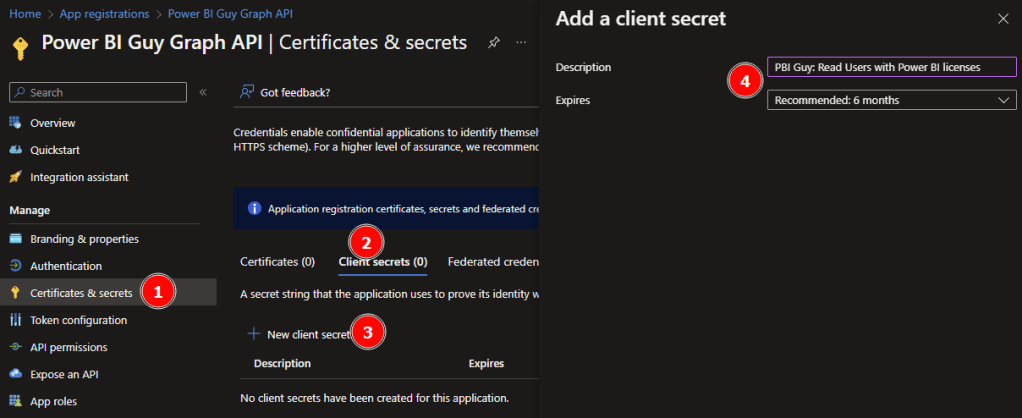
Lastly, we have to create a secret (that’s like a password for our SP) to be able to log in with the SP. To do so, select Certificates & secrets on the left, select Client secrets, and hit the + New client secret. Give a recognizable description and an expires timeline. In my case I’ll use “PBI Guy: Read Users with Power BI licenses” and 6 months expiration.

Keep in mind your password will in this case expire after 6 months! Meaning you’ll need to recreate a secret or set up another expiration time.

Copy the Value of your secret now! Once you refresh / leave the page, the secret value will not be fully visible anymore and you would need to create a new one.

Now that we have our SP registered, let’s start the fun part with Python.

Get the job done with Python

As usual, we first have to import our needed libraries. In this case, following libraries are needed.

#Import necessary libraries

import msal
import requests
import json
import pandas as pd
from pyspark.sql.functions import *
from datetime import date, timedelta

You’ll probably notice that I work in the Azure Synapse environment to create and run my Python code. Obviously, you can choose your own environment but the benefits of using Synapse will come along this article!

In my next block of code, I set the needed variables. I start with the Service Principal ID or also called Client ID. This can be found in Azure Portal by selecting the newly created App and in the Overview screen, you’ll find the Client ID at the top.

The previously copied Secret Value is my next parameter. To get an access token, we have to specify the scope and authority URL as well. Scope in this case is set up to the Graph URL and the authority URL includes your tenant’s name at the end. Lastly, I define a Pandas DataFrame including all licenses SKUs with ID and Name in which I’m interested in. Because we’ll get all licenses back from each user through the Graph API and I’m only interested in the Power BI licenses, I want to specify and filter afterwards on those. Keep in mind that Power BI Pro is part of different SKUs like the E5 or A5. A full list of all SKUs including name and UID can be found here: https://docs.microsoft.com/en-us/azure/active-directory/enterprise-users/licensing-service-plan-reference

#Set parameters

client_id = '' #ID of Service Principal / App
client_secret = '' #Secret from Service Principal / App
scope = 'https://graph.microsoft.com/.default' #Defining Scope for Graph API
authority_url = "https://login.microsoftonline.com/..." #Defining authority / host

#Define all needed Power BI related SKUs
#All SKUs with the ID and friendly name of Microsoft can be found here: https://docs.microsoft.com/en-us/azure/active-directory/enterprise-users/licensing-service-plan-reference Check if new SKUs are available or have changed over time. The list below has been created on 15th September 2022
all_skus = pd.DataFrame ({
    'skuId': ['e97c048c-37a4-45fb-ab50-922fbf07a370', '46c119d4-0379-4a9d-85e4-97c66d3f909e', '06ebc4ee-1bb5-47dd-8120-11324bc54e06', 'c42b9cae-ea4f-4ab7-9717-81576235ccac', 'cd2925a3-5076-4233-8931-638a8c94f773', 'e2be619b-b125-455f-8660-fb503e431a5d', 'a4585165-0533-458a-97e3-c400570268c4', 'ee656612-49fa-43e5-b67e-cb1fdf7699df', 'c7df2760-2c81-4ef7-b578-5b5392b571df', 'e2767865-c3c9-4f09-9f99-6eee6eef861a', 'a403ebcc-fae0-4ca2-8c8c-7a907fd6c235', '7b26f5ab-a763-4c00-a1ac-f6c4b5506945', 'c1d032e0-5619-4761-9b5c-75b6831e1711', 'de376a03-6e5b-42ec-855f-093fb50b8ca5', 'f168a3fb-7bcf-4a27-98c3-c235ea4b78b4', 'f8a1db68-be16-40ed-86d5-cb42ce701560', '420af87e-8177-4146-a780-3786adaffbca', '3a6a908c-09c5-406a-8170-8ebb63c42882', 'f0612879-44ea-47fb-baf0-3d76d9235576'],
    'skuName': ['Microsoft 365 A5 for Faculty', 'Microsoft 365 A5 for Students', 'Microsoft 365 E5', 'Microsoft 365 E5 Developer (without Windows and Audio Conferencing)', 'Microsoft 365 E5 without Audio Conferencing', 'Microsoft 365 GCC G5', 'Office 365 A5 for Faculty', 'Office 365 A5 for Students', 'Office 365 E5', 'Power BI', 'Power BI (free)', 'Power BI Premium P1', 'Power BI Premium Per User', 'Power BI Premium Per User Add-On', 'Power BI Premium Per User Dept', 'Power BI Pro', 'Power BI Pro CE', 'Power BI Pro Dept', 'Power BI Pro for GCC']
})

You can of course adjust the all_skus DataFrame based on your needs.

As a next step, I want to log in with the SP and get an access token to work with and call the Graph API. To do so, I call the msal.ConfidentialClientApplication and provide the needed details. Afterwards, I store the access token in a result variable.
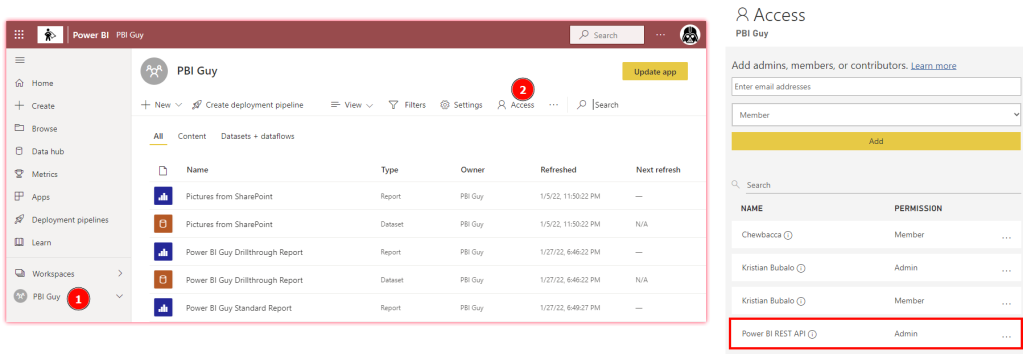
app = msal.ConfidentialClientApplication(client_id, authority=authority_url, client_credential=client_secret)
result = app.acquire_token_for_client(scopes=scope)

Next, I specify the Graph API to get all AAD users in a variable called url_get_all_users. Going further, I check if I got an access token and if so, I want to call the Graph API to get the needed details. If in any case I don’t get an access token, it also doesn’t make sense to call the Graph API as we’ll get a 403 error. Once the call succeeded, I store the result in a df_all_users DataFrame including only the needed columns “displayName”, “mail”, “userPrincipalName”, and “id”.
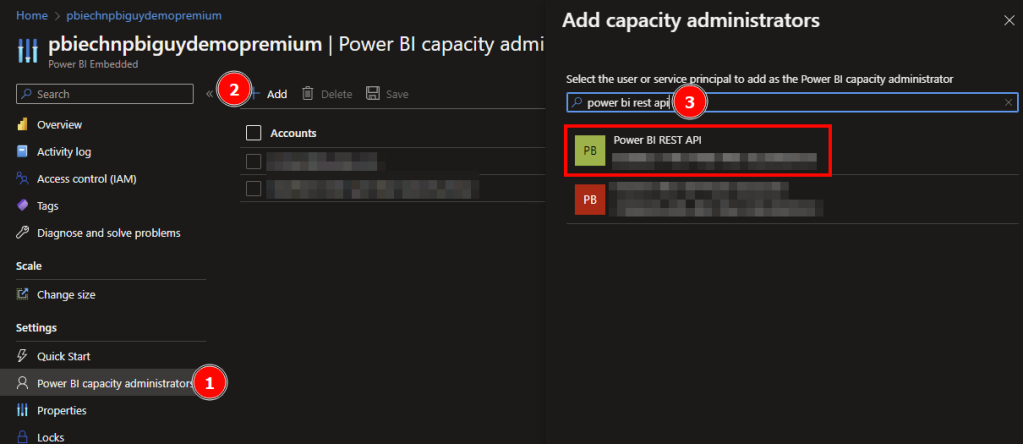
url_get_all_users = 'https://graph.microsoft.com/v1.0/users' #URL to get all AAD users

#If access token is created and received, call the get all users url to receive licenses per user
if 'access_token' in result:
    access_token = result['access_token']
    header = {'Content-Type':'application/x-www-form-urlencoded', 'Authorization':f'Bearer {access_token}'}

    api_call = requests.get(url=url_get_all_users, headers=header) #Effective get all users from AAD URL call

    result = api_call.json()['value'] #Get only the necessary child
    df_all_users = pd.DataFrame(result) #Convert to DataFrame
    df_all_users = df_all_users[['displayName', 'mail', 'userPrincipalName', 'id']] #Get only needed columns

As I have now all AAD users, I want to check which license each user has. To do so, I have to loop through all users in the df_all_users DataFrame and call the Graph API to get the license details. To be able to collect and store those details from each user into once, comprehensive DataFrame, I create an empty one before the loop.

In the loops itself I extract the current User ID, User Principal, and specify the Graph API URL for the current user in a separate variable. Afterwards, I call the API and store the result in a df_user_licenses DataFrame. To make sure I know which user is called, I expand the DataFrame with the User ID and User Principal info.

    df_all_user_licenses = pd.DataFrame() #Create empty DataFrame to store all users and assigned licenses

    for idx, row in df_all_users.iterrows(): #Iterate through each users from AAD
        user_id = row['id'] #Store the User ID in a separate variable
        userPrincipal = row['userPrincipalName']
        url_get_licenses = 'https://graph.microsoft.com/v1.0/users/' + user_id + '/licenseDetails' #Defining the URL to get licens per user

        api_call = requests.get(url=url_get_licenses, headers=header) #Effective get license per User URL call
        result = api_call.json()['value'] #Get only the necessary child

        df_user_licenses = pd.DataFrame(result) #convert to DataFrame
        df_user_licenses['userId'] = user_id #Add User ID to identify user
        df_user_licenses['userPrincipal'] = userPrincipal #Add User Principal to identify user

In the last piece of this block of code I want to filter down all licenses by user to only Power BI related ones. Because I get through ALL objects in AAD it could be that some of them don’t have a license assigned at all (like a room resource) and to avoid errors, I use the try and except trying to filter the result. Of course, you can do an if else statement as well to check if you have an empty result or even go other paths. In my case, I decided to go with the try and except. Once done, I add the filtered result into my comprehensive df_all_users_licenses DataFrame.

        #I'll use a try and except statement to handle empty requests --> if no license is assign nothing will be return and without try and except the script will run into an error. 
        #An if else statement would also work to check if the result is empty or not
        try:
            df_user_licenses = df_user_licenses[df_user_licenses['skuId'].isin(all_skus['skuId'])] #Get only PBI related SKUs
            df_user_licenses = df_user_licenses[['skuId', 'userId', 'userPrincipal']] #Get only needed columns
            df_user_licenses = all_skus.merge(df_user_licenses) #Using a join to retrieve only users with assigned PBI licenses
            df_all_user_licenses = pd.concat([df_all_user_licenses, df_user_licenses]) #Adding result to all user licenses DataFrame

        except:
            pass

My whole code looks now as following

Let me display the df_all_user_licenses DataFrame to check what we got until now.

As we see we got different users and the assigned licenses. In my screen shot we can see the Office 365 E5 and the Power BI (free) license assigned to some users.

So far, we have logged in via a Service Principal, got all users from AAD and the assigned licenses for each user. As a next step, we have to check the last activity date for each user. Here comes the superpower of Azure Synapse! As mentioned already, in one of my last blog posts I showed how I use Python to store Activity Logs in Azure Data Lake Gen2 – see https://pbi-guy.com/2022/03/10/power-bi-and-activity-logs-with-python/ I’m going to reuse this work and just read all the CSV files already stored with pySpark and store it into the df_activityLog DataFrame. Pay attention to “*” at the end of my path to read all CSV files, not only one.

#Read Activity Log folder with all files
df_activityLog = spark.read.load('abfss://powerbi@....dfs.core.windows.net/Activity Log/*', format='csv', header=True)

If you’re not sure how your abfss path should look like, head over to Data, Linked, select your container and folder where you’re log files are stored, right click on one file, and select New notebook – Load to DataFrame. Azure Synapse will create automatically a code to read your file with pySpark. Resue the path in your code.

My next step is to specify how many days back I want to check if some activity has happened in Power BI. In my case I go for the last 90 days and filter the df_activityLog DataFrame.

#Specify day varialbe for how many days you're looking back
daysBackToCheck = 90 #Configure this number based on need how many days you're looking for an inactive user. In this case 90 means 90 days going back from today on.
activityDays = date.today() - timedelta(days=daysBackToCheck)
activityDays = activityDays.strftime("%Y-%m-%d")

#Filter Activity logs to get last X days
df_activityLog = df_activityLog.filter(df_activityLog.CreationTime > activityDays)

As I’m not interested of what kind of activities have happened, I’ll just group my df_activityLog by UserID and get the max date out of it to see the last activity Date. Obviously, you could specify filters to check for specific activities like “View Report” or similar. But I decided to count every activity the same meaning as long as there is some kind of activity, the license is needed. To not mix things up, I rename the userId from the activity log to userPrincipal – which is more reliable and correct from my point of view. Last piece of the code is to convert the pySpark DataFrame to a Pandas DataFrame to be able to merge it afterwards easily.

#Aggregate to get the last activity day by user
df_activityLog = df_activityLog.groupBy('userId').agg(max('CreationTime').alias('Date'))
df_activityLog = df_activityLog.withColumnRenamed('userId', 'userPrincipal')

df_activityLog = df_activityLog.toPandas()

My whole code looks now as following.

Let’s display the result of df_activityLog as well.

As I’m using a demo environment, I don’t have much user activities on it. In the last 90 days, only 4 users have done something in my Power BI environment.

Now that I have all users with Power BI related licenses, and I have all users with some kind of activity, let’s merge those two DataFrames and check which users has a license but no activity in the last 90 days. To do so, I use the pd.merge and filter afterwards only users without a date as this means no activity has happend.

#Combine both DataFrames to check all users and their last login
df_combined = pd.merge(df_all_user_licenses, df_activityLog, how='left', on=['userPrincipal', 'userPrincipal'])

#Get all Users without login in last X days
df_combined_only_NaN = df_combined[pd.isna(df_combined['Date'])]

Let’s again display the df_combined_only_NaN DataFrame to check if we have some users with a Power BI related license but no activity.

As I’m doing this for demo purpose only, I will focus on removing Power BI Free licenses. Of course, there is no cost behind this license and in a real-world scenario I would focus especially on Power BI Pro (and probably Power BI Premium Per User), but the approach is absolutely the same, regardless which license you wish to remove. Therefore, I add an extra code block to filter down to only Power BI free licenses.

#Filter only to Power BI Free licenses for my demo use case
df_pbi_free = df_combined_only_NaN.loc[df_combined_only_NaN['skuId'] == 'a403ebcc-fae0-4ca2-8c8c-7a907fd6c235']

display(df_pbi_free)

If I now display all users with a PBI Free license, I see two users without an activity in the last 90 days in my case.

My last step is now to remove for those two users automatically the Power BI Free license. And again, the Graph API provides us with the right request. In this case, we need the POST /user/{id}/assignLicense request – see https://docs.microsoft.com/en-us/graph/api/user-assignlicense?view=graph-rest-1.0&tabs=http The documentation also highlights that a JSON body needs to be included looking like this.

{
  "addLicenses": [
    {
      "disabledPlans": [ "11b0131d-43c8-4bbb-b2c8-e80f9a50834a" ],
      "skuId": "45715bb8-13f9-4bf6-927f-ef96c102d394"
    }
  ],
  "removeLicenses": [ "bea13e0c-3828-4daa-a392-28af7ff61a0f" ]
}

One important detail is the content-type of the header. It has to be application/json so I start my code by adjusting the header variable. If wished, you can create another access token but in my case I’m going to reuse the already existing one.

#Overwrite header and reuse access token
header = {'Content-Type':'application/json', 'Authorization':f'Bearer {access_token}'}

Because the assignLicense request is per user, we have to create again a loop for each user for our df_pbi_free DataFrame. I extract again the user id, sku id, and the user principal in a separate variable to reuse it afterwards.

for idx, row in df_pbi_free.iterrows(): #Iterate through each users with a PBI Free license
    user_id = row['userId'] #Store the User ID in a separate variable
    sku_id = row['skuId'] #Store the SKU ID in a separate variable
    userPrincipal = row['userPrincipal']

My next step is to create the request URL and body. Once done, I can call the URL and remove the Power BI Free license for users.

    #configure URL to call to remove license from user
    url = 'https://graph.microsoft.com/v1.0/users/' + user_id + '/assignLicense'

    #create body with SKU ID
    body = {
        "addLicenses": [],
        "removeLicenses": [
            sku_id
        ]
    }

    #Call API to remove license
    api_call = requests.post(url=url, headers=header, json=body)

Making sure my call was successful, I print a message at the end depending on the returned status from the API (200 means successful, everything else is an error in my case).

    if api_call.status_code == 200:
        print('License has been successfully removed from user', userPrincipal)

    else:
        print('An error occured and license has NOT been removed')

My whole code looks now as following.

Before I run the code, let’s check manually if Adele and Alex really have a Power BI Free license in the Azure Portal. To do so, I go to the Azure Portal, search for users, and select each user. Once selected, I click on Licenses and check if Power BI Free is assigned. In both cases the answer is yes.

Now let’s run the code and see what will happen. After the code run successfully, I got following message.

It looks like it was successful. Let’s check manually by going back to the Azure Portal and refresh the view of Adele.

How great is this! We just removed the license automatically! This means we can really automate for which user licenses should be removed. In my demo case, I used the Power BI Free license to remove. But obviously this approach could also be used to remove other licenses like Power BI Pro, E5, and many others (depending on your needs and activity logs).

Please let me know if this post was helpful and give me some feedback. Also feel free to contact me if you have any questions.

If you’re interested in the files used in this blog check out my GitHub repo https://github.com/PBI-Guy/blog