How to extract data from the Fabric Metrics App – Part 2

In this mini series I’m walking you through how to extract data from the Fabric Metrics App to, for example, create a monthly chargeback report based on it. In my last blog post, I showed how to trace the required DAX Statement. In the second part, I will show how we can use Microsoft Fabric Notebooks and the DAX statement from Part 1 to extract the data and store them into OneLake. For that, I’ll follow the medallion Architecture (Bronze – Silver – Gold) to store and prepare the data.

Prerequisites

For this solution we need following services and licenses:

  • Microsoft Fabric or Power BI Premium Capacity
  • Workspace in a Fabric / Premium capacity
  • Lakehouse
  • Notebook
  • Python Skills

Let’s get started

My first action is to create a new Lakehouse in the Microsoft Fabric Capacity Metrics workspace which I call “FabricMetricsApp”. This will be used to store the output of the Metrics App. Important for this approach: create it in the Metrics App workspace as we’re going to connect to the Semantic Model via Python to it with Semantic Link.

Next, I create a Notebook and as usual, I import the required libraries. On top, I also set the spark configuration following best practices. As bonus, I also configure the Power BI Catalog. This way, I can write SQL Statements on top of my Semantic Model if needed!

#Import required libraries

%pip install semantic-link
%load_ext sempy
import pandas as pd
import sempy.fabric as fabric
from datetime import date, datetime, timedelta
from pyspark.sql.types import StructType, StructField, StringType, IntegerType, FloatType, TimestampNTZType

spark.conf.set("sprk.sql.parquet.vorder.enabled", "true")
spark.conf.set("spark.microsoft.delta.optimizeWrite.enabled", "true")
spark.conf.set("spark.microsoft.delta.optimizeWrite.binSize", "1073741824")
spark.conf.set("spark.sql.catalog.pbi", "com.microsoft.azure.synapse.ml.powerbi.PowerBICatalog")

My next cell defines the required parameter. Here, I’m giving the Semantic Model (dataset) name, which is the given name of the Fabric Metrics App. The Semantic Model has different tables and one of them is called “Capacities” which lists all the capacities in the environment to which I have access to. This way, I could also loop through all capacities to extract the required data. Further, I’m defining a timepoint start date which is dynamically yesterday’s date. I’m also defining a bronze, silver, and gold layer files structure and add a DataFrame Schema at the end.

#Define required parameters
dataset = 'Fabric Capacity Metrics' #Default name of the Semantic Model
talbe_name = 'Capacities' #Table Name to get all Capacities
today = datetime.today() #Get Today's date
timepoint_start = today - timedelta(days=1) #Get yesterday's date on which we will extract all details
path_bronze = 'Files/01 Bronze/'
path_silver = 'Files/02 Silver/'
path_gold = 'Files/03 Gold/'
dataframe_schema = StructType([
                StructField("BillingType", StringType(), nullable=True),
                StructField("Status", StringType(), nullable=True),
                StructField("OperationStartTime", TimestampNTZType(), nullable=True),
                StructField("OperationEndTime", TimestampNTZType(), nullable=True),
                StructField("User", StringType(), nullable=True),
                StructField("Operation", StringType(), nullable=True),
                StructField("OperationID", StringType(), nullable=True),
                StructField("WorkspaceName", StringType(), nullable=True),
                StructField("Item", StringType(), nullable=True),
                StructField("ItemName", StringType(), nullable=True),
                StructField("TimepointCUs", FloatType(), nullable=True),
                StructField("DurationInS", IntegerType(), nullable=True),
                StructField("TotalCUInS", FloatType(), nullable=True),
                StructField("Throttling", IntegerType(), nullable=True),
                StructField("PercentageOfBaseCapacity", FloatType(), nullable=True),
                StructField("capacityId", StringType(), nullable=True),
                StructField("Timepoint", TimestampNTZType(), nullable=True),
                StructField("OperationType", StringType(), nullable=True)
            ])

In my third cell, I get all the capacities from the Semantic Model.

#Get all capacities
df_capacities = spark.sql("""
    SELECT c.capacityId

    FROM pbi.`""" + dataset + """`.Capacities c
""")

For testing purposes, I’m filtering the capacities down to just one in my next block of code. If you wish to get through all of your capacities, just remove the filter statement (line 3).

#For testing purpose filtering it down to only one capacity
capacity_id = '...'
df_capacities = df_capacities[df_capacities['capacityId'] == capacity_id]

display(df_capacities)

As next step, I create two functions – one for the background and one for the interactive operations – for reusability purpose. As this piece of code is quite huge, let me split it up in smaller junks.

First, I define the function for the background operation. The function itself requires two parameters – date and Capacity ID. I also add a small description of the function to document it.

def generate_dax_background_operation(date_today, capacity_id):
    """
    Generate the DAX statement which is used to get the background operations of the Metrics App for a given Capacity and day. 
    
    Arguments required: 
        date_today (datetime) - Date on which the background operation should be extracted
        capacity_id (string) - Capacity ID on which the background operation should be extracted

    Returns:
        DAX Statement (string)

    """

Next piece of code is to set the right starting timepoint. For that, I use the input parameter and set it to midnight. As I just want to test the code for a few timepoints, I’m replacing the timepoint_start with a hardcoded date. Obviously, this piece of code should be deleted.

    #timepoint_start = date_today.replace(hour=0, minute=0, second=0, microsecond=0) #Set timepoint to the beginning of the day
    timepoint_start = date_today.replace(day=25, month=3, year=2024, hour=16, minute=54, second=00, microsecond=00) #Use this timepoint to get a specific one - used for testing purpose
    timepoint_next = timepoint_start
    i = 0 #Initialising iteration count to check if all timepoints (2880 in total for a day) has been covered

Moving on, I need now a loop to go through from the first timepoint to the last one of the day. My logic checks if the current timepoint is still on the same day as the initial timepoint and if so, it will proceed. Again, as I’m just interested in a few timepoints, I hardcoded until when the loop should work. Lastly, I extract and convert the timepoint details like year, month, etc. into a string as I’ll need them later on.

    #while timepoint_next.day == timepoint_start.day: #As long as the day of the next timepoint is the same as start timepiont, loop will continue and add 30seconds at the end
    while timepoint_next <= datetime.strptime('25.03.2024 16:56:00', "%d.%m.%Y %H:%M:%S"): #Use this filter to get some specific timepoints only - used for testing purpose
        current_year = str(timepoint_next.year)
        current_month = str(timepoint_next.month)
        current_day = str(timepoint_next.day)
        starting_hour = str(timepoint_next.hour)
        starting_minutes = str(timepoint_next.minute)
        starting_seconds = str(timepoint_next.second)

My next parameter defines the DAX statement for the background operations. I’m making it as dynamic as possible to get the right data for the right timepoint. Remember, the DAX Statement was defined in the first part of this series.

        dax_background_operation = '''
                    DEFINE
                        MPARAMETER 'CapacityID' = "''' + capacity_id + '''"
                        MPARAMETER 'TimePoint' = (DATE(''' + current_year + ''', ''' + current_month + ''', ''' + current_day + ''') + TIME(''' + starting_hour + ''', ''' + starting_minutes + ''', ''' + starting_seconds + '''))

                        VAR varFilter_Capacity = TREATAS({"''' + capacity_id + '''"}, 'Capacities'[capacityId])	
                        VAR varFilter_TimePoint = 
                            TREATAS(
                                {(DATE(''' + current_year + ''', ''' + current_month + ''', ''' + current_day + ''') + TIME(''' + starting_hour + ''', ''' + starting_minutes + ''', ''' + starting_seconds + '''))},
                                'TimePoints'[TimePoint]
                            )		
                        VAR varTable_Details =
                            SUMMARIZECOLUMNS(
                                'TimePointBackgroundDetail'[OperationStartTime],
                                'TimePointBackgroundDetail'[OperationEndTime],
                                'TimePointBackgroundDetail'[Status],
                                'TimePointBackgroundDetail'[Operation],
                                'TimePointBackgroundDetail'[User],
                                'TimePointBackgroundDetail'[OperationId],
                                'TimePointBackgroundDetail'[Billing type],
                                'Items'[WorkspaceName],
                                'Items'[ItemKind],
                                'Items'[ItemName],
                                
                                varFilter_Capacity,
                                varFilter_TimePoint,
                                
                                "Timepoint CU (s)", SUM('TimePointBackgroundDetail'[Timepoint CU (s)]),
                                "Duration (s)", SUM('TimePointBackgroundDetail'[Duration (s)]),
                                "Total CU (s)", CALCULATE(SUM('TimePointBackgroundDetail'[Total CU (s)])),
                                "Throttling", CALCULATE(SUM('TimePointBackgroundDetail'[Throttling (s)])),
                                "% of Base Capacity", CALCULATE(SUM('TimePointBackgroundDetail'[% of Base Capacity]))
                            )
                                
                    EVALUATE  SELECTCOLUMNS(
                        varTable_Details,
                        "BillingType", [Billing type],
                        "Status", [Status],
                        "OperationStartTime", [OperationStartTime],
                        "OperationEndTime", [OperationEndTime],
                        "User", [User],
                        "Operation", [Operation],
                        "OperationID", [OperationId],
                        "WorkspaceName", [WorkspaceName],
                        "Item", [ItemKind],
                        "ItemName", [ItemName],
                        "TimepointCUs", [Timepoint CU (s)],
                        "DurationInS", [Duration (s)],
                        "TotalCUInS", [Total CU (s)],
                        "Throttling", [Throttling],
                        "PercentageOfBaseCapacity", [% of Base Capacity]	
                    )'''
        

Next, I want to evaluate the DAX statement and store the result into a DataFrame but only if the DataFrame is not empty and therefore having some results. I’m not interested in storing empty files. To make sure I can identify the capacity, timepoint, and operation type, I’m adding those fields to the DataFrame. Afterwards, I define the filename by using the timepoint name and save the result into OneLake using the date as subfolder name. This way I’m partitioning it already by day. Lastly, I add 30 seconds to the timepoint as Microsoft Fabric timepoints are calculated in 30 seconds junks and add a 1 to my i parameter to count how many runs have been made. This way, I can make sure that all timepoints have been evaluated.

As a timepoint consists of 30 seconds, a day has 2880 timepoints (2 timepoints per minute * 60 minutes * 24 hours = 2880)

        df_dax_result = fabric.evaluate_dax(
            dataset,
            dax_background_operation
            )
        
        df_dax_result['capacityId'] = capacity_id
        df_dax_result['Timepoint'] = timepoint_next
        df_dax_result['OperationType'] = 'background'

        #Set path and file name
        subfolder = str(timepoint_next.date()) + '/'
        file_name = timepoint_next.strftime("%H-%M-%S")

        #Convert Fabric DataFrames into Spark DataFrames
        df_dax_result_spark = spark.createDataFrame(df_dax_result, schema=dataframe_schema)

        #Save DataFrames to OneLake
        df_dax_result_spark.write.mode("overwrite").format("parquet").save(path_bronze + 'Background Operation/' + subfolder + file_name)
        
        #Don't change timepoint intervals, as 30sec intervals are given
        timepoint_next = timepoint_next + timedelta(seconds = 30)

        i = i + 1

    return i

To make sure the code is probably copied, here is the full cell.

#Create a function to get Background Operations of the Metrics App

def generate_dax_background_operation(date_today, capacity_id):
    """
    Generate the DAX statement which is used to get the background operations of the Metrics App for a given Capacity and day. 
    
    Arguments required: 
        date_today (datetime) - Date on which the background operation should be extracted
        capacity_id (string) - Capacity ID on which the background operation should be extracted

    Returns:
        DAX Statement (string)

    """

    #timepoint_start = date_today.replace(hour=0, minute=0, second=0, microsecond=0) #Set timepoint to the beginning of the day
    timepoint_start = date_today.replace(day=24, month=4, year=2024, hour=9, minute=00, second=00, microsecond=00) #Use this timepoint to get a specific one - used for testing purpose
    timepoint_next = timepoint_start
    i = 0 #Initialising iteration count to check if all timepoints (2880 in total for a day) has been covered

    #while timepoint_next.day == timepoint_start.day: #As long as the day of the next timepoint is the same as start timepiont, loop will continue and add 30seconds at the end
    while timepoint_next <= datetime.strptime('24.04.2024 09:02:00', "%d.%m.%Y %H:%M:%S"): #Use this filter to get some specific timepoints only - used for testing purpose
        current_year = str(timepoint_next.year)
        current_month = str(timepoint_next.month)
        current_day = str(timepoint_next.day)
        starting_hour = str(timepoint_next.hour)
        starting_minutes = str(timepoint_next.minute)
        starting_seconds = str(timepoint_next.second)

        dax_background_operation = '''
                    DEFINE
                        MPARAMETER 'CapacityID' = "''' + capacity_id + '''"
                        MPARAMETER 'TimePoint' = (DATE(''' + current_year + ''', ''' + current_month + ''', ''' + current_day + ''') + TIME(''' + starting_hour + ''', ''' + starting_minutes + ''', ''' + starting_seconds + '''))

                        VAR varFilter_Capacity = TREATAS({"''' + capacity_id + '''"}, 'Capacities'[capacityId])	
                        VAR varFilter_TimePoint = 
                            TREATAS(
                                {(DATE(''' + current_year + ''', ''' + current_month + ''', ''' + current_day + ''') + TIME(''' + starting_hour + ''', ''' + starting_minutes + ''', ''' + starting_seconds + '''))},
                                'TimePoints'[TimePoint]
                            )		
                        VAR varTable_Details =
                            SUMMARIZECOLUMNS(
                                'TimePointBackgroundDetail'[OperationStartTime],
                                'TimePointBackgroundDetail'[OperationEndTime],
                                'TimePointBackgroundDetail'[Status],
                                'TimePointBackgroundDetail'[Operation],
                                'TimePointBackgroundDetail'[User],
                                'TimePointBackgroundDetail'[OperationId],
                                'TimePointBackgroundDetail'[Billing type],
                                'Items'[WorkspaceName],
                                'Items'[ItemKind],
                                'Items'[ItemName],
                                
                                varFilter_Capacity,
                                varFilter_TimePoint,
                                
                                "Timepoint CU (s)", SUM('TimePointBackgroundDetail'[Timepoint CU (s)]),
                                "Duration (s)", SUM('TimePointBackgroundDetail'[Duration (s)]),
                                "Total CU (s)", CALCULATE(SUM('TimePointBackgroundDetail'[Total CU (s)])),
                                "Throttling", CALCULATE(SUM('TimePointBackgroundDetail'[Throttling (s)])),
                                "% of Base Capacity", CALCULATE(SUM('TimePointBackgroundDetail'[% of Base Capacity]))
                            )
                                
                    EVALUATE  SELECTCOLUMNS(
                        varTable_Details,
                        "BillingType", [Billing type],
                        "Status", [Status],
                        "OperationStartTime", [OperationStartTime],
                        "OperationEndTime", [OperationEndTime],
                        "User", [User],
                        "Operation", [Operation],
                        "OperationID", [OperationId],
                        "WorkspaceName", [WorkspaceName],
                        "Item", [ItemKind],
                        "ItemName", [ItemName],
                        "TimepointCUs", [Timepoint CU (s)],
                        "DurationInS", [Duration (s)],
                        "TotalCUInS", [Total CU (s)],
                        "Throttling", [Throttling],
                        "PercentageOfBaseCapacity", [% of Base Capacity]	
                    )'''
        
        df_dax_result = fabric.evaluate_dax(
            dataset,
            dax_background_operation
            )

        if not df_dax_result.empty:
        
            df_dax_result['capacityId'] = capacity_id
            df_dax_result['Timepoint'] = timepoint_next
            df_dax_result['OperationType'] = 'background'

            #Set path and file name
            subfolder = str(timepoint_next.date()) + '/'
            file_name = timepoint_next.strftime("%H-%M-%S")

            #Convert Fabric DataFrames into Spark DataFrames
            df_dax_result_spark = spark.createDataFrame(df_dax_result, schema=dataframe_schema)

            #Save DataFrames to OneLake
            df_dax_result_spark.write.mode("overwrite").format("parquet").save(path_bronze + 'Background Operation/' + subfolder + file_name)
            
        #Don't change timepoint intervals, as 30sec intervals are given
        timepoint_next = timepoint_next + timedelta(seconds = 30)

        i = i + 1

    return i

The next cell is going through the same logic but for interactive operations. Therefore, I’m just providing the full code.

#Create a function to get Interactive Operations of the Metrics App

def generate_dax_interactive_operation(date_today, capacity_id):
    """
    Generate the DAX statement which is used to get the interactive operations of the Metrics App for a given Capacity and day. 
    
    Arguments required: 
        date_today (datetime) - Date on which the interactive operation should be extracted
        capacity_id (string) - Capacity ID on which the interactive operation should be extracted

    Returns:
        DAX Statement (Pandas DataFrame)

    """

    #timepoint_start = date_today.replace(hour=0, minute=0, second=0, microsecond=0) #Set timepoint to the beginning of the day
    timepoint_start = date_today.replace(day=24, month=4, year=2024, hour=9, minute=00, second=00, microsecond=00) #Use this timepoint to get a specific one - used for testing purpose
    timepoint_next = timepoint_start
    i = 0 #Initialising iteration count to check if all timepoints (2880 in total for a day) has been covered

    #while timepoint_next.day == timepoint_start.day: #As long as the day of the next timepoint is the same as start timepoint, loop will continue and add 30seconds at the end
    while timepoint_next <= datetime.strptime('24.04.2024 09:02:00', "%d.%m.%Y %H:%M:%S"): #Use this filter to get some specific timepoints only - used for testing purpose
        current_year = str(timepoint_next.year)
        current_month = str(timepoint_next.month)
        current_day = str(timepoint_next.day)
        starting_hour = str(timepoint_next.hour)
        starting_minutes = str(timepoint_next.minute)
        starting_seconds = str(timepoint_next.second)

        dax_interactive_operation = '''
                    DEFINE
                        MPARAMETER 'CapacityID' = "''' + capacity_id + '''"
                        MPARAMETER 'TimePoint' = (DATE(''' + current_year + ''', ''' + current_month + ''', ''' + current_day + ''') + TIME(''' + starting_hour + ''', ''' + starting_minutes + ''', ''' + starting_seconds + '''))

                        VAR varFilter_Capacity = TREATAS({"''' + capacity_id + '''"}, 'Capacities'[capacityId])	
                        VAR varFilter_TimePoint = 
                            TREATAS(
                                {(DATE(''' + current_year + ''', ''' + current_month + ''', ''' + current_day + ''') + TIME(''' + starting_hour + ''', ''' + starting_minutes + ''', ''' + starting_seconds + '''))},
                                'TimePoints'[TimePoint]
                            )		
                        VAR varTable_Details =
                            SUMMARIZECOLUMNS(
                                'TimePointInteractiveDetail'[OperationStartTime],
                                'TimePointInteractiveDetail'[OperationEndTime],
                                'TimePointInteractiveDetail'[Status],
                                'TimePointInteractiveDetail'[Operation],
                                'TimePointInteractiveDetail'[User],
                                'TimePointInteractiveDetail'[OperationId],
                                'TimePointInteractiveDetail'[Billing type],
                                'Items'[WorkspaceName],
                                'Items'[ItemKind],
                                'Items'[ItemName],
                                
                                varFilter_Capacity,
                                varFilter_TimePoint,
                                
                                "Timepoint CU (s)", SUM('TimePointInteractiveDetail'[Timepoint CU (s)]),
                                "Duration (s)", SUM('TimePointInteractiveDetail'[Duration (s)]),
                                "Total CU (s)", CALCULATE(SUM('TimePointInteractiveDetail'[Total CU (s)])),
                                "Throttling", CALCULATE(SUM('TimePointInteractiveDetail'[Throttling (s)])),
                                "% of Base Capacity", CALCULATE(SUM('TimePointInteractiveDetail'[% of Base Capacity]))
                            )
                                
                    EVALUATE  SELECTCOLUMNS(
                        varTable_Details,
                        "BillingType", [Billing type],
                        "Status", [Status],
                        "OperationStartTime", [OperationStartTime],
                        "OperationEndTime", [OperationEndTime],
                        "User", [User],
                        "Operation", [Operation],
                        "OperationID", [OperationId],
                        "WorkspaceName", [WorkspaceName],
                        "Item", [ItemKind],
                        "ItemName", [ItemName],
                        "TimepointCUs", [Timepoint CU (s)],
                        "DurationInS", [Duration (s)],
                        "TotalCUInS", [Total CU (s)],
                        "Throttling", [Throttling],
                        "PercentageOfBaseCapacity", [% of Base Capacity]	
                    )'''
        
        df_dax_result = fabric.evaluate_dax(
            dataset,
            dax_interactive_operation
            )
        
        if not df_dax_result.empty:

            df_dax_result['capacityId'] = capacity_id
            df_dax_result['Timepoint'] = timepoint_next
            df_dax_result['OperationType'] = 'interactive'
            
            #Set path and file name
            subfolder = str(timepoint_next.date()) + '/'
            file_name = timepoint_next.strftime("%H-%M-%S")

            #Convert Fabric DataFrames into Spark DataFrames
            df_dax_result_spark = spark.createDataFrame(df_dax_result, schema=dataframe_schema)

            #Save DataFrames to OneLake
            df_dax_result_spark.write.mode("overwrite").format("parquet").save(path_bronze + 'Interactive Operation/' + subfolder + file_name)

        #print(i, timepoint_next, "interactive")
        
        #Don't change timepoint intervals, as 30sec intervals are given
        timepoint_next = timepoint_next + timedelta(seconds = 30)

        i = i + 1

    return i

After the two functions have been created, they have to be called. This is what I do in my next piece of code. I also store the iteration number into a parameter which I can check if all timepoints have been extracted for the two different operation types.

#Get for each capacity background and interactive operations
for row in df_capacities.toLocalIterator():
    capacity_id = row['capacityId']
    
    i_background = generate_dax_background_operation(timepoint_start, capacity_id)
    i_interactive = generate_dax_interactive_operation(timepoint_start, capacity_id)

Once the data is extracted into separate files for each timepoint, I’m reading the whole folder for a day to combine all timepoint files into one and store the result into the silver layer.

#Set Subfolder and file name
subfolder = str(timepoint_start.date()) + '/'
file_name = str(timepoint_start.date())

#Read folder
df_background_bronze = spark.read.parquet(path_bronze + 'Background Operation/' + subfolder + '/*')
df_interactive_bronze = spark.read.parquet(path_bronze + 'Interactive Operation/' + subfolder + '/*')

#Save DataFrames to OneLake Silver layer
df_background_bronze.write.mode("overwrite").format("parquet").save(path_silver + 'Background Operation/' + file_name)
df_interactive_bronze.write.mode("overwrite").format("parquet").save(path_silver + 'Interactive Operation/' + file_name)

Next, I read the data from the silver layer and combine the background and interactive operations into one file saving it into the Gold Layer.

#Read folder from Silver layer
df_background_silver = spark.read.parquet(path_silver + 'Background Operation/' + file_name)
df_interactive_silver = spark.read.parquet(path_silver + 'Interactive Operation/' + file_name)

#Combine background and interactive operations into one DataFrame
df_all_operations = df_background_silver.unionByName(df_interactive_silver)

#Save DataFrame into Gold Layer of OneLake
df_all_operations.write.mode("overwrite").format("delta").save(path_gold + file_name)

Now, I just read the file from the Gold layer and save the result as table within my Lakehouse. This way I make sure Power BI can consume the data. Keep in mind, I’m appending the result to the table to make sure I’m not losing any history. If you run the code twice within a day, you will have duplicates in your Table!

df_all_operations_gold = spark.read.parquet(path_gold + file_name)
df_all_operations_gold.write.mode("append").format("delta").save('Tables/AllOperations')

And that’s it! I extracted now the Metrics App data and stored it into my Lakehouse. Of course, I could create further Tables (e.g. Capacities), create a Semantic Model, and build a report on top!

Please let me know if this post was helpful and give me some feedback. Also feel free to contact me if you have any questions.

If you’re interested in the files used in this blog check out my GitHub repo https://github.com/PBI-Guy/blog
Use Dynamic M Parameters in DirectQuery mode and Paginated Reports

Recently, I got a very interesting challenge from a customer of mine. In their use case, they have created a Power BI Report (and Dataset) in DirectQuery mode. On top, they have created a Paginated Report on the same Dataset, and integrated the pixel-perfect report through the out-of-the-box Paginated Report visual. Lastly, to improve performance, they used Dynamic M Parameters in Power BI to influence the query send back to Power BI. If you’re not familiar with this approach, Microsoft has a great documentation here: https://learn.microsoft.com/en-us/power-bi/connect-data/desktop-dynamic-m-query-parameters Now, they wish to pass the selected filter from Power BI to the Paginated Report within the Visual but unfortunately it’s failing with an error message like “You have attempted to pass an invalid parameter”. Let me explore what exactly is happening and how to resolve the issue in this blog post.

Prerequisites

In this scenario we need quite a few things:

  • A database which is DQ supported. In my case I’m going to use an Azure SQL DB
  • Power BI Desktop
  • Power BI Report Builder
  • Power BI Service
  • Power BI Pro license
  • M / Power Query know how

Setting up the environment

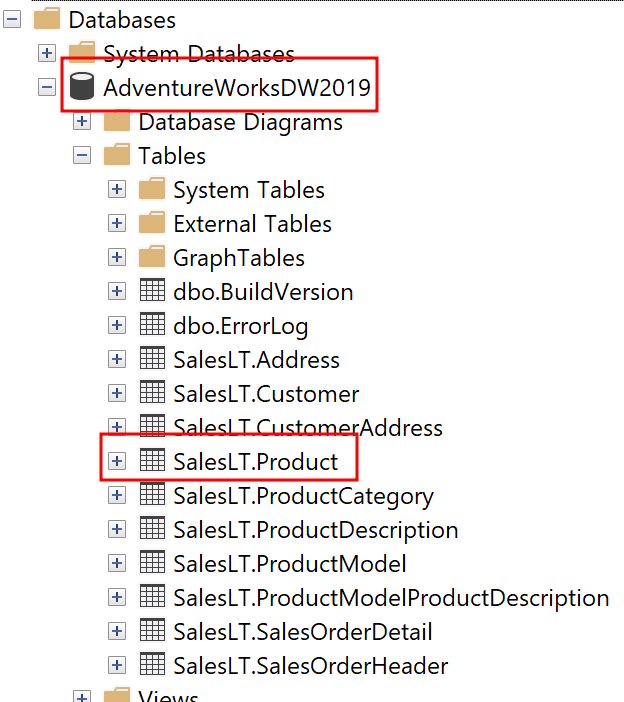
As mentioned, I’m going to use an Azure SQL DB on which I have a an AdventureWork Database 2019. In there, I’m going to connect to the SalesLT.Product table in DirectQuery mode from Power BI.

To do so, I select the Azure SQL Database Connector, pass my Server and Database name, choose DirectQuery, and past a simple SELECT statement in the Advanced Options.

SELECT p.[ProductID]
      ,p.[Name]
      ,p.[ProductNumber]
      ,p.[Color]
      ,p.[StandardCost]
      ,p.[ListPrice]
      ,p.[Size]
      ,p.[Weight]
      ,p.[ProductCategoryID]
      ,p.[ProductModelID]
      ,p.[SellStartDate]
      ,p.[SellEndDate]

FROM [SalesLT].[Product] p

Before loading my data, I hit the transform button to switch to Power Query. In there, I want to parametrize the Server and DB name. Further, for my test purpose, I want to use the dynamic M Parameter and pass the Product Number into my M. For that reason I create three Parameters in total using the CA-1098 value as current for my product number.

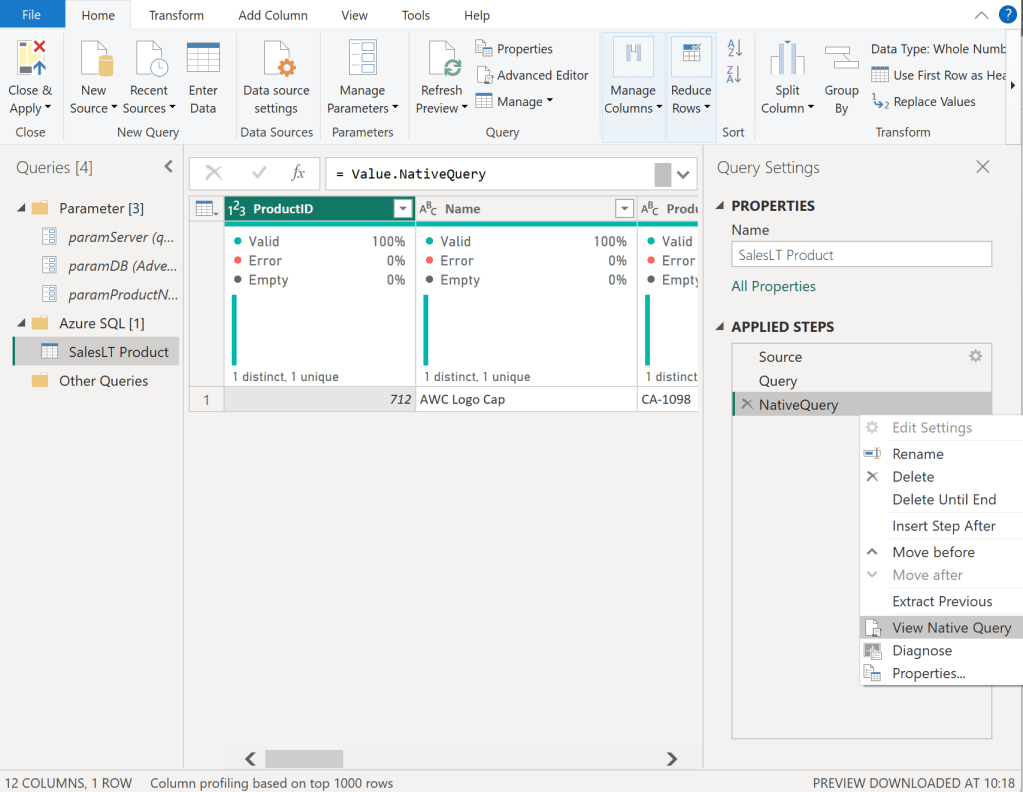
Once done, I select my Sales Table and right click on the “Source” step on the right hand side. In there, I can see that Native Query is greyed out and therefore not enforced. As we need Native Query folding, we have to customize our M a little bit. If you’re not familiar with Native Query folding, I can recommend the official Microsoft Documentation found here: https://learn.microsoft.com/en-us/power-query/native-query-folding

For some data sources the View Native Query is always greyed out as Power Query can’t identify if it is enabled or not. To make sure if Native Query Folding is enabled, trace your data source and see what query has been executed on it. Additionally, you can use Value.Metadata function in M to check if “IsFolded” is set to true or not.

Now, I switch to the Advanced Editor of Power Query and customize my code to, on one hand, use the Server and DB parameters, and enforce Native Query folding on the other hand.

In the screen shot below, you can see how I use my two parameters in the Sql.Databasse function of my first Source step. Afterwards, I created a new step called Query and pasted my SQL statement in there. I want to raise your attention to the WHERE clause here in which I point to my Product Number parameter with the default value “CA-1098” right now. Lastly, I have a third step called NativeQuery in which I enforce the Native Query folding by passing the Source, Query, and enforce it by setting EnableFolding to true.

let
    Source = Sql.Database
            (
                paramServer,
                paramDB
            ),
    Query = "
            SELECT p.[ProductID]
                ,p.[Name]
                ,p.[ProductNumber]
                ,p.[Color]
                ,p.[StandardCost]
                ,p.[ListPrice]
                ,p.[Size]
                ,p.[Weight]
                ,p.[ProductCategoryID]
                ,p.[ProductModelID]
                ,p.[SellStartDate]
                ,p.[SellEndDate]

            FROM [SalesLT].[Product] p

            WHERE p.[ProductNumber] = '" & paramProductNumber & "'",
    NativeQuery = Value.NativeQuery
                    (
                        Source, 
                        Query, 
                        null, 
                        [EnableFolding = true]
                    )
in
    NativeQuery

Now, my table shows only one row for the CA-1098 Product Number an Native Query is enabled.

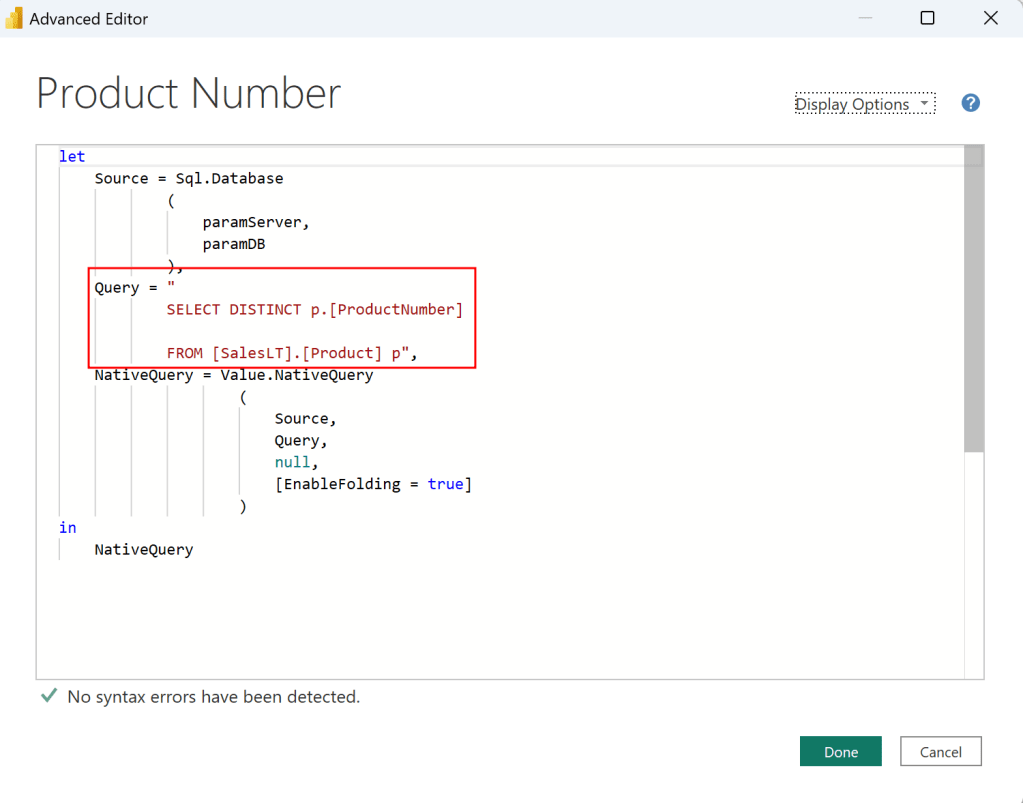
Before we close Power Query, I need an additional table to list all my Product Numbers. For that, I just duplicate the SalesLT Product table, rename it to Product Number, and adjust the SQL Statement to a SELECT DISTINCT.

let
    Source = Sql.Database
            (
                paramServer,
                paramDB
            ),
    Query = "
            SELECT DISTINCT p.[ProductNumber]

            FROM [SalesLT].[Product] p",
    NativeQuery = Value.NativeQuery
                    (
                        Source, 
                        Query, 
                        null, 
                        [EnableFolding = true]
                    )
in
    NativeQuery

Now I can hit the Close & Apply button. Once loaded, I switch to the Model view, select the ProductNumber column from the Product Number table, enhance the advanced options, and choose to bind this field to the paramProductNumber parameter. Pay attention that the two tables are not connected via a relationship in my model.

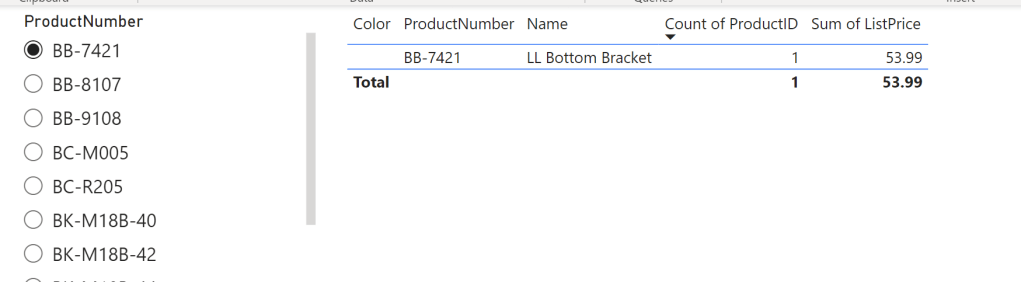
I hit continue on the potential security risk message that pops up next. Let’s test if it works by switching the view to Report View, add a slicer visual with the ProductNumber field from the Product Number table, and add a table visual with some columns from the SalesLT Product. After selecting a Product Number in our Slicer, we see the corresponding item in our table – it works!

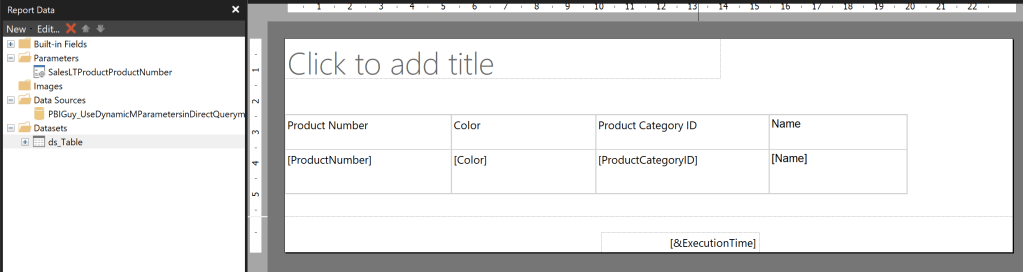
Next, I publish the Report and create a Paginated Report on top of the newly created Dataset. The report itself is pretty simple, including just one Table with four columns. The Data Source is my freshly created Power BI Dataset.

I created the Paginated Report Dataset through the Query Designer in following way and selected the Parameter Checkbox for ProductNumber.

Once the Dataset and Parameter have been created, I open the properties of the Parameter. In there, I make sure I don’t provide any default value as it’s not needed. Further, I make allow Multiple Values making sure I don’t have to change it later on as I wish to pass multiple Product Numbers in a later stage.

Now, when I run the Report and select CA-1098 it works and renders my table. But there is one big but right now. I only see one value in my drop down list.

The reason might not seen obvious at the first sight but it’s very reasonable at the end. Because I provided a default value in my Power BI Dataset it filters automatically down to just this one value. Paginated Report on the other hand only can render what the PBI Datasets provide, therefore I have to make sure to load everything somehow in Power BI Dataset while the filter / parameter still have to work. Nevertheless, let’s test the Paginated Report in Power BI through the out of the box visual to see what will happen. To do so, I publish the Paginated Report to Power BI Service, switch back to Power BI Desktop and add the Paginated Report Visual into it. I add the ProductNumber field to the visual, hit Connect to Report, select my newly published Paginated Report, and hit Set Parameter. In there, I configure the Power BI field to map to my Parameter and hit See Report.

As expected, I get an error. The reason is I try to pass the “BB-7421” value to Paginated Reports, but it’s only aware of the “CA-1098” and therefore it throws an error.

Let’s fix it in my WHERE clause of the SQL Statement in which I filter down to get only one value right now. I need a way to pass “All” as default value to get all values back but once I select a value in my slicer, it should filter it down. On top, it should be multi value aware. For that, I adopt the SQL statement in SQL Server Management Studio and replace the = with “IN” and set the statement in brackets. Further, for testing purpose in SSMS, I declare a parameter and set it to “All”. Lastly, I create a CASE statement in which I check if the parameter is All and if so, then all values from ProductNumber column should be selected, otherwise only the value itself should be taken.

DECLARE @selectedProductNumber VARCHAR(50) = 'All';

SELECT p.[ProductID]
,p.[Name]
,p.[ProductNumber]
,p.[Color]
,p.[StandardCost]
,p.[ListPrice]
,p.[Size]
,p.[Weight]
,p.[ProductCategoryID]
,p.[ProductModelID]
,p.[SellStartDate]
,p.[SellEndDate]

FROM [SalesLT].[Product] p

WHERE p.ProductNumber IN (CASE WHEN @selectedProductNumber = 'All' THEN ISNULL(ProductNumber, '') ELSE @selectedProductNumber END )

After testing if the SQL statement works as expected by changing the parameter to All and different Product Numbers, I copy and paste the new SQL Statement to M in Power BI and update it to point to my parameter in Power BI. Be aware, that the DECLARE Statement is not needed here.

let
    Source = Sql.Database
            (
                paramServer,
                paramDB
            ),
    Query = "
            SELECT p.[ProductID]
                ,p.[Name]
                ,p.[ProductNumber]
                ,p.[Color]
                ,p.[StandardCost]
                ,p.[ListPrice]
                ,p.[Size]
                ,p.[Weight]
                ,p.[ProductCategoryID]
                ,p.[ProductModelID]
                ,p.[SellStartDate]
                ,p.[SellEndDate]

            FROM [SalesLT].[Product] p

            WHERE p.ProductNumber IN (CASE WHEN '" & paramProductNumber & "' = 'All' THEN ISNULL(ProductNumber, '') ELSE '" & paramProductNumber & "' END )",
    NativeQuery = Value.NativeQuery
                    (
                        Source, 
                        Query, 
                        null, 
                        [EnableFolding = true]
                    )
in
    NativeQuery

If I now change my paramProductNumber value the table reacts and if I put All into it, I see all values – perfect!

Before publishing, there is one thing left. We have to make the Parameter multi value aware so not only single values can be passed. To do that, we hit Close & Apply and switch to the model view. In there, I select the ProductNumber field and enable Multi-Select.

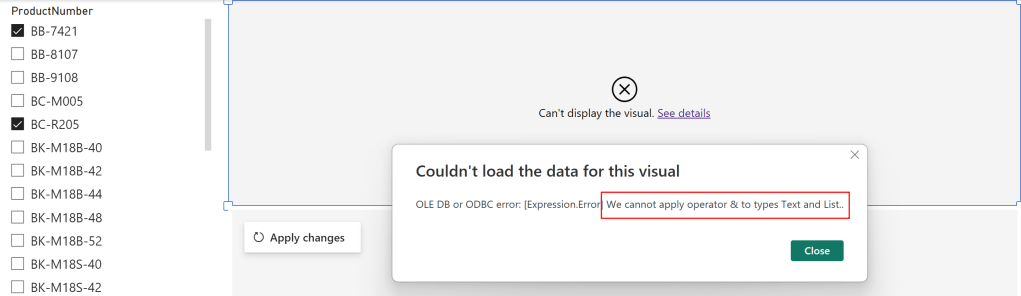
Now, switching back to the report view, I got another error.

The reason for this error is again the M code as the Parameter is a Text and therefore Power Query expects a text value. But passing multi values converts the parameter to a List and it can not be matched, that’s what the error says at the end. To fix it, let’s go back to Power Query and open the Advanced Editor of the SalesLT Product table. In there, I add at the top a new step which checks if the parameter is of type list, and if so, convert it to text separated by single quotes. If not, it’s just passing the same value to the selectedProductNumber step. On top, I remove the single quotes in my WHERE clause as I’m providing them in the selectedProductNumber step already and change the reference now to my newly created step.

Now, I just click Close & Apply button, delete the table visual as it’s not needed anymore, and publish my report. Don’t get confused because of the error message the Paginated Report visual is still showing – we have to first update the Dataset in the Service to see the changes.

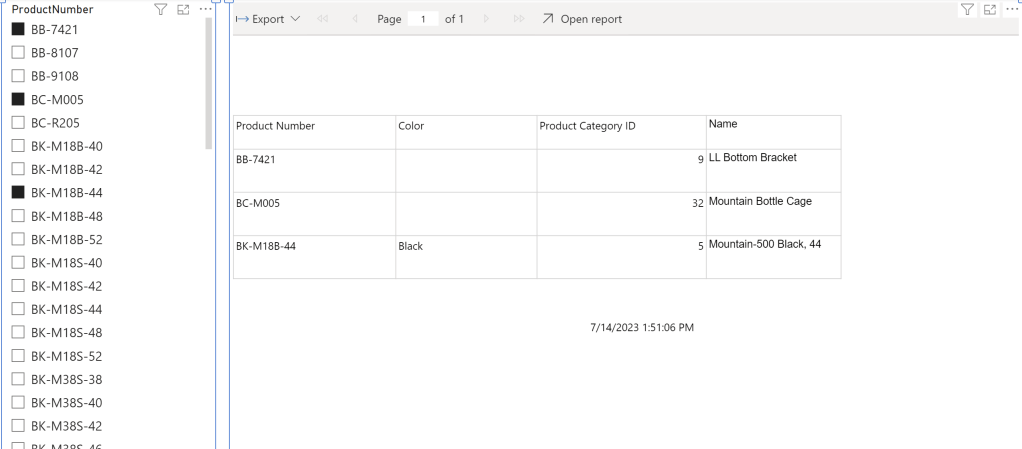
After successfully publishing the Power BI Report, I just hit apply changes in the Paginated Report Visual and see that my selection is now passing through! Even if I select multiple values, I can see the expected result.

Please let me know if this post was helpful and give me some feedback. Also feel free to contact me if you have any questions.

If you’re interested in the files used in this blog check out my GitHub repo https://github.com/PBI-Guy/blog

Starting a job after a Power BI dataset has refreshed

This blog post is a little bit special to me as the whole idea and text is not coming from myself but from my good friends Dirk Gubbels, Principal Consultant at Microsoft, and Gabi Münster, Fabric CAT/Senior Program Manager as well at Microsoft. They approached me asking if I would be willing to share the solution on my blog and how can I say no to such a request? 🙂 Feeling even honored that they considered my blog for their idea, I’m happy to share their walk-through how to start a job after a Power BI Dataset has been refreshed.

In some business cases, there may be a requirement to perform a number of tasks as soon as a Power BI Dataset has been refreshed. This can be sending out an email, starting another Dataset process, or rendering and distributing reports. This blog post will show in detail how this can be done.

Requirements

For this to work, the following components will be created:

  • A Power BI Report with
    • A Power BI Dataset, which process will trigger the task
    • A page with a card showing data related to the last refresh time
  • A Power BI Dashboard with a time containing information on the time of the last refresh
  • A data Alert that will trigger when the Dashboard tile changes
  • A Power Automate Flow to execute the required task

Each of the components will be described in detail.

Step 1: The Dataset

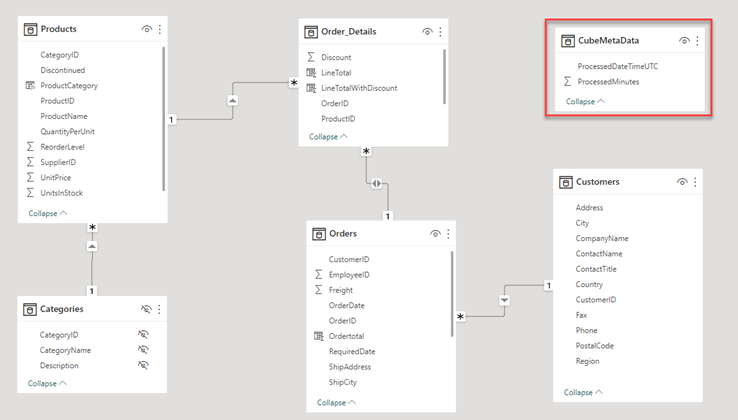
Any dataset can be used for this. In this example the dataset fetches data from the public northwind OData service at https://services.odata.org/V3/Northwind/Northwind.svc/ To have a few tables and data for the report, the following model is created:

Important: To enable the rendering of the report when the Dataset is refreshed, an extra table named ‘CubeMetaData’ is created, using the following M code:

let
    Source = #table({"ProcessedDateTimeUTC", "ProcessedMinutes"}, {{DateTimeZone.FixedUtcNow(),Number.Round(Duration.TotalMinutes( Duration.From( DateTimeZone.FixedUtcNow() - DateTimeZone.From("2020-01-01 00:00:00 +00:00")))) }}),
    #"Changed Type" = Table.TransformColumnTypes(Source,{{"ProcessedMinutes", Int64.Type}, {"ProcessedDateTimeUTC", type datetimezone}})
in
    #"Changed Type"

The 2nd column is needed to set the data alert, as currently data alerts cannot be set on date or datetime values. Therefore, a column with a numeric value must be created.

Step 2: Visualizing the processed date

In the Power BI report containing the dataset, create a page with 2 card visuals, one showing the ProcessedDateTime column and one showing the ProcessedMinutes column. This can be sum or first, does not really matter as there is only 1 row anyway. Make sure the card showing the processed minutes does not use any display units. The full detail of the number needs to be visible.

The left visual will not be used, but is added for troubleshooting purposes, to see if the cube was processed.

Step 3: Save and publish the report

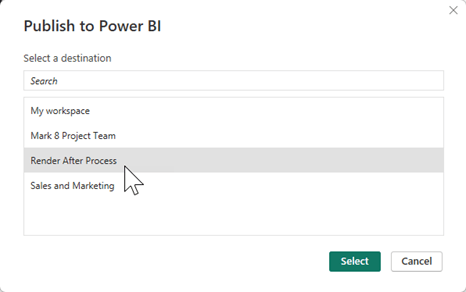
Save the report and publish it to a workspace on Power BI.

Step 4: Create a Dashboard

The Power Automate Flow will be triggered by a data alert in Power BI. These data alerts are only available on Dashboards. So, the next step is to create a Dashboard with a single tile referring to the refresh date/time of the cube.

Open the report that was just published:

And pin the visual showing the numeric value of the processing time to a new Dashboard:

After creating the dashboard, open it.

Step 5: Create a data alert

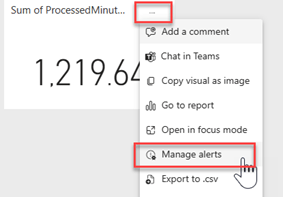
On the Dashboard, click the ellipsis button at the top of the newly created tile showing the processed Datetime: If the ellipsis button (…) is not visible, try changing the size of the tile.

Choose ‘manage Alerts’ to create a new data alert, and click the ‘+ Add alert rule’ button. The alert should look similar to this:

The alert condition will always be true, but because the alerts are only sent when the data changes, this effectively becomes an alert sent on data change. The data will only change when the cube processes.

Step 6: Create the Power Automate Flow

With the data alert is set up, it is now possible to start a Power Automate Flow when the alert is triggered. To do this, either click the link at the bottom of the data alert details, or navigate to https://powerautomate.microsoft.com/

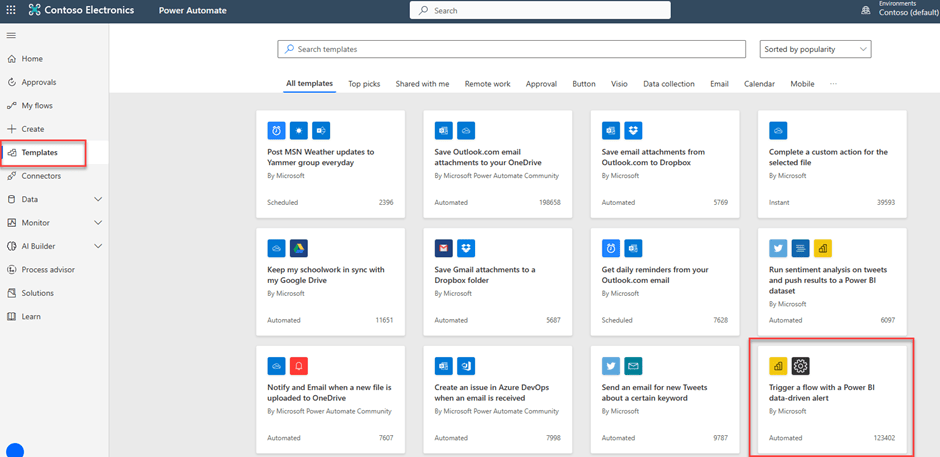
Sign in and select ‘templates’ at the left side of the screen. The template ‘Trigger a Flow with a Power BI Data-driven alert’ should appear on the bottom right of the screen. If it is not visible, just search for ‘Data driven alert’.

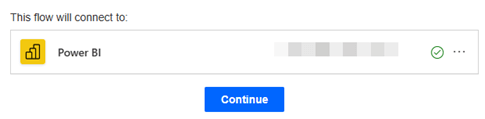
Select the template. On the next screen, you may be asked to validate the connection to Power BI:

Validate this and click continue. The flow editor opens.

For this sample implementation, a simple mail alert step is added. The goal is to see that the Flow gets started when the cube is processed, a full implementation will depend on the business case. E.g. to export Paginated Reports in Power Automate, use the steps explained at Export paginated reports with Power Automate – Power BI or check out PBI Guy’s Blog post https://pbi-guy.com/2023/02/03/export-paginated-reports-automatically-in-a-low-code-way-without-power-bi-premium/

The flow looks like this:

Ensure the flow is saved.

Step 7: Testing the solution

To test the solution, process the Dataset. Before the Dataset can be processed, the credentials need to be set. In this case, we’re using an anonymous OData feed. Go to the settings of the Dataset and click ‘edit credentials’ on the data source credentials.

Once this is done, the dataset can be refreshed.

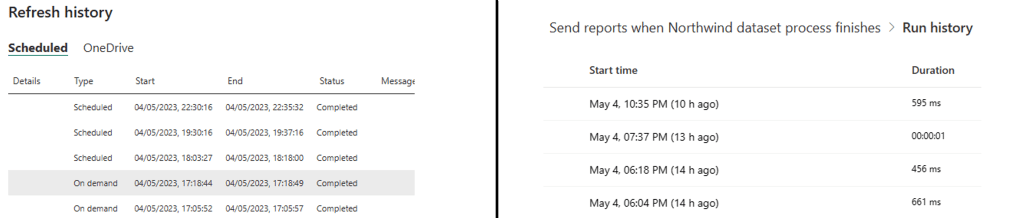
As the alert will be triggered maximum once per hour, it is best to schedule a few automatic refreshes with a few hours in between, and compare the refresh history with the flow execution history:

This shows there is around a 5 – 7 minute delay between the refresh finishing and the Power Automate job starting.

Alternatively, a similar result can be achieved using Scorecards and Goal instead of a Dashboard and a tile.

Add-on from PBI Guy: You could also trigger a Dataset refresh via Power Automate and use the REST API to check the status of the Dataset Refresh. Once finished, the Flow could proceed and send as well an e-mail or whatever is required. This way you would have more control over the whole process, but would require more skills to call the Power BI REST API. Lastly, you could also create more complex rules by executing DAX statement against the Dataset via the REST API or Power Automate and check tresholds in Power Automate to trigger an e-mail alert.

Limitations

Please be aware that Data Alerts currently are not triggered if you refresh the Dataset using the XMLA endpoint or the enhanced refresh API.

Conclusion

The steps above explain how to create a Power Automate Flow that is executed after a Power BI Dataset is refreshed. This opens the door for many different business scenarios of tasks that need to run as soon as new data is available in a Power BI Dataset.

Once more, thank you very much for these insights Dirk and Gabi and I hope we’ll collaborate even more in near future!

Please let me know if this post was helpful and give me some feedback. Also feel free to contact me if you have any questions.

If you’re interested in the files used in this blog check out my GitHub repo https://github.com/PBI-Guy/blog

Create a custom partition in Power BI and trigger a refresh with Python

Working with large datasets I almost always get the question if an incremental refresh can be configured within Power BI and yes, this is possible as described here. Especially if you have a date or datetime column it makes sense to set up an incremental refresh to reduce your dataset refresh time. Once set up, Power BI will create automatically some partitions behind the scenes making sure the data is stored as configured. For example if you wish to have 5 years of archived data, each year will represent one partition. But what if you don’t have a date/datetime column or you wish to create your own partition? Can you still create your own, custom partitions and trigger some kind of incremental refresh? Yes you can! Let me show you how.

Let’s quickly demystify the term “partition”

Asking chatGPT what a partition in Power BI is, we got following reply:

In Power BI, a partition is a way to break up a large dataset into smaller, more manageable chunks based on a set of defined criteria. This can be particularly useful when working with datasets that contain millions or billions of rows, as it can help to optimize performance and reduce the time it takes to load and process the data.

Partitions are essentially subsets of the data that are stored separately from the main dataset, based on specific conditions such as date ranges or other data attributes.

By dividing a large dataset into smaller partitions, Power BI can improve query and report performance, and also reduce the resources required to process and manage the data. This can lead to faster report rendering times, reduced memory usage, and improved overall user experience.

Overall, using partitions in Power BI can be a powerful way to optimize large datasets and improve the performance of your reports and visualizations.

chatGPT on “Explain what partitions are for Power BI datasets”

I must admit I don’t have anything to add here.

Let’s get started

For my demo purpose I’m going to create a dummy table in Azure SQL on which I can test custom partitions in Power BI. Further, I’ll need the open-source tool Tabular Editor (regardless if version 2 or 3) in which I’ll create my partitions. If you prefer, you can also use SQL Server Management Studio (SSMS) to create your partitions. Lastly, I’m going to use Synapse Notebooks to run my Python script at the end to trigger a partition refresh.

So let’s start and create a dummy table. I created a SQL script which will create a table with an ID, Country, Region, and a random Revenue. To update which country should be involved, you can add, delete, or modify the countries starting from line 28. If you wish to modify the schema and table name, just update it on line 36 & 37. Lastly, I specify how many rows per country should be added. In my case I add 10 rows per country but if you need more (or less) update the CounterMax variable on line 39.

Once executed, I got 70 rows in my case in my newly created SQL table. Now, let’s connect with Power BI Desktop to it and switch to Power Query (Transform Data button once connected to the SQL table). Why Power Query? Because I’ll prepare my first partition there and will reuse the code for my other partitions.

As you can see in the screen shot above I don’t have a filter applied yet and see the full list of all my countries. To make my solution as configurable as possible, I add a new parameter called “Europe” and one called “America”. I choose Text as type and add the Europe resp. America as Current Value.

The parameters screen shot shows two further parameters called “SQL Server Name” and “Database Name”. I parametrized my data source for reusability and is considered as best practice but it’s not mandatory.

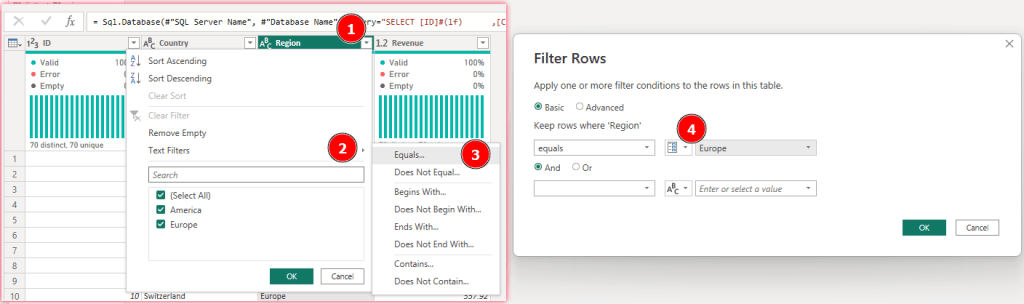
Next, I select my table, choose the little arrow in the right corner of the column, select Text Filters – Equals… and choose my Europe parameter. Once done, I confirm by selecting OK.

Now, I select Advanced Editor in the ribbon and copy the whole code behind. Making sure I’ll not lose the code I paste it into Notepad.

Lastly, I close the Advanced Editor and confirm everything by hitting “Close & Apply” to load the data into Power BI. After data has loaded, I publish my Power BI report to a Premium workspace (PPU or Embedded works as well).

Once published, I switch to Power BI Service, select the workspace in which the report has been published, head over to settings, and copy the workspace connection.

Next, I open External Tools, connect to my workspace, and select the custom partition dataset. In there, you will find one partition if you expand Tables – Your Table Name (Custom Partition in my case) – Partitions. If you select it, you’ll find the M-Code in the Expression Editor on the right hand side.

Let’s now build our own partition with the same approach but in Tabular Editor. All I need to do is right-click on Partitions, select New Partition (Power Query), click afterwards my newly created partition, and paste the M-Code into the Expression Editor. Lastly, I just need to update the “Europe” parameter to “America”. Make sure the name matches exactly with your parameter name. If you wish to double check it, just expand “Shared Expressions” which represents your defined parameters in Power BI.

To make the partitions more user-friendly, let’s rename them as well by just selecting it and hit F2. I renamed it to “Europe” and “America”. Once done, save your data model.

If I check my report now, nothing has changed as I haven’t refreshed my dataset yet. So let’s trigger a manual refresh in Power BI Service and check the report if something has changed. As we can see, all countries from the region America are now also included. Nice!

Let’s now try to trigger a partition refresh instead of the whole table. In one of my previous blog posts I showed how to refresh a Dataset with Python. I’m going to use the same code and just adjust it a little bit. Checking the documentation we can add a body to our POST request and define which partition should be refreshed. Therefore I adjust my Python script by adding following parameter before calling the REST API.
body = {
    "type": "full",
    "commitMode": "transactional",
    "maxParallelism": 3,
    "retryCount": 1,
    "objects": [
        {
            "table": "Custom Partition",
            "partition": "Europe"
        }
    ]
}

After I executed the script and check the Refresh history of the dataset in Power BI Service, I’ll see Via Enhanced Api as Type.

But how do I know that only one partition is now refreshed and not the whole table? I can check that either with Tabular Editor or SSMS. In Tabular Editor I just connect again to my Dataset, select my Europe partition and check the “Last Processed” Date and Time. If I compare the Date and Time with my America partition I see a difference – so it worked!

With SSMS I have also to connect to my Dataset, right click on my Table, select Partitions, and then I will be able to see the different Partitions as well as the Last Processed Date and Time. By the way you could also manually trigger a Partition Refresh from this view by just selecting the process button (it’s the small one with the three green arrows) and confirm on the next screen with OK.

As a final step let’s test a little bit the performance as well as what would happen if we add a new region. Let’s first add the Asia region with some countries. To do so I open my SQL statement again and add China, Japan, and India as Asia countries.

Once successfully executed, I have 100 rows in my Custom Partition table as each new country added 10 rows. Let’s refresh the Power BI Dataset and check if I’ll see the newly added countries in my report. And as expected, nothing has changed in my report meaning the Asia region is not included! This makes sense as the two created partitions only include America and Europe, therefore everything else will be filtered out. This means I need to create another partition either for each Region or I create “everything else” partition. In my case and for the demo purpose, I choose the second option. To do so I open my report in Desktop, switch to Power Query, click the gear icon in my Filtered Rows step under Applied Steps, and configure the filter to does not equal to Europe And does not equal to America parameter.

Once applied with OK I’ll see a Preview of my Asia countries coming from SQL. Following the steps described above, I just copy the whole M-Code from the Advanced Editor window, switch to Tabular Editor (or SSMS), and create a new Partition with this code called “All other Regions”. After saving my data model I switch back to Power BI Service and trigger a full refresh manually. And now my three new countries are also included in my report.

As we have now three different partitions and making sure we’ll get all data which are added to the SQL table, let’s do some performance testing. I’ll always follow the same approach:

  1. Add the same number of rows to each partition (I deleted France from my SQL table making sure each region has 3 countries)
  2. Do a single partition refresh and check how long it takes
  3. Refresh all partitions at the same time and check how long it takes
  4. Do a full refresh and check how long it takes

As I’m interested if there is a difference refreshing the whole data model or explicitly calling the REST API and trigger all partitions at once, I decided to differentiate step 3 and 4.

You can also trigger multiple partition refreshes through the API by adjusting the body. In my case I used the below body.

body = {
    "type": "full",
    "commitMode": "transactional",
    "maxParallelism": 3,
    "retryCount": 1,
    "objects": [
        {
            "table": "Custom Partition",
            "partition": "Europe"
        },
        {
            "table": "Custom Partition",
            "partition": "America"
        },
        {
            "table": "Custom Partition",
            "partition": "All other Regions"
        }
    ]
}

To add new rows I’ll use my SQL script and adjust the CounterMax Parameter to different values.

Keep in mind, the bigger the number is, the longer it will run. After having roughly 1 Mio rows I used the INSERT INTO SQL Statement to just duplicate the data instead of running the script as it would take too long to add so many rows.

And here is my result. As you can see trigger a single partition is always faster then refreshing the whole dataset. Well, this is expected. But the time saved varies between 37 – 72%! The bigger the data, the more time you’ll save. Interestingly enough, triggering all partitions via the REST API to refresh is also faster, but the bigger the data gets the less time you’ll save with it but still worth considering from my point of view.

Please let me know if this post was helpful and give me some feedback. Also feel free to contact me if you have any questions.

If you’re interested in the files used in this blog check out my GitHub repo https://github.com/PBI-Guy/blog