As you probably know the Power BI REST API is a very handy interface to extract information in an automatic way. I showed already in different posts how to use e.g. Python and Power Automate to achieve various things (see https://pbi-guy.com/tag/power-bi-rest-api/). But did you know you can also connect with Power BI to the REST API and get e.g. an overview of all your workspaces? And even better, you can use a Service Principal to do so. Let me walk you through and explain why a Service Principal is more handy in this case.
Prerequisites
To be able to connect to the Power BI REST API there are a few things needed.
- Power BI Desktop
- a Service Principal
- Sufficient permission to call the REST API
In one of my previous posts I showed how to create a Service Principal (https://pbi-guy.com/2022/03/10/power-bi-and-activity-logs-with-python/). On top we have to make sure the Tenant setting is enabled to call the REST API with a Service Principal, see https://learn.microsoft.com/en-us/power-bi/enterprise/service-premium-service-principal
Let’s start
Checking the documentation, we see there is a bunch of different APIs we could call and extract various details. In my case I wish to have an overview of all Workspaces I have access to. Therefore, I’m going to use the Get Groups call. To do so, I open Power BI Desktop, choose Get Data, and select the Web connector.
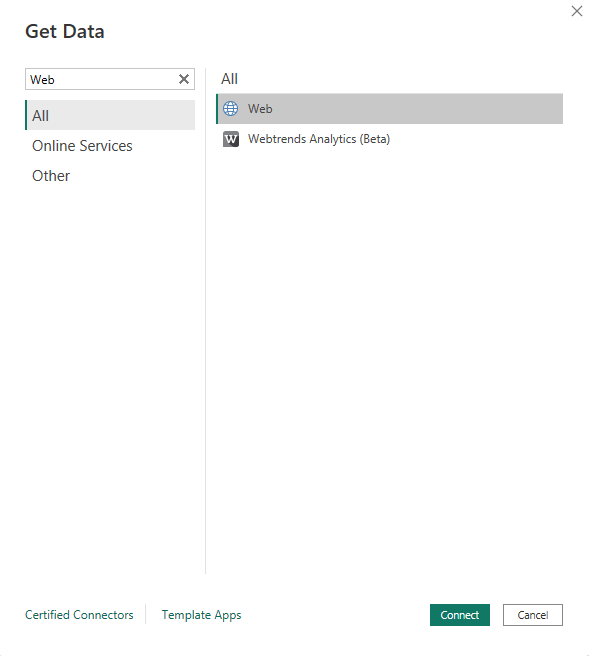
Next, I add the URI (without “GET”) provided in the doc.
https://api.powerbi.com/v1.0/myorg/groups
If I would now hit OK I would get an error message saying “Access to the resource is forbidden” because we didn’t and can’t authenticate automatically to the REST API. We have to provide a so-called Bearer Token so that the REST API knows we are allowed to access it and get the details we’re looking for. But how to get one? There are two easy ways, let me show you both.
Get a Bearer Token
On one hand, you can use PowerShell to get a Token on behalf of your user. To do so, you would first need to install the Power BI PowerShell cmdlet (see here) and execute two line of code. The first line is to login to Power BI and the second one to show the Access Token as text resp. string format. If you execute it, PowerShell will automatically open a new window in which you can provide your user and credentials. Afterwards, the Token will be generated and visible in the output.

Login-PowerBI
Get-PowerBIAccessToken -AsString
On the other hand, you can also use the the Power BI REST API documentation as there is a Try It button.

Once clicked, a new window pane on the right hand side will expand where you can log in with your user. Afterwards you’ll find a Bearer Token in the HTTP request which you can copy.

Use the Bearer Token in Power BI
Now that we copied our Bearer Token, let’s switch back to Power BI and hit Advanced in the Web Connector Window pop up. As we can see in the above screen shot, the “HTTP” request includes an “Authorization” parameter with the Bearer Token. This is exactly what we have to provide as well in Power BI. Make sure “Bearer” with a space afterwards is also included.

If you copy & paste the Bearer Token from the PowerShell output make sure no “Enters” are included.
Hitting the OK button, I’ll get now an overview of all workspace I have access to (not the Service Principal, as we used our Token so far). But to be able to refresh the Report we would need to make sure the Bearer Token is newly generated and active as per default the Token expires after 60 minutes. For such a case a Power BI function comes very handy to generate a new Token each time we refresh the report. Unfortunately, there is another “but” in the current scenario. Power BI resp. Power Query can’t handle Multi-Factor-Authentication (MFA), which is best practice and enabled in my demo tenant. For such a case a Service Principal comes very handy! SPs don’t have MFA and we would be able to connect to the REST API.
Create a function to get a Token with a Service Principal
As I love to work with parameter because they make my life much easier once some changes are needed, let’s create three in this case – one for the Client ID (Service Principal ID), Client Secret, and Tenant ID which are needed to create a Token. All three are of type Text. As current value I put in the details of my Service Principal.

Next, I create a function by hitting New Source – Blank Query. Afterwards, I select Advanced Editor and paste the code below into it. In short, it’s using the three defined parameters and call the URL to generate a Token with the Service Principal we provided. As we want to connect to Power BI the Scope / Authority is also given (analysis.windows.net/powerbi/api). We use the response body to extract the Access Token out of it and save it into our last step “Bearer”

() =>
let
   TenantGUID = paramTenantID,
   ApplicationID=paramClientID,
   ApplicationSecret=paramClientSecret,

   OAuthUrl = Text.Combine({"https://login.microsoftonline.com/",TenantGUID,"/oauth2/token"}),
   ClientId = Text.Combine({"client_id",ApplicationID}, "="),
   ClientSecret = Text.Combine({"client_secret", Uri.EscapeDataString(ApplicationSecret)}, "="),
   GrantType = Text.Combine({"grant_type", "client_credentials"}, "="),
   Body = Text.Combine({"resource=https://analysis.windows.net/powerbi/api", ClientId, ClientSecret, GrantType}, "&"),

   AuthResponse= Json.Document(Web.Contents(
       OAuthUrl,
       [
           Content=Text.ToBinary(Body)
       ]
   )),

   AccessToken= AuthResponse[access_token],
   Bearer = Text.Combine({"Bearer", AccessToken}, " ")

in
   Bearer
Before I continue, I rename the function to fnGetToken. Once done, my last step is to make sure the “groups” table will call the function to generate a Token every time I refresh my Power BI report. To do so, I select the table, hit Advanced Editor, and replace everything between the quotation marks as well as the quotation marks itself with the function fnGetToken()

That’s already it! If everything done correctly, the table should already be updated with all the Workspaces the Service Principal has access to. To make sure that it works, you can hit the Refresh button.
If the table is now empty, this means the Service Principal wasn’t added to any workspace. Make sure to add the Service Principal to each workspace you wish to see.
That’s already it! This way, you can call all “GET” REST APIs from Power BI with a Service Principal.
Keep in mind this way you are exposing the Service Principal ID as well the secret. Unfortunately, there is no way to hide or anonymous this info or parameter in Power BI.
Please let me know if this post was helpful and give me some feedback. Also feel free to contact me if you have any questions.
If you’re interested in the files used in this blog check out my GitHub repo https://github.com/PBI-Guy/blog
 PBI Guy
[…] authenticate against the Power BI REST API with it. You can find it in my previous blog post here (https://pbi-guy.com/2023/03/25/connect-with-power-bi-to-the-power-bi-rest-api-with-a-service-princip…). To easy things up, I’m going to use the PBIT file from the last post, which you can find in […]
LikeLike
This works great in pbi dekstop, but in pbi service, I’m getting a dynamics source refresh issue.
LikeLike
It’s depending on our REST API that you wish to call and how to configure the URL but perhaps this blog posts helps you: https://community.fabric.microsoft.com/t5/Power-Query/Dynamic-data-source-error/td-p/2609320
LikeLike
Getting workspaces, datasets, anything. Can’t get the above to work in the service. Do you have a sample where you in fact get the token and then use it in a query like you do above but which works in the service.
The above for example with “groups” doesn’t work (only dekstop).
LikeLike
Let me put it differently, does the above work for you in the service?? For me that only runs in desktop.
LikeLike
Hey hey
No, in this case it dosn’t work in the Service, see expectation here: https://learn.microsoft.com/en-us/power-bi/connect-data/refresh-data#refresh-and-dynamic-data-sources
LikeLike
Hey can anyone help me on this i already generate token for the same , but when i am using the same token to get power bi pipeline it through an error in power automate :
{“error”:{“code”:”ALM_InvalidRequest_AccessToPipelineDenied”,”pbi.error”:{“code”:”ALM_InvalidRequest_AccessToPipelineDenied”,”parameters”:{},”details”:[],”exceptionCulprit”:1}}}
Tell me why , i already grant all the permissiion from azure AD
LikeLike
Can you make sure to NOT grant any permissions in Azure Portal (meaning not in the app itself) but just adding it through a Security Group via Admin Portal in Power BI? Further, does the Service Principal has access to the Pipeline, did you add it as e.g. Admin / Owner?
LikeLike
Hi, I always get the error that the connection is not possible, because “The ‘Authorization’ header is only supported when connecting anonymously. These headers can be used with all authentication types: Accept, Accept-Charset, Accept-Encoding, Accept-Language, Cache-Control, If-Modified-Since, Prefer, Referer”. I cannot connect anonymously. I did the exact same steps you described and also downloaded your file: SP Get all Workspaces.pbit where i get the same error message after putting in the parameters. Am I doing something wrong? Is it some setting I need to change?
LikeLike
Hi Alexander
Have you added the Service Principal into a security group which is allowed to use the REST API in Power BI? Besides that not really sure honestly, try to post your question in the Power BI Community or open a support ticket.
LikeLike
I had issues with this being a dynamic datasource like other users but this article: https://blog.crossjoin.co.uk/2022/11/28/web-contents-text-concatenation-and-dataset-refresh-errors-in-power-bi-power-query/ did a great job explaining how to convert this to a static dataset so Power BI Service would give you the option to refresh it. Basically, the text.combine() functions should be replaced with & as a way to combine strings.
That said, this query keeps giving me an error on PBI Service that I need a data gateway. Since the sources here are all cloud sources I thought I wouldn’t need a data gateway.
I switched the toggle to off for Use an “On-premises or VNet data gateway” but the service is still throwing me an error.
Do you have any suggestions on how to bypass this issue? I dont see why I would need a gateway. I think the datasource giving me the issue is in the function to update the bearer token: “https://login.microsoftonline.com/{paramTenandID}/oauth2/token
LikeLike
Hi Thomas
I’m not sure neither… I guess you tried to configure the credentials and refresh it? After publishing the report the first time, you also need to configure the credentials even if it’s just anonymous. Otherwise, I’d suggest to ask the question in the Power BI Community or open a support ticket as usually the Web.Contents function doesn’t require a gateway.
LikeLike
[…] Power BI Desktop2. A way to fetch information from the Power BI Service via REST API. PBI guy has written a great blog post on how to set this up. Please, consider my thoughts about this way in regards to security and governance in the […]
LikeLike
I’ve just stumbled across this post whilst struggling to get the API-s working with PBI Desktop. I followed the above and it worked perfectly for the first workspace, however when I started adding the AD group the service principal is in to more workspaces, those aren’t showing up on the list in Power Query no matter how many times I refresh. Any ideas how to troubleshoot that? Thank you
LikeLike
It could be that it takes some time to update in the backend that your SP will be recognized resp. the permission through the Sec. Group.
LikeLike
[…] be a simpler way to accomplish what we are about to do. The process I used was born from reading this blog post on connecting using a service […]
LikeLike
For anyone that is looking, I followed this guide to get it refreshing in the Power BI Service. Follow the screenshot for the function to get the bearer token and then the API call. The most important step is to add both of the connections to the gateway (as anonymous) and skip test connection checked.
https://community.fabric.microsoft.com/t5/Desktop/Power-BI-Rest-API-authentication-failed-in-Service/td-p/2825997
LikeLike
I followed this step-by-step, but the function failed because it says that I must use anonymous credentials to connect. Did anyone else encounter this?
LikeLike
Hey can anyone help me on this i already generate token for the same , but when i am using the same token to get power bi pipeline it through an error in power automate :
{“error”:{“code”:”ALM_InvalidRequest_AccessToPipelineDenied”,”pbi.error”:{“code”:”ALM_InvalidRequest_AccessToPipelineDenied”,”parameters”:{},”details”:[],”exceptionCulprit”:1}}}
Tell me why , i already grant all the permissiion from azure AD
LikeLike
Yes,I also encountered the same
LikeLike
Can you make sure to use anonymous authentication? Go to get Data Source settings, hit change permission and select it. This article shows it: https://community.fabric.microsoft.com/t5/Desktop/Web-API-Anonymous-access/td-p/2814631
LikeLike
Getting below error while executing the query provided in the ‘to create a function to get a Token with a Service Principal’ section
An error occurred in the ‘’ query. Expression.Error: The field ‘access_token’ of the record wasn’t found.
Details:
HasError=TRUE
Error=[Record]
LikeLike
It looks like the response you get do not contain an access token. Usually, this means you do not have the right permission. Can you check what the response is? I guess it says 401 – Forbidden. This would mean you need to give the right permission to your user to be able to log in and create a Token.
LikeLike
I can get it to work with the Bearer token but when I switch to use the function I get the error “We cannot convert the value “() => let Tenan…” to type Function.”
LikeLike
It could be due to your privacy settings of the connection. Try to set it to public or organizational and test it again.
LikeLike
Here is an easier solution https://github.com/migueesc123/PowerBIRESTAPI . Just follow the instructions to install the custom connector.
LikeLike
That’s def. easier using a custom connector, but sometimes it’s not allowed to install one in specific environments. Thanks for sharing!
LikeLike
Thanks for the tutorial. I can get the bearer token using the function in your method. But it is much shorter than the one I got manually from the “Try It” button (~1900 characters vs ~3000 characters), and try to Get Groups with the function but it pop up an error “We couldn’t authenticate the credentials provided. Please try again.” But when replaced by the token I got from “Try It” button, it works. Do you have any clue what I might have done wrong? Thank you!
LikeLike
Thanks for the tutorial. I can get the bearer token, but it cannot be used to for Get Groups with credentials error popped up. After comparison, the token is about 1900 characters long while the one I’ve got from the Try It button is about 3000 character long. Do u have any idea? Thanks.
LikeLike
Unf. I have no idea why. Have you checked if your function is not cutting somehow intentionally your token? And have u made sure that your Service Principal is generally allowed to call the Power BI REST API call? If you added the SPN just recently to your workspace, it takes time to get updated and may not be immediately available when using API calls. To refresh user permissions, use the Refresh User Permissions API call.
LikeLike