In my first blog I showed how easy it is to set up RLS in general. This works perfectly fine if you’re working with a flat hierarchy. but what if it’s not flat? How to handle it? This post will show you how!
A common scenario is that a manager would like to see his and of his employees’ specific data like salary but of course the employees itself are only allowed to see their salary or from their employees below them in the org chart.
In my fictional organization Yoda is the top manager. Obi-Wan and Leia are on level 2 and each of them has two more employees (level 3). Yoda should be able to see his salary and every other as well. On the other side Obi-Wan has only the permission to see his and his employees’ salaries (Darth Vader and Luke Skywalker). Same goes for Leia. All level 3 employees mustn’t see level 1, 2, or from other people on their level. Therefore they are only allowed to see their own salary.

I created an example in Excel in which we have two tables. One (Table name Salary) with Employee ID, Manager ID and Salary. The other one (Table name Manager) with Employee ID, Employee Name and AD Account.

Now I open Power BI and connect to my Excel sheet. Once my table is loaded I check the relationship if the two tables “Salary” and “Manager” are correctly joined. Looks good so far.
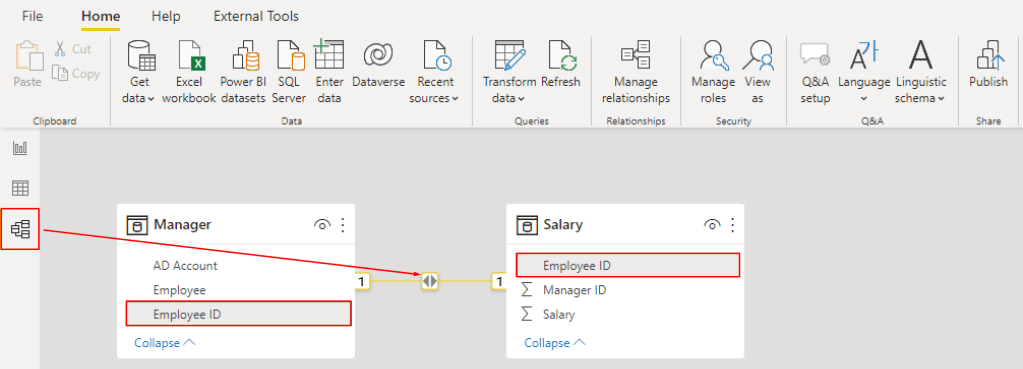
Hint: If Power BI do not create a relationship automatically just create a new one by selecting Employee ID and drag and drop to the other field Employee ID.
My next step is to show the employees ID, employees name, salary, Manager ID and AD Account in a table to keep track if my data are shown correctly. Make sure employee ID and manager ID is not summarized.

My next step is to create a new column and add a so-called PATH function in my salary table. This function allows me to see the whole hierarchy path of each employee. I rename the column to “Hierarchy Path” and add the PATH function as follows: PATH(Salary[Employee ID], Salary[Manager ID]). As a result I get the whole hierarchy path for each employee separated by |.

My next step is to identify which user is logged in right now. To do so I add a new Measure in my Manager table and use the USERPRINCIPALNAME() function. My Measure is called User ID.

Because I do know now who is logged in I can match the AD Account and look which ID the user has. The function LOOKUPVALUE helps me to get the right information. Therefore I create another measure in my Salary table, call it Current User ID and use the following statement: LOOKUPVALUE(Salary[Employee ID], Manager[AD Account], [User ID]). To check if the correct user ID is taken I display my new measure in a table with the User ID. Yoda has the right Current User ID as we can see.

My final step is to add a new Role to manage the permission. I add a new one by selecting Manage Roles in the Modeling Ribbon, hit Create, rename it to Hierarchy and select the Salary table. At this point I add a new function called PATHCONTAINS which checks if something is inside a path – exactly what we are looking for because we have the whole hierarchy structure of each employee (function PATH) and we have also the current user ID (see LOOKUPVALUE). All we have to do now is to combine those bits of information like PATHCONTAINS([Hierarchy Path], [Current User ID]) = True.
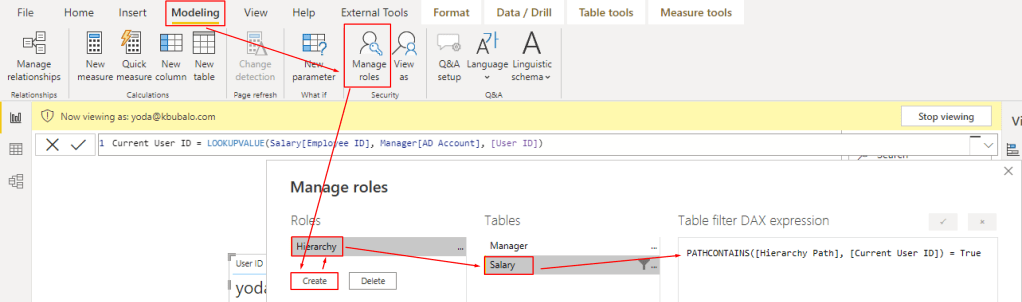
My organizational hierarchy RLS is set up and should work! Let’s test is. As Yoda I should be able to see everything. I create a new table with Employee ID, Name and Salary. Afterwards I activate the Hierarchy role under View as Roles. Power BI notifies me that I’m viewing the Report in the role of Hierarchy. Nothing has changed so far because I can see everything as Yoda.

Now let’s change the user role. Right now I’m viewing my report as Yoda. Let’s try out Obi-Wan.
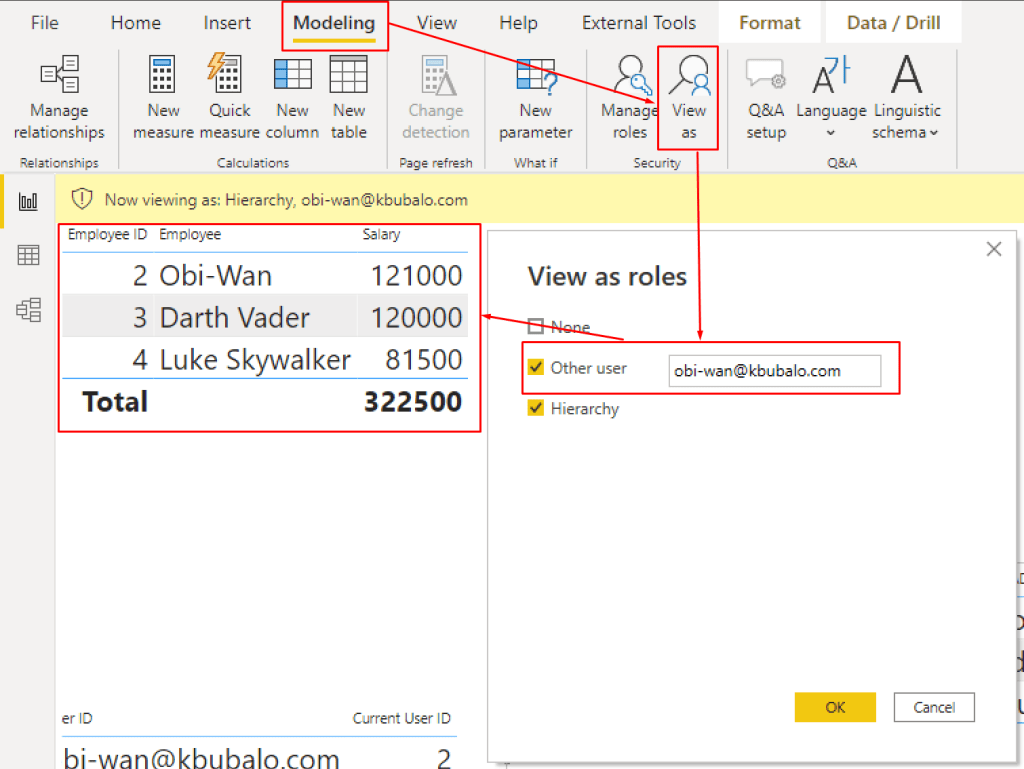
It works! Let’s test the last scenario with Darth Maul.

As we can see it works perfectly fine! With three simple functions I make sure that the permission is set up correctly and users can only see what they are allowed to see. Great!
In my next post I’ll show how to configure RLS properly in the Service.
Please let me know if this post was helpful and give me some feedback. Also feel free to contact me if you have any questions.
If you’re interested in the PBIX and Excel file used in this blog post check out my GitHub repo https://github.com/PBI-Guy/blog
 PBI Guy
[…] my next post I’ll show you how to set up RLS with a […]
LikeLike
[…] my last two posts (see here and here) I wrote about Row-Level-Security (RLS) and how to configure it in Power BI Desktop. This time I […]
LikeLike
[…] the different possibilities (see https://pbi-guy.com/2021/10/12/power-bi-row-level-security/ & https://pbi-guy.com/2021/10/15/power-bi-row-level-security-organizational-hierarchy/ & https://pbi-guy.com/2021/10/15/power-bi-rls-configuration-in-service/). But many customers […]
LikeLike
Hi there,
Thanks for your post, it helped me create the RLS on my HR data based on Org Hierarchy. It all works fine on current hierarchy.
The complication comes when today, User A is a leader of Sales function and can see everyone currently in Sales; however, 2 months ago, 2 employees were transferred from Finance, and selecting a period of last 2 months will show the following table data (instead of all being in Sales, note User A should not see other function’s data).
Function Headcount
Sales 11
Finance 2
Ideal outcome: User A can only see data from Sales regardless of what period he/she selects (historically), in the example above, User A should see Sales = 11 headcount only
Is there a way to tweak the DAX to only show the current function, over the last 24 months?
LikeLike
Hi Nicholas
In such a case you would need to create a so-called Slowly Changing Dimension (see Guy in a Cube Video: https://www.youtube.com/watch?v=tKeaQpWynzg) to track history and changes, and combine it with RLS.
Hope that helps.
Greets
PBI Guy
LikeLike
Thank you so much for this post! It has helped me to implement RLS in my organization. I do have an issue whereby we have teams have seniors within them that act as a manager in the sense that they would need to be able to see the whole teams data. Is there a way to change the formula or implement a view were there is a manager who (for example) has 3 seniors and 7 consultants. All seniors should have the same view as the manager but the consultants should only see their own data.
Would I need to implement a different type of RLS since this technically wouldn’t meet the requirement for a true hierarchy?
LikeLike
Hi Monique
I think you can adapt the 3 seniors in the Hierarchy and gave them the same level like the manager and they will automatically see everything that the manager see’s. Eventually you can also have a second column in which you can specify which person is a manager and have this way the differentiation between manager & senior.
LikeLike
This is a very nice and helpful article, I have a little problem with it, when I test “View as” everything is good and I don’t have any problem, but when I upload it on the Power BI report server and when I login in the web I don’t see data and see only Blank table !!!!!!!!!!!!!!
LikeLike
have you tried to add you to the specific role in Report Server once published?
LikeLike
[…] Date: October 26, 2023Author: Na Wang 0 Comments Power BI Row-Level-Security Organizational Hierarchy […]
LikeLike