Use Dynamic M Parameters in DirectQuery mode and Paginated Reports

Recently, I got a very interesting challenge from a customer of mine. In their use case, they have created a Power BI Report (and Dataset) in DirectQuery mode. On top, they have created a Paginated Report on the same Dataset, and integrated the pixel-perfect report through the out-of-the-box Paginated Report visual. Lastly, to improve performance, they used Dynamic M Parameters in Power BI to influence the query send back to Power BI. If you’re not familiar with this approach, Microsoft has a great documentation here: https://learn.microsoft.com/en-us/power-bi/connect-data/desktop-dynamic-m-query-parameters Now, they wish to pass the selected filter from Power BI to the Paginated Report within the Visual but unfortunately it’s failing with an error message like “You have attempted to pass an invalid parameter”. Let me explore what exactly is happening and how to resolve the issue in this blog post.

Prerequisites

In this scenario we need quite a few things:

  • A database which is DQ supported. In my case I’m going to use an Azure SQL DB
  • Power BI Desktop
  • Power BI Report Builder
  • Power BI Service
  • Power BI Pro license
  • M / Power Query know how

Setting up the environment

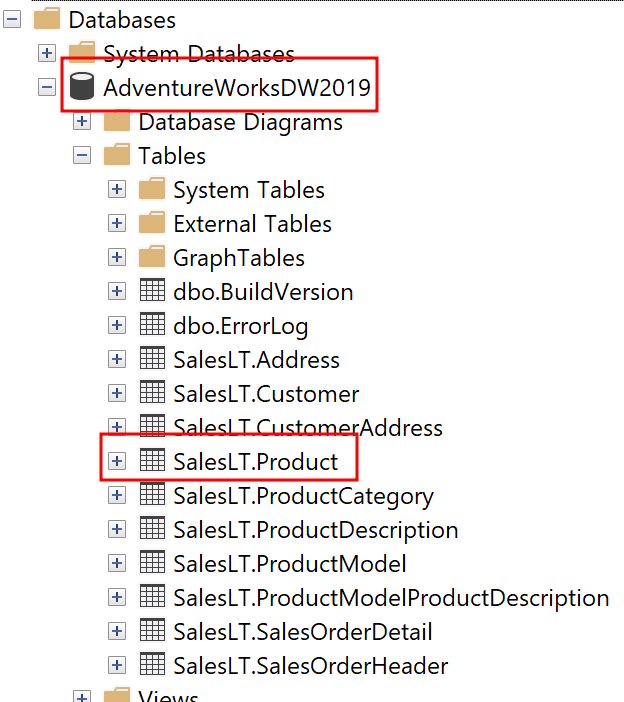
As mentioned, I’m going to use an Azure SQL DB on which I have a an AdventureWork Database 2019. In there, I’m going to connect to the SalesLT.Product table in DirectQuery mode from Power BI.
To do so, I select the Azure SQL Database Connector, pass my Server and Database name, choose DirectQuery, and past a simple SELECT statement in the Advanced Options.

SELECT p.[ProductID]
      ,p.[Name]
      ,p.[ProductNumber]
      ,p.[Color]
      ,p.[StandardCost]
      ,p.[ListPrice]
      ,p.[Size]
      ,p.[Weight]
      ,p.[ProductCategoryID]
      ,p.[ProductModelID]
      ,p.[SellStartDate]
      ,p.[SellEndDate]

FROM [SalesLT].[Product] p

Before loading my data, I hit the transform button to switch to Power Query. In there, I want to parametrize the Server and DB name. Further, for my test purpose, I want to use the dynamic M Parameter and pass the Product Number into my M. For that reason I create three Parameters in total using the CA-1098 value as current for my product number.

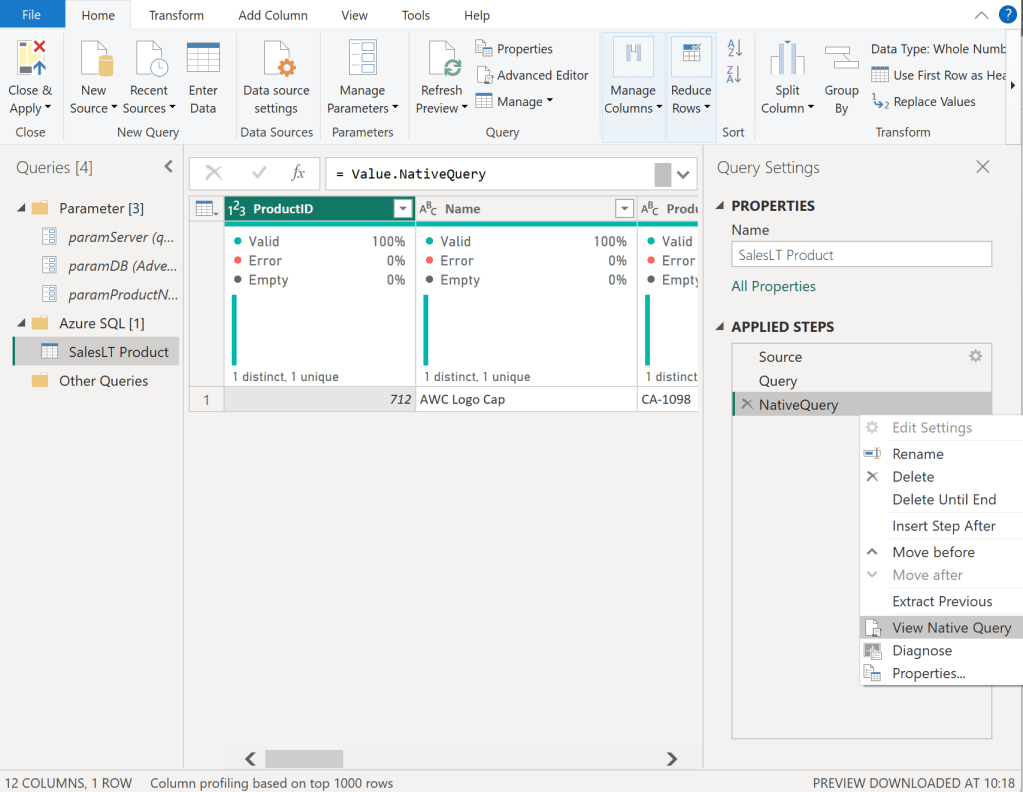
Once done, I select my Sales Table and right click on the “Source” step on the right hand side. In there, I can see that Native Query is greyed out and therefore not enforced. As we need Native Query folding, we have to customize our M a little bit. If you’re not familiar with Native Query folding, I can recommend the official Microsoft Documentation found here: https://learn.microsoft.com/en-us/power-query/native-query-folding

For some data sources the View Native Query is always greyed out as Power Query can’t identify if it is enabled or not. To make sure if Native Query Folding is enabled, trace your data source and see what query has been executed on it. Additionally, you can use Value.Metadata function in M to check if “IsFolded” is set to true or not.

Now, I switch to the Advanced Editor of Power Query and customize my code to, on one hand, use the Server and DB parameters, and enforce Native Query folding on the other hand.

In the screen shot below, you can see how I use my two parameters in the Sql.Databasse function of my first Source step. Afterwards, I created a new step called Query and pasted my SQL statement in there. I want to raise your attention to the WHERE clause here in which I point to my Product Number parameter with the default value “CA-1098” right now. Lastly, I have a third step called NativeQuery in which I enforce the Native Query folding by passing the Source, Query, and enforce it by setting EnableFolding to true.

let
    Source = Sql.Database
            (
                paramServer,
                paramDB
            ),
    Query = "
            SELECT p.[ProductID]
                ,p.[Name]
                ,p.[ProductNumber]
                ,p.[Color]
                ,p.[StandardCost]
                ,p.[ListPrice]
                ,p.[Size]
                ,p.[Weight]
                ,p.[ProductCategoryID]
                ,p.[ProductModelID]
                ,p.[SellStartDate]
                ,p.[SellEndDate]

            FROM [SalesLT].[Product] p

            WHERE p.[ProductNumber] = '" & paramProductNumber & "'",
    NativeQuery = Value.NativeQuery
                    (
                        Source, 
                        Query, 
                        null, 
                        [EnableFolding = true]
                    )
in
    NativeQuery

Now, my table shows only one row for the CA-1098 Product Number an Native Query is enabled.
Before we close Power Query, I need an additional table to list all my Product Numbers. For that, I just duplicate the SalesLT Product table, rename it to Product Number, and adjust the SQL Statement to a SELECT DISTINCT.
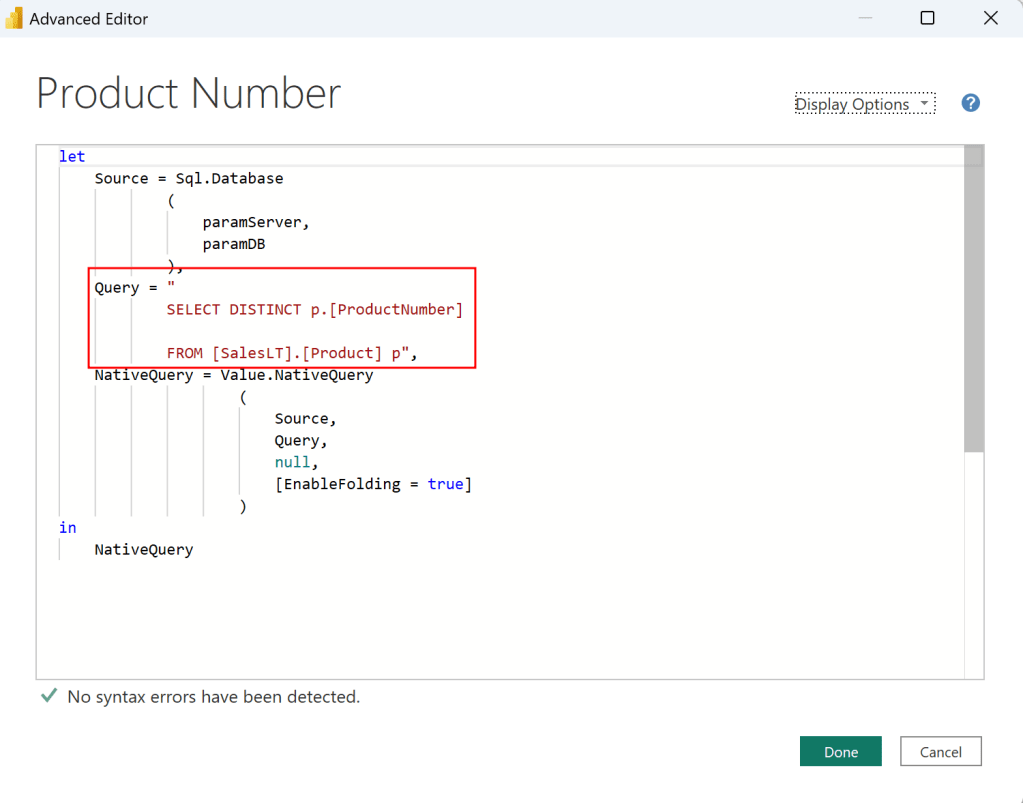
let
    Source = Sql.Database
            (
                paramServer,
                paramDB
            ),
    Query = "
            SELECT DISTINCT p.[ProductNumber]

            FROM [SalesLT].[Product] p",
    NativeQuery = Value.NativeQuery
                    (
                        Source, 
                        Query, 
                        null, 
                        [EnableFolding = true]
                    )
in
    NativeQuery

Now I can hit the Close & Apply button. Once loaded, I switch to the Model view, select the ProductNumber column from the Product Number table, enhance the advanced options, and choose to bind this field to the paramProductNumber parameter. Pay attention that the two tables are not connected via a relationship in my model.

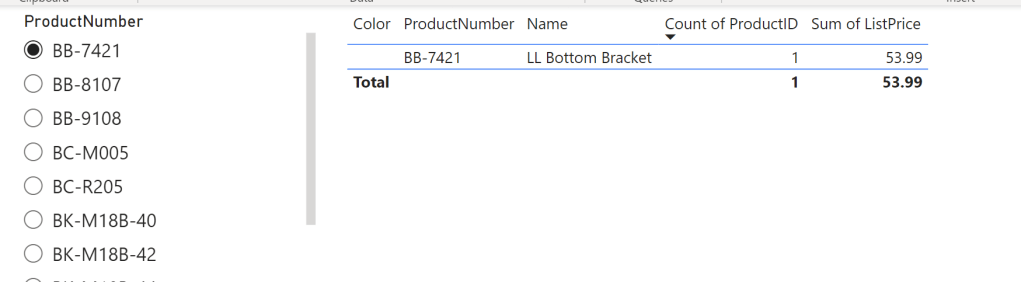
I hit continue on the potential security risk message that pops up next. Let’s test if it works by switching the view to Report View, add a slicer visual with the ProductNumber field from the Product Number table, and add a table visual with some columns from the SalesLT Product. After selecting a Product Number in our Slicer, we see the corresponding item in our table – it works!
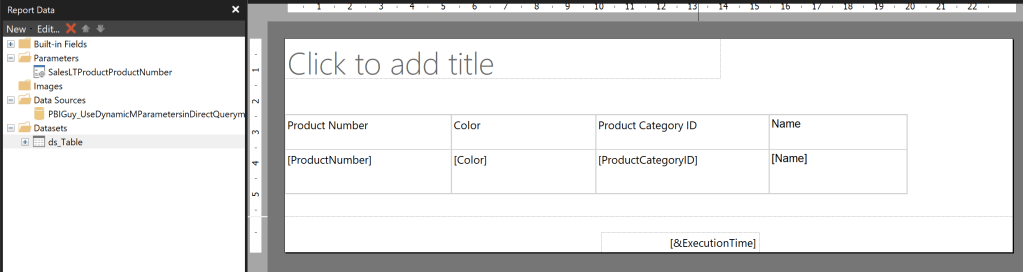
Next, I publish the Report and create a Paginated Report on top of the newly created Dataset. The report itself is pretty simple, including just one Table with four columns. The Data Source is my freshly created Power BI Dataset.
I created the Paginated Report Dataset through the Query Designer in following way and selected the Parameter Checkbox for ProductNumber.

Once the Dataset and Parameter have been created, I open the properties of the Parameter. In there, I make sure I don’t provide any default value as it’s not needed. Further, I make allow Multiple Values making sure I don’t have to change it later on as I wish to pass multiple Product Numbers in a later stage.

Now, when I run the Report and select CA-1098 it works and renders my table. But there is one big but right now. I only see one value in my drop down list.

The reason might not seen obvious at the first sight but it’s very reasonable at the end. Because I provided a default value in my Power BI Dataset it filters automatically down to just this one value. Paginated Report on the other hand only can render what the PBI Datasets provide, therefore I have to make sure to load everything somehow in Power BI Dataset while the filter / parameter still have to work. Nevertheless, let’s test the Paginated Report in Power BI through the out of the box visual to see what will happen. To do so, I publish the Paginated Report to Power BI Service, switch back to Power BI Desktop and add the Paginated Report Visual into it. I add the ProductNumber field to the visual, hit Connect to Report, select my newly published Paginated Report, and hit Set Parameter. In there, I configure the Power BI field to map to my Parameter and hit See Report.

As expected, I get an error. The reason is I try to pass the “BB-7421” value to Paginated Reports, but it’s only aware of the “CA-1098” and therefore it throws an error.

Let’s fix it in my WHERE clause of the SQL Statement in which I filter down to get only one value right now. I need a way to pass “All” as default value to get all values back but once I select a value in my slicer, it should filter it down. On top, it should be multi value aware. For that, I adopt the SQL statement in SQL Server Management Studio and replace the = with “IN” and set the statement in brackets. Further, for testing purpose in SSMS, I declare a parameter and set it to “All”. Lastly, I create a CASE statement in which I check if the parameter is All and if so, then all values from ProductNumber column should be selected, otherwise only the value itself should be taken.

DECLARE @selectedProductNumber VARCHAR(50) = 'All';

SELECT p.[ProductID]
,p.[Name]
,p.[ProductNumber]
,p.[Color]
,p.[StandardCost]
,p.[ListPrice]
,p.[Size]
,p.[Weight]
,p.[ProductCategoryID]
,p.[ProductModelID]
,p.[SellStartDate]
,p.[SellEndDate]

FROM [SalesLT].[Product] p

WHERE p.ProductNumber IN (CASE WHEN @selectedProductNumber = 'All' THEN ISNULL(ProductNumber, '') ELSE @selectedProductNumber END )

After testing if the SQL statement works as expected by changing the parameter to All and different Product Numbers, I copy and paste the new SQL Statement to M in Power BI and update it to point to my parameter in Power BI. Be aware, that the DECLARE Statement is not needed here.

let
    Source = Sql.Database
            (
                paramServer,
                paramDB
            ),
    Query = "
            SELECT p.[ProductID]
                ,p.[Name]
                ,p.[ProductNumber]
                ,p.[Color]
                ,p.[StandardCost]
                ,p.[ListPrice]
                ,p.[Size]
                ,p.[Weight]
                ,p.[ProductCategoryID]
                ,p.[ProductModelID]
                ,p.[SellStartDate]
                ,p.[SellEndDate]

            FROM [SalesLT].[Product] p

            WHERE p.ProductNumber IN (CASE WHEN '" & paramProductNumber & "' = 'All' THEN ISNULL(ProductNumber, '') ELSE '" & paramProductNumber & "' END )",
    NativeQuery = Value.NativeQuery
                    (
                        Source, 
                        Query, 
                        null, 
                        [EnableFolding = true]
                    )
in
    NativeQuery

If I now change my paramProductNumber value the table reacts and if I put All into it, I see all values – perfect!

Before publishing, there is one thing left. We have to make the Parameter multi value aware so not only single values can be passed. To do that, we hit Close & Apply and switch to the model view. In there, I select the ProductNumber field and enable Multi-Select.

Now, switching back to the report view, I got another error.
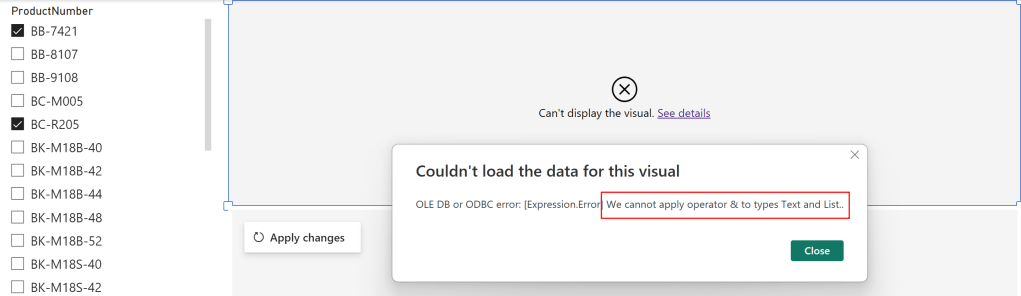
The reason for this error is again the M code as the Parameter is a Text and therefore Power Query expects a text value. But passing multi values converts the parameter to a List and it can not be matched, that’s what the error says at the end. To fix it, let’s go back to Power Query and open the Advanced Editor of the SalesLT Product table. In there, I add at the top a new step which checks if the parameter is of type list, and if so, convert it to text separated by single quotes. If not, it’s just passing the same value to the selectedProductNumber step. On top, I remove the single quotes in my WHERE clause as I’m providing them in the selectedProductNumber step already and change the reference now to my newly created step.

Now, I just click Close & Apply button, delete the table visual as it’s not needed anymore, and publish my report. Don’t get confused because of the error message the Paginated Report visual is still showing – we have to first update the Dataset in the Service to see the changes.

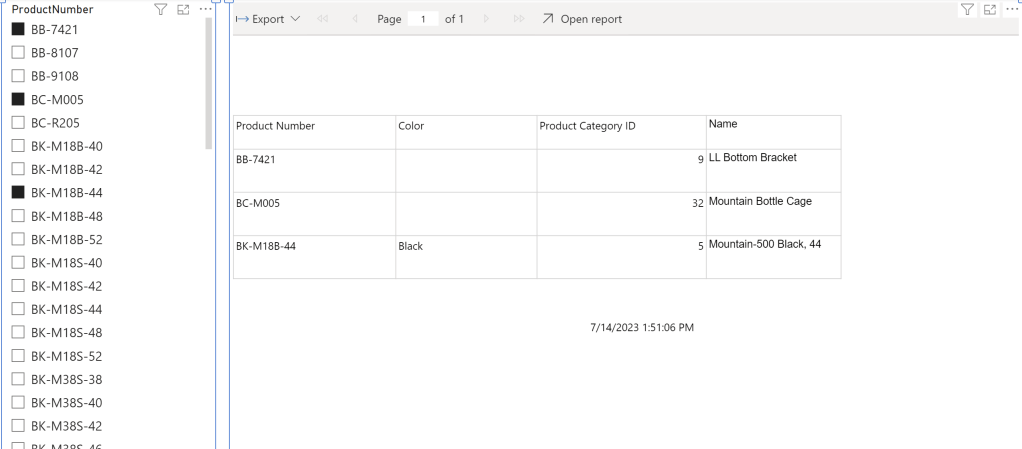
After successfully publishing the Power BI Report, I just hit apply changes in the Paginated Report Visual and see that my selection is now passing through! Even if I select multiple values, I can see the expected result.
Please let me know if this post was helpful and give me some feedback. Also feel free to contact me if you have any questions.

If you’re interested in the files used in this blog check out my GitHub repo https://github.com/PBI-Guy/blog

How to loop through an API with Power BI without knowing last page

Recently a customer reached out to me with a challenge because he knows I love challenges and especially solving them. In his case he got access to the Clarksons Research API, and he would like to connect with Power BI to it. So far so good, pretty straight forward. But in his case the API provides a maximum number of rows per page, and it doesn’t provide you how many pages they are in total. And obviously this can change in future as more data will be available through the API, so he’s looking for a dynamic approach to loop through the API, get all data from all pages, and import it into Power BI. Now we have a challenge and I’m happy to walk you through my solution approach and how it can be solved.

Setting the scene

As described above, we’re going to use the Clarksons Research API. Our goal is to connect with Power BI to it and get all data available in a dynamic approach. Meaning if more (or less) data will be available in future, the automatic refresh should dynamically react and get everything available.

First Steps

My first step was to connect with Power BI to check if a connection is in general possible. Once logged in in the Clarksons Research API we can even find an example code how to connect with Power BI to it – nice!

Following this approach, we first have to set up a dynamic authentication. This means we have to request a token which can be used to authenticate against the API. Because the token expires after a while, we have to create a function which will be called to generate each time a new token. This is also well documented above in the “Set up a dynamic authentication”, so I’m going to use the same code. To create the function I’m opening Power Query, select Get Data, and choose Blank Query. Once loaded, I select Advanced editor and copy & paste the code.

let
    Source = () => let
        url = "https://www.clarksons.net",
        body = "{""username"": ""YOUR_USERNAME"",""password"": ""YOUR_PASSWORD""}",
        Source = Json.Document(Web.Contents(url,[
                
            Headers = [#"accept"="application/json" ,
                        #"Content-Type"="application/json"],
            Content = Text.ToBinary(body) ,
            RelativePath="/api/user/ApiAuthentication/GenerateAuthenticationToken"
                ]      
            )),
        access_token = Source[token]
    in
        access_token
in
    Source

First thing I do is to test if I get a token from my newly created function. So, I select it, rename it to “Get Token” and hit Invoke. We got a big string back which represents the token, so my function works.

Obviously, I have to provide a username and password in the function (I marked the part red in the screen shot above). To make my life easier, so that I don’t have to update username and password every time in the code once I change my password, I created two text parameters which will hold my values. To have a better structure in Power Query I created two folders to hold Parameters and Functions. This is purely for structuring my Power Query and has no effect on the code. Afterwards, I add the two new parameters in the function replacing the hardcoded values.

A quick test by invoking the function again shows that the function still works, and I get a token back. I copy the token as I need it in a few seconds again.

As a next step I can now call the API and authenticate with the token from the function. I used the Web connector, entered the example URL https://www.clarksons.net/api/vessels?Page=1&PageSize=20 and selected Advanced at the top. The reason is we have to add a HTTP requests header parameter and provide the embed token. This is simple done choosing advanced, add Authorization as parameter name at the bottom, and add the value “Bearer ” followed by the token copied previously. Attention, there is an empty space after Bearer which is required!

Once done, I hit ok and choose Anonymous to connect. Now I got the first 20 rows coming from the API.

My first test worked perfectly fine, but I need to add one more parameter into the M-Query. I hardcoded the token in the request, but I want to get it dynamically as it can expire, and I don’t want to provide it manually every time. So, I choose Advanced Editor and add the function into the header’s details of my request. On top, I have to specify a RelativePathURL otherwise my dataset will not refresh. This means my whole M-Code looks now as following (top is how it looked, bottom shows my new code):

So far so good. This means I can now connect to the API, get a result, and the embed token will be dynamically created and provided. Now I have to get all the data and not just the top 20 rows.

Understanding the API

As I don’t get an indication how much pages there are and how many results per page I can get (unfortunately the documentation is not really good…), my next step is to further parametrize the request so I can test out the limit of the API. To not lose my work done so far, I copy the whole M-Query of my request, select Get Data, choose Blank Query, and paste the whole Query. This way I have now two tables. I rename one to “Hardcoded” and the other one to “Parametrized”. This way I can always check the result and make sure the API provides me the right data.

As my next step, I create two new Parameters called Page Number and Rows, both are Decimal Number value Parameters. For Page Number I enter 1 (for first page) and for Rows I enter 20. This are the values we see in the Relative Path URL. In my first try I want to make sure I’ll get the same result as the Hardcoded one. Afterwards I update the M-Code and parametrize the RelativePathURL as following:

Once I hit enter, I got an error message saying Power Query can’t apply the & operator to type Text and Number.

Because we decided to set our Parameters as Numbers, Power Query can’t combine now a Number and Text. This means we have two options now: modify the Parameter to be Text or transform in our M-Code the Parameter to be text. I choose the second option, as there is a Number.ToText() function in M so I update my code as following:

After hitting the done button, I see the same result as the hardcoded one – perfect! Now let’s test how many rows I can back per page. By just updating the Parameter “Rows” with a new number, I see a bigger result set. Once I add a too big number Power Query will return an error. After trying some different numbers, I figured out the maximum rows per page is 1000 in this case. So, I let the parameter Rows be 1000.

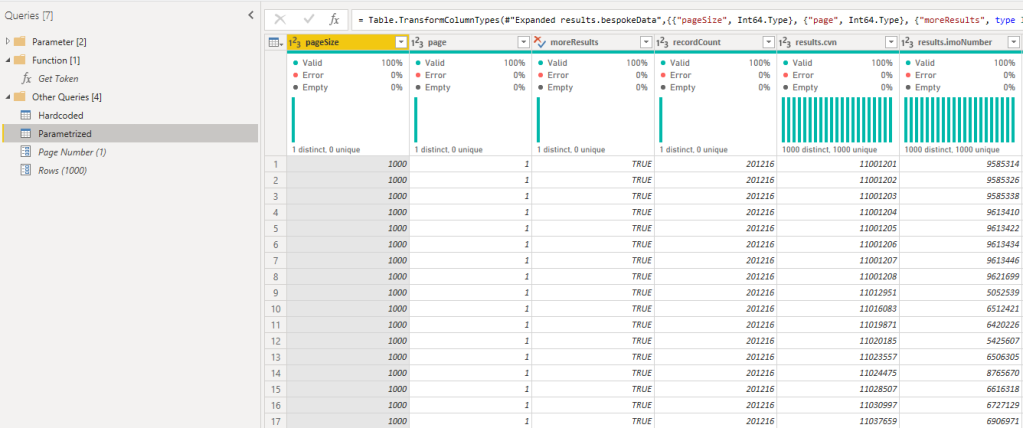
Next, we have to figure out which is the last page currently. Same procedure, I update the Page Number Parameter until I get an error or empty result and figure out what the maximum number is. In this case the last page is 202. This means if I get 1000 rows per page, there are 202 pages in total (so roughly 202’000 rows), and if I configure the parameter to 203 pages, I get not a “real data row” back.

Now I know how I can call the API, how many rows per page I can get back, and how many pages there are currently.

The dynamic approach

Till now I’m calling the API hardcoded through parameters. But what if I can call the API multiple times and combine the output together to one, big table? Of course, this would work manually by adding for each new page a new query, but that’s not really efficient (as Patrick LeBlanc from Guy in the Cube says: I’m not lazy, I’m efficient!). Therefore, I’m going to create another function which will call the API. In the function itself I’ll provide a parameter which will define which page I wish to call. For example, if I provide the value 1, the first page of the API should be called giving me the first 1000 rows back. If I provide the value 2, the second page of the API should be called giving me the second 1000 rows back, etc. To not lose my process so far, I create another Blank Query (select New Source, Blank Query), rename it to Dynamic, and open the Advanced Editor. In there I copy and paste the first line of the Parametrized table M-Code – see screen shot below. The upper M-Code shows the Parametrized table, the lower shows the new Dynamic M-code.

Now I’m going to create a function out of it by simply putting (page as number) => at the top. This means my new function will expect a number parameter called page as input.

Lastly, I have to make sure the provided input will be hand over to my API call. Therefore, I have to update the piece of code where I’m providing the Page Number as previously created Parameter and replacing it with the page parameter from the function.

Now I have a function and if I enter a number, a new table will be created with the current data from the provided page.

As we can see there is still some work to do to get one, nice, and clean table. I’m interested only in the “results”, so I select “List” to navigate further. And because I’m efficient, I open again the Advanced Editor and copy the newly created step to paste it into my function as well. This way I don’t have to navigate in my table, but the function gives me already back what I’m looking for. If you do this, don’t forget to add a coma at the end of the “Source” line.

To make sure it works I test it by invoking the function again and yes, it works.

As next step I create a list with one row, each row with one number counting onwards. In Power Query there is a function for that called List.Generate() Let’s test it by creating a list with number from 1 – 10.

First line defines where the list starts (number 1), where it should end (10), and in which steps it should increment (+1 for each new row). Once done, we have to convert the list to a table. This is pretty straight forward in Power Query by selecting the List, hit Transform Menu in the Ribbon, and choose “To Table”.

On the next screen we just confirm by selecting OK.

Now I want to test the Dynamic function by invoking it in my new generated table. This way the function will be called for each row, therefore each number will be provided to the function as page, and if everything works as expected I’ll get 10 pages back each containing 1000 rows. To do so I select Add Column in the Ribbon and choose Invoke Custom Function. I name my new column “Result”, select Dynamic as function query and hit OK.

Awesome, I got a result per number (page) as List. This means now I would just need to transform my data to extract the result into one big table, but I still have the issue that my approach is not dynamic. I hardcoded the list numbers to start at 1 and end by 10 but we have 202 pages. Of course, I could hardcode that (or pass the parameter) to create a list, but it’s still hardcoded. I wish to create a list until no pages are available. Luckily, the List.Generator() provides a function to test against a condition and until this condition is true, it will create new rows. Once condition is not true anymore, it will stop. In this case my condition should be something like “create a new number / row per page coming from the API until I don’t receive any rows / page from the API anymore”. Let me first test what I get back if I provide the number 203 in my Dynamic function because it doesn’t exist. Once done, I see the result is empty.

This means I can check if the result is empty and if so, stop creating new rows. In M-Code this will look as following:

List.IsEmpty([Result]) = false

Further List.Generator() asks where to start the list. I wish to provide that dynamically coming from the API but also want to make sure that if no page is available no error will occur during refresh. So, I have to try if I get something back for page number 1 (that’s where I start) calling my Dynamic function and if not, give me null back. On top I have to create a parameter indicating that I start at page number 1 which I’ll use afterwards to count onwards until we reach the end. I’m saving the whole result in my step called Result. This piece of code looks as following:

[Result = try Dynamic(1) otherwise null, pagenumber=1]

The next function in List.Generator() is creating the next row in the list if the condition is met. Again, I’m wrapping the Dynamic function around Try Otherwise to make sure no error will occur if somehow the API is not reachable and providing now the pagenumber parameter. And if successful, please count +1 in my pagenumber parameter for the next page. This piece of code looks as following:

[Result = try Dynamic(pagenumber) otherwise null, pagenumber = [pagenumber] + 1]

Lastly, I wish to get the Result back, so I provide the optional function in List.Generator() providing just [Result]. This means my whole code now looks as following:

let
    Source = List.Generate(
        () => [Result = try Dynamic(1) otherwise null, pagenumber=1],
        each List.IsEmpty([Result]) = false,
        each [Result = try Dynamic(pagenumber) otherwise null, pagenumber = [pagenumber] + 1],
        each [Result]),
    #"Converted to Table" = Table.FromList(Source, Splitter.SplitByNothing(), null, null, ExtraValues.Error),
    #"Changed Type" = Table.TransformColumnTypes(#"Converted to Table",{{"Column1", Int64.Type}}),
    #"Invoked Custom Function" = Table.AddColumn(#"Changed Type", "Result", each Dynamic([Column1]))
in
    #"Invoked Custom Function"

If I hit now Done, Power Query should loop through the whole API, going through each page and create a new row for each page in my automatic created list. For each row it will call the API to get the data. Let’s test it.

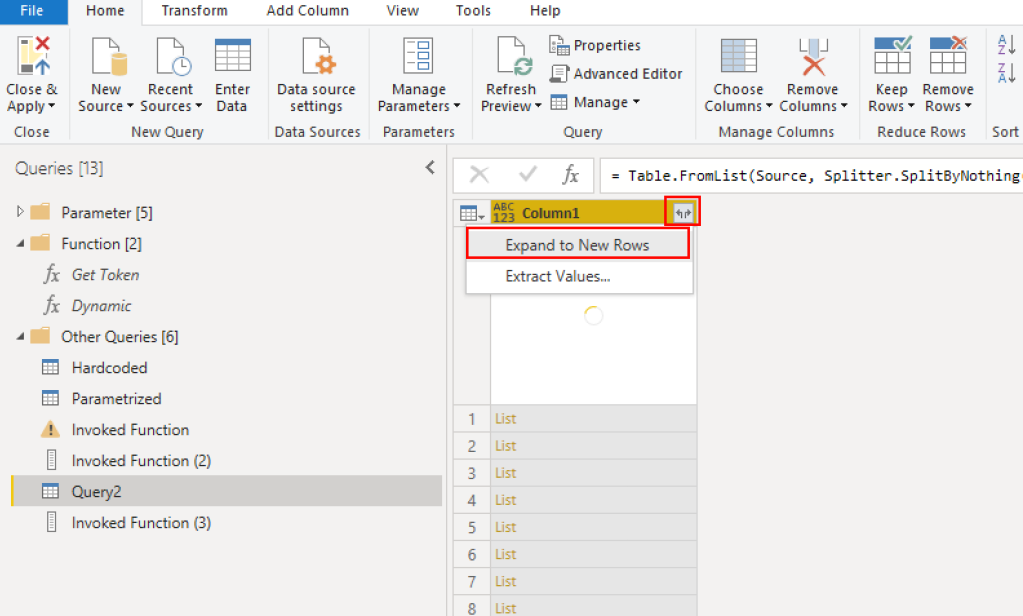
Once finished (this can take a while now!), I get an error in my query. The reason is because I did some transformation and Power Query can’t do them anymore. So, I’m deleting all steps until I see no error and extract now everything to New Rows by hitting the two arrows icon in the column.

Next, I expand the Records by again hitting the two arrows icon, select all columns I wish to include (in my case all of them), and uncheck the “Use original column name as prefix”. By hitting ok, I have now my complete table with all data from the API!

Obviously, I can do now all kind of transformation I wish and need to do, and – even more important – set the correct data types for each column as well as following best practices approach once it comes to data modelling. Before I hit the Close & Apply, I rename my “Dynamic” function to “Get API Page”, delete the unnecessary Invoked Function lists, and rename my finale table to “API Table”. Of course, you can choose another name, whatever suits you best. Lastly, I right click on my Hardcoded and Parametrized table and deselect the Enable load option to not load the data into my data model but still to keep my queries. If you don’t wish to keep them, just delete them as well.

Once done, I hit the Close & Apply button and wait until the table is loaded. If you keep an eye on the data load dialog, you’ll see the rows loaded are increasing every time by more or less exactly 1000. This means or paging from the API works (remember our Rows parameter in Power Query?).

One last tip before you leave. If the data load takes too much time and your token expires (remember, we have to get a token to authenticate against the API and this token has a lifespan) during the refresh, you can probably test the timeout of the token in the request. This means you have to update the function by adding the timeout at the end of your URL request and increase the lifespan. In my case this would work as the API provides a timeout function and therefore it would look like following (don’t forget to add the coma after the relative path):

Please let me know if this post was helpful and give me some feedback. Also feel free to contact me if you have any questions.

If you’re interested in the files used in this blog check out my GitHub repo https://github.com/PBI-Guy/blog