Use Dynamic M Parameters in DirectQuery mode and Paginated Reports

Recently, I got a very interesting challenge from a customer of mine. In their use case, they have created a Power BI Report (and Dataset) in DirectQuery mode. On top, they have created a Paginated Report on the same Dataset, and integrated the pixel-perfect report through the out-of-the-box Paginated Report visual. Lastly, to improve performance, they used Dynamic M Parameters in Power BI to influence the query send back to Power BI. If you’re not familiar with this approach, Microsoft has a great documentation here: https://learn.microsoft.com/en-us/power-bi/connect-data/desktop-dynamic-m-query-parameters Now, they wish to pass the selected filter from Power BI to the Paginated Report within the Visual but unfortunately it’s failing with an error message like “You have attempted to pass an invalid parameter”. Let me explore what exactly is happening and how to resolve the issue in this blog post.

Prerequisites

In this scenario we need quite a few things:

  • A database which is DQ supported. In my case I’m going to use an Azure SQL DB
  • Power BI Desktop
  • Power BI Report Builder
  • Power BI Service
  • Power BI Pro license
  • M / Power Query know how

Setting up the environment

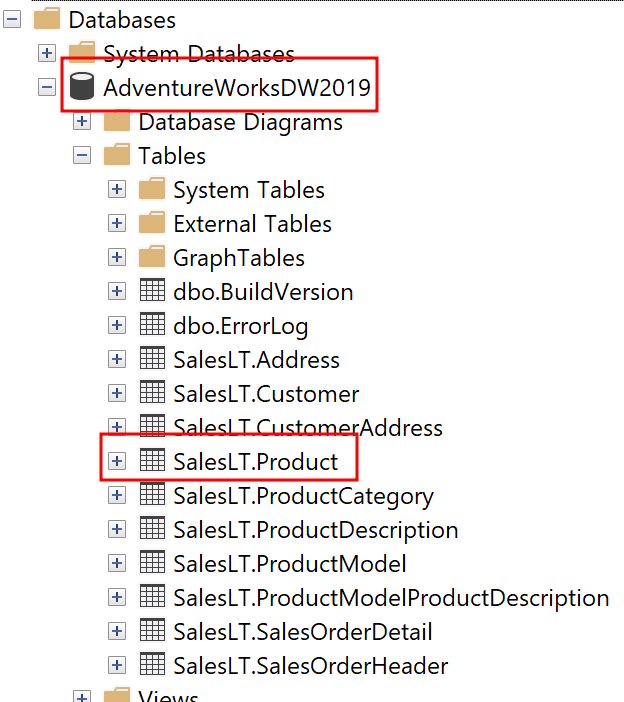
As mentioned, I’m going to use an Azure SQL DB on which I have a an AdventureWork Database 2019. In there, I’m going to connect to the SalesLT.Product table in DirectQuery mode from Power BI.
To do so, I select the Azure SQL Database Connector, pass my Server and Database name, choose DirectQuery, and past a simple SELECT statement in the Advanced Options.

SELECT p.[ProductID]
      ,p.[Name]
      ,p.[ProductNumber]
      ,p.[Color]
      ,p.[StandardCost]
      ,p.[ListPrice]
      ,p.[Size]
      ,p.[Weight]
      ,p.[ProductCategoryID]
      ,p.[ProductModelID]
      ,p.[SellStartDate]
      ,p.[SellEndDate]

FROM [SalesLT].[Product] p

Before loading my data, I hit the transform button to switch to Power Query. In there, I want to parametrize the Server and DB name. Further, for my test purpose, I want to use the dynamic M Parameter and pass the Product Number into my M. For that reason I create three Parameters in total using the CA-1098 value as current for my product number.

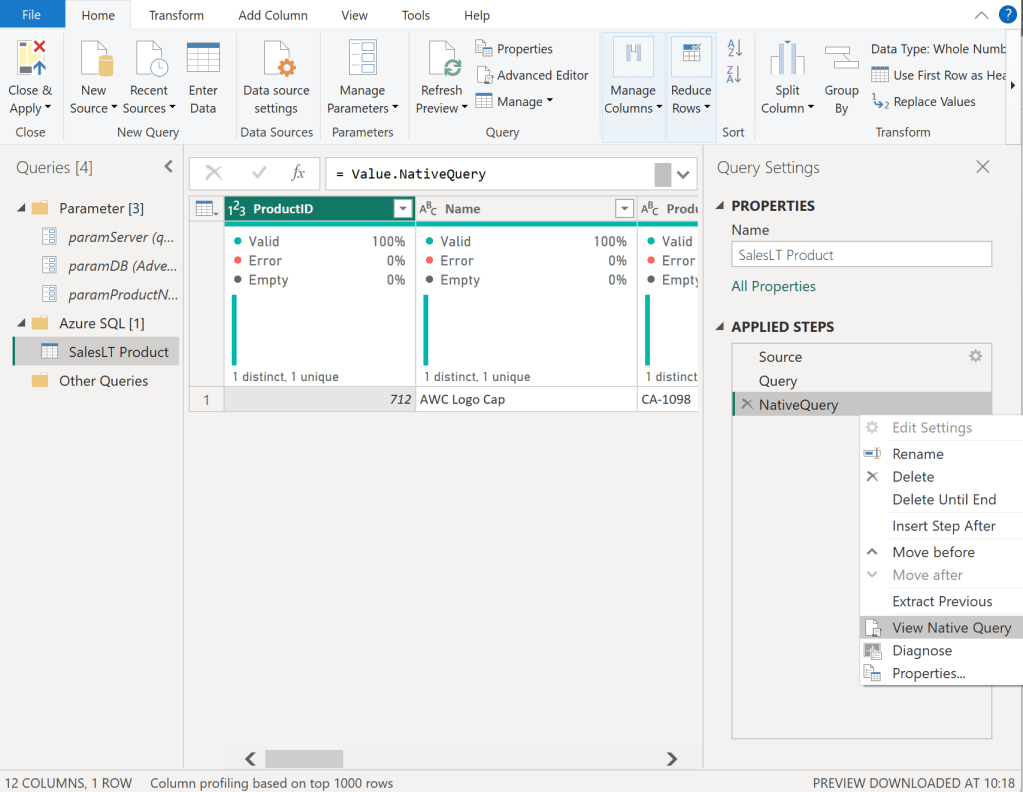
Once done, I select my Sales Table and right click on the “Source” step on the right hand side. In there, I can see that Native Query is greyed out and therefore not enforced. As we need Native Query folding, we have to customize our M a little bit. If you’re not familiar with Native Query folding, I can recommend the official Microsoft Documentation found here: https://learn.microsoft.com/en-us/power-query/native-query-folding

For some data sources the View Native Query is always greyed out as Power Query can’t identify if it is enabled or not. To make sure if Native Query Folding is enabled, trace your data source and see what query has been executed on it. Additionally, you can use Value.Metadata function in M to check if “IsFolded” is set to true or not.

Now, I switch to the Advanced Editor of Power Query and customize my code to, on one hand, use the Server and DB parameters, and enforce Native Query folding on the other hand.

In the screen shot below, you can see how I use my two parameters in the Sql.Databasse function of my first Source step. Afterwards, I created a new step called Query and pasted my SQL statement in there. I want to raise your attention to the WHERE clause here in which I point to my Product Number parameter with the default value “CA-1098” right now. Lastly, I have a third step called NativeQuery in which I enforce the Native Query folding by passing the Source, Query, and enforce it by setting EnableFolding to true.

let
    Source = Sql.Database
            (
                paramServer,
                paramDB
            ),
    Query = "
            SELECT p.[ProductID]
                ,p.[Name]
                ,p.[ProductNumber]
                ,p.[Color]
                ,p.[StandardCost]
                ,p.[ListPrice]
                ,p.[Size]
                ,p.[Weight]
                ,p.[ProductCategoryID]
                ,p.[ProductModelID]
                ,p.[SellStartDate]
                ,p.[SellEndDate]

            FROM [SalesLT].[Product] p

            WHERE p.[ProductNumber] = '" & paramProductNumber & "'",
    NativeQuery = Value.NativeQuery
                    (
                        Source, 
                        Query, 
                        null, 
                        [EnableFolding = true]
                    )
in
    NativeQuery

Now, my table shows only one row for the CA-1098 Product Number an Native Query is enabled.
Before we close Power Query, I need an additional table to list all my Product Numbers. For that, I just duplicate the SalesLT Product table, rename it to Product Number, and adjust the SQL Statement to a SELECT DISTINCT.
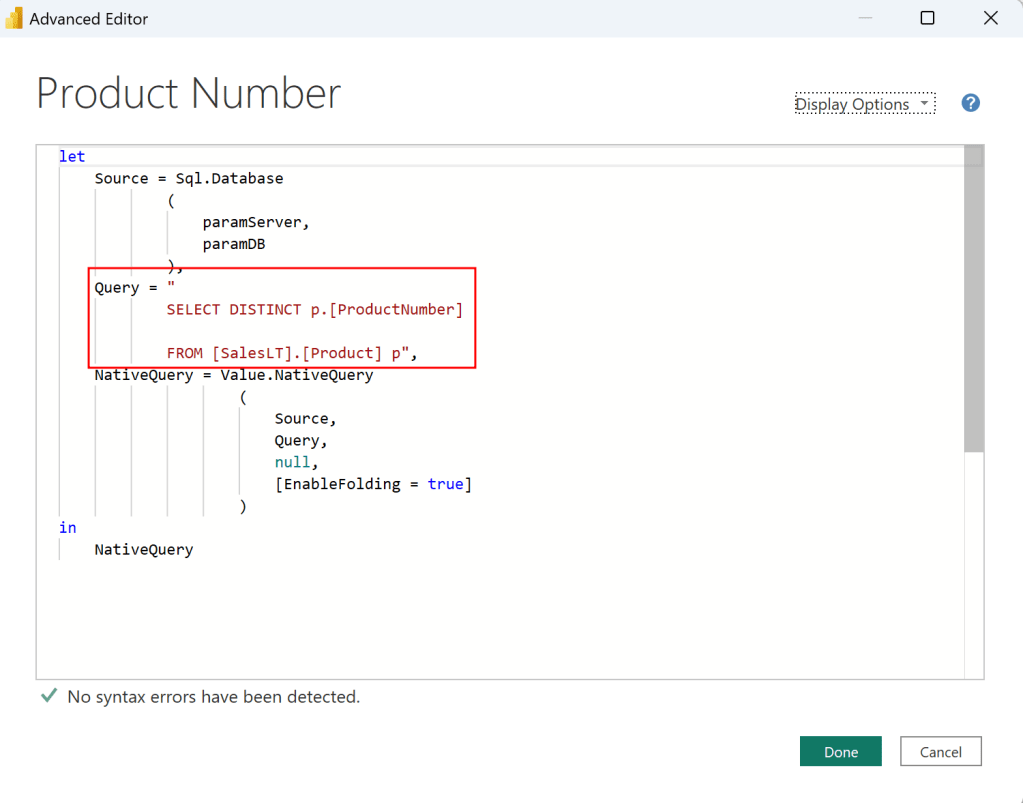
let
    Source = Sql.Database
            (
                paramServer,
                paramDB
            ),
    Query = "
            SELECT DISTINCT p.[ProductNumber]

            FROM [SalesLT].[Product] p",
    NativeQuery = Value.NativeQuery
                    (
                        Source, 
                        Query, 
                        null, 
                        [EnableFolding = true]
                    )
in
    NativeQuery

Now I can hit the Close & Apply button. Once loaded, I switch to the Model view, select the ProductNumber column from the Product Number table, enhance the advanced options, and choose to bind this field to the paramProductNumber parameter. Pay attention that the two tables are not connected via a relationship in my model.

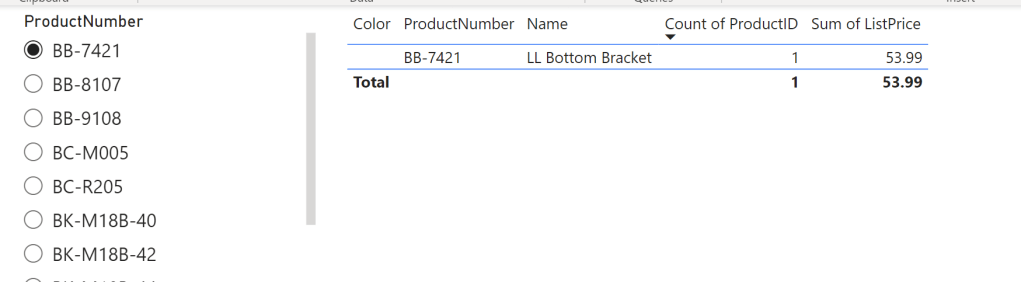
I hit continue on the potential security risk message that pops up next. Let’s test if it works by switching the view to Report View, add a slicer visual with the ProductNumber field from the Product Number table, and add a table visual with some columns from the SalesLT Product. After selecting a Product Number in our Slicer, we see the corresponding item in our table – it works!
Next, I publish the Report and create a Paginated Report on top of the newly created Dataset. The report itself is pretty simple, including just one Table with four columns. The Data Source is my freshly created Power BI Dataset.
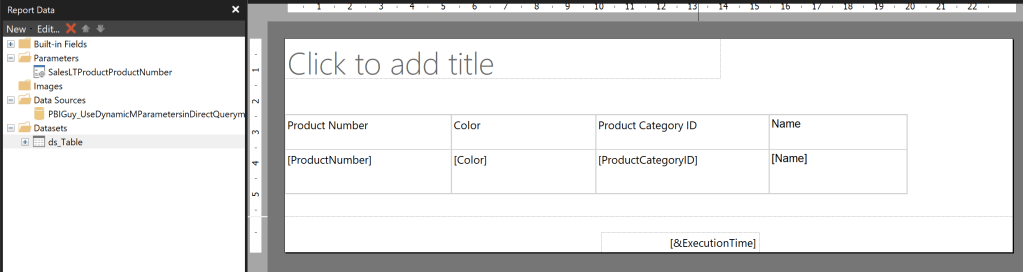
I created the Paginated Report Dataset through the Query Designer in following way and selected the Parameter Checkbox for ProductNumber.

Once the Dataset and Parameter have been created, I open the properties of the Parameter. In there, I make sure I don’t provide any default value as it’s not needed. Further, I make allow Multiple Values making sure I don’t have to change it later on as I wish to pass multiple Product Numbers in a later stage.

Now, when I run the Report and select CA-1098 it works and renders my table. But there is one big but right now. I only see one value in my drop down list.

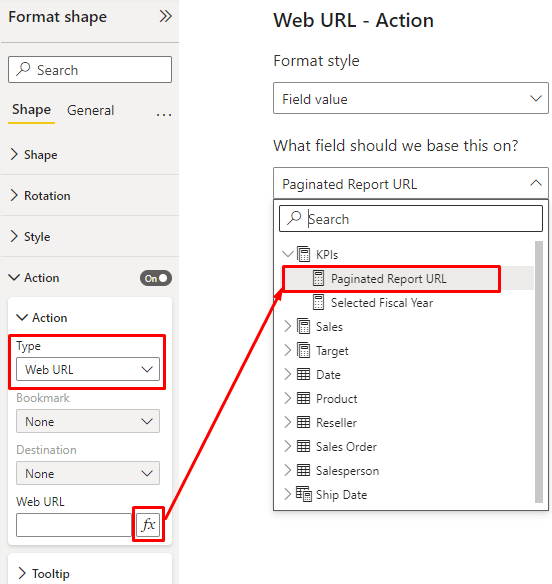
The reason might not seen obvious at the first sight but it’s very reasonable at the end. Because I provided a default value in my Power BI Dataset it filters automatically down to just this one value. Paginated Report on the other hand only can render what the PBI Datasets provide, therefore I have to make sure to load everything somehow in Power BI Dataset while the filter / parameter still have to work. Nevertheless, let’s test the Paginated Report in Power BI through the out of the box visual to see what will happen. To do so, I publish the Paginated Report to Power BI Service, switch back to Power BI Desktop and add the Paginated Report Visual into it. I add the ProductNumber field to the visual, hit Connect to Report, select my newly published Paginated Report, and hit Set Parameter. In there, I configure the Power BI field to map to my Parameter and hit See Report.

As expected, I get an error. The reason is I try to pass the “BB-7421” value to Paginated Reports, but it’s only aware of the “CA-1098” and therefore it throws an error.

Let’s fix it in my WHERE clause of the SQL Statement in which I filter down to get only one value right now. I need a way to pass “All” as default value to get all values back but once I select a value in my slicer, it should filter it down. On top, it should be multi value aware. For that, I adopt the SQL statement in SQL Server Management Studio and replace the = with “IN” and set the statement in brackets. Further, for testing purpose in SSMS, I declare a parameter and set it to “All”. Lastly, I create a CASE statement in which I check if the parameter is All and if so, then all values from ProductNumber column should be selected, otherwise only the value itself should be taken.

DECLARE @selectedProductNumber VARCHAR(50) = 'All';

SELECT p.[ProductID]
,p.[Name]
,p.[ProductNumber]
,p.[Color]
,p.[StandardCost]
,p.[ListPrice]
,p.[Size]
,p.[Weight]
,p.[ProductCategoryID]
,p.[ProductModelID]
,p.[SellStartDate]
,p.[SellEndDate]

FROM [SalesLT].[Product] p

WHERE p.ProductNumber IN (CASE WHEN @selectedProductNumber = 'All' THEN ISNULL(ProductNumber, '') ELSE @selectedProductNumber END )

After testing if the SQL statement works as expected by changing the parameter to All and different Product Numbers, I copy and paste the new SQL Statement to M in Power BI and update it to point to my parameter in Power BI. Be aware, that the DECLARE Statement is not needed here.

let
    Source = Sql.Database
            (
                paramServer,
                paramDB
            ),
    Query = "
            SELECT p.[ProductID]
                ,p.[Name]
                ,p.[ProductNumber]
                ,p.[Color]
                ,p.[StandardCost]
                ,p.[ListPrice]
                ,p.[Size]
                ,p.[Weight]
                ,p.[ProductCategoryID]
                ,p.[ProductModelID]
                ,p.[SellStartDate]
                ,p.[SellEndDate]

            FROM [SalesLT].[Product] p

            WHERE p.ProductNumber IN (CASE WHEN '" & paramProductNumber & "' = 'All' THEN ISNULL(ProductNumber, '') ELSE '" & paramProductNumber & "' END )",
    NativeQuery = Value.NativeQuery
                    (
                        Source, 
                        Query, 
                        null, 
                        [EnableFolding = true]
                    )
in
    NativeQuery

If I now change my paramProductNumber value the table reacts and if I put All into it, I see all values – perfect!

Before publishing, there is one thing left. We have to make the Parameter multi value aware so not only single values can be passed. To do that, we hit Close & Apply and switch to the model view. In there, I select the ProductNumber field and enable Multi-Select.

Now, switching back to the report view, I got another error.
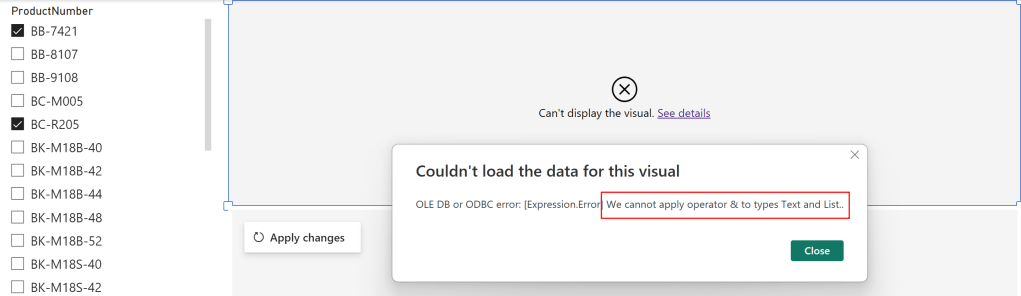
The reason for this error is again the M code as the Parameter is a Text and therefore Power Query expects a text value. But passing multi values converts the parameter to a List and it can not be matched, that’s what the error says at the end. To fix it, let’s go back to Power Query and open the Advanced Editor of the SalesLT Product table. In there, I add at the top a new step which checks if the parameter is of type list, and if so, convert it to text separated by single quotes. If not, it’s just passing the same value to the selectedProductNumber step. On top, I remove the single quotes in my WHERE clause as I’m providing them in the selectedProductNumber step already and change the reference now to my newly created step.

Now, I just click Close & Apply button, delete the table visual as it’s not needed anymore, and publish my report. Don’t get confused because of the error message the Paginated Report visual is still showing – we have to first update the Dataset in the Service to see the changes.

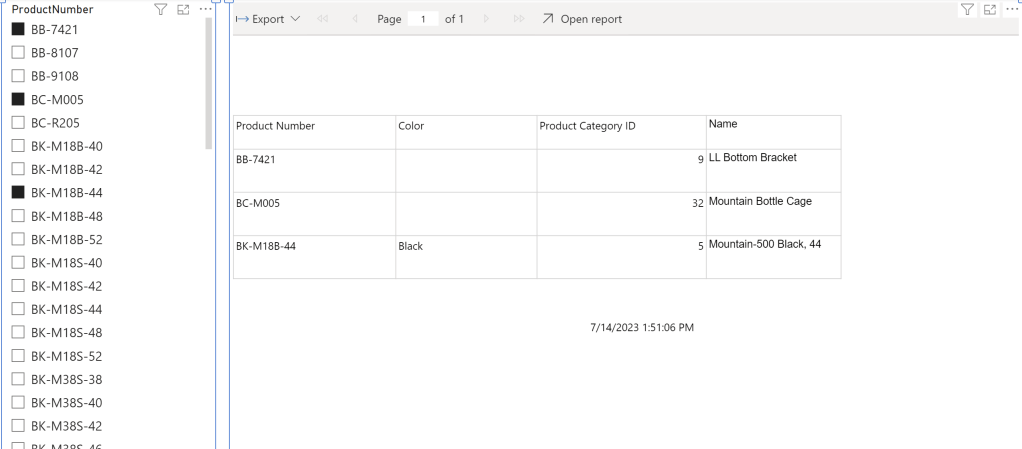
After successfully publishing the Power BI Report, I just hit apply changes in the Paginated Report Visual and see that my selection is now passing through! Even if I select multiple values, I can see the expected result.
Please let me know if this post was helpful and give me some feedback. Also feel free to contact me if you have any questions.

If you’re interested in the files used in this blog check out my GitHub repo https://github.com/PBI-Guy/blog

Create a POST request with Power BI

In my last post, I showed how you can connect to a REST API with Power BI by using a Service Principal. After that, I got quite a lot of comments and questions if it would be possible to also create a POST request with Power BI, not only a GET one. First, I thought it will not be possible as Power BI is a “read-only” tool, but I love challenges so I gave it a try. After a while, I found a way how to do so which I explain in this post!

Prerequisites

I’m going to use the PBIX file I created before to connect to the Power BI REST API. But instead of listening all workspaces, I’m going to execute a DAX statement and calling the Execute Queries in Group REST API (https://learn.microsoft.com/en-us/rest/api/power-bi/datasets/execute-queries-in-group). Therefore, following things are needed

  • Power BI Desktop
  • a Service Principal
  • Sufficient permission to call the REST API
  • a published Power BI Dataset to execute a DAX statement against it

Let’s start

I’m not going to walk you through how to use a Service Principal and authenticate against the Power BI REST API with it. You can find it in my previous blog post here (https://pbi-guy.com/2023/03/25/connect-with-power-bi-to-the-power-bi-rest-api-with-a-service-principal/). To easy things up, I’m going to use the PBIT file from the last post, which you can find in my GitHub here.

Once opened, I enter the required parameters as seen below and hit Load.

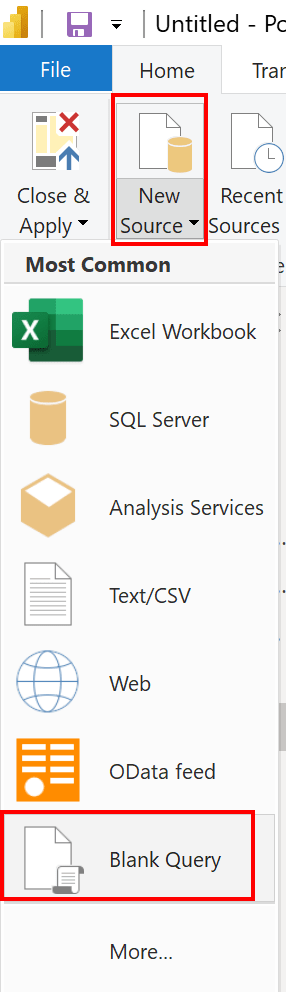
After the data loaded successfully, I enter Power Query Editor by hitting the Transform data button in the ribbon. Once here, I select New Source – Blank Query.

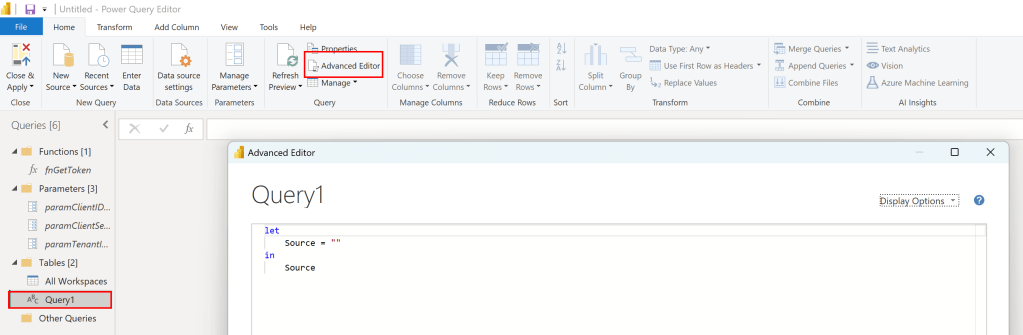
As we have to do some M-Language on our own, we can’t use the Web Connector to create a POST request. Therefore I start with a blank query. Once loaded, I select Query1 and hit Advanced Editor to open the M-Language Editor.

I’ll now create step by step my URL with the request body and will combine afterwards everything into one step. So let’s start with the URL. According to the documentation, the URL to execute a DAX statement looks as following:

POST https://api.powerbi.com/v1.0/myorg/groups/{groupId}/datasets/{datasetId}/executeQueries

This means we need a Workspace (group) ID as well as a Dataset ID. Heading over to powerbi.com, I’m selecting a Dataset on which I wish to execute my DAX statement. Now, I can find the needed details in the URL.

Copy and pasting the ID into my Power BI M-Language, I got now following line.

Because I want to parametrize my URL as well as my DAX statement, I press Done, select Home Ribbon – Manage Parameters, and create three new text parameters called paramWorkspaceID, paramDatasetID, and paramDAX. The last one is for my DAX statement, which I also wish to parametrize. For my DAX parameter, I use a simple code to evaluate the Top 10 Cities from my Dataset. Important to note, I need the quotation at the beginning and at the end of my DAX statement.

Now let’s go back to my Query1, hit Home Ribbon – Advanced Editor. After the window for M-Language pops-up, I replace the hardcoded Workspace and Dataset ID to replace it with my new parameters. To do so, I add a quotation in front and at the end of the ID, add a & at the same position, and replace the id with the corresponding parameter.

Next, let’s create the required body. I add a coma at the end of my URL step, call my next step Body, and copy & paste the body from the doc between two quotations. To make it a little bit more readable, I format the body as seen below. Important, I have to reference my new step at the end after “in”.

As the body includes quotations, we have to make sure they will be recognized. Therefore, I format the body and add another quotation to each already existing one. Further, I remove the serializerSettings and the impersonatedUserName as those attributes are not needed in my case. Lastly, I included my DAX parameter after the query attribute. Now, my M-Code looks like following and the Token warning message at the bottom is also gone.

As a next step, I have to make sure the body is recognized as JSON format. All I need to do is to add another step, naming it (Parsed_JSON in my case), and use the function Json.Document(Body). At the end I also need to reference to my last created step in the in clause. This step is not really required for the whole purpose, it’s just making sure the body is a valid JSON format.

Making sure everything works as expected, let’s hit Done and check all steps. If I select the URL step now, I should see just a URL including Workspace and Dataset ID we’re going to call. Looks good so far.

If I check the Body step, a JSON format-like body should be visible. If I compare it with the documentation, it should be more or less the same without any additional quotations or anything else, including my DAX statement coming from my parameter. Looks also good.

In my last step, Parsed_JSON, I should see a Record “List” which I can transform to a table. This indicates that the conversion to JSON has been successful and that we don’t have a typo in our Body step.

Now, we’re ready to call the URL. I create a new step called “Source” and use the Web.Content Connector (which is the Web Connector). In there, I provide first the URL I wish to call which is coming from my URL step. Next, I have to specify the Header information. To do so, I open square brackets and add Headers=[]. In the second square brackets, I have to add the Authorization and the Content-Type. The Authorization is coming from our previously created function (see my last blog post) and the Content-Type is “application/json”. After closing the second square brackets, I have to provide the body to execute our DAX statement. I’ll do this with “Content = Text.ToBinary(Body) referencing to my Body step. At the end, I have again to reference to my last step “Source” in M.

After hitting done, I should be able to get a result now.

If you see “Expression.Error: Access to the resource is forbidden.” try to refresh the table to execute the fnGetToken function to get a new token. If it still doesn’t work, make sure your service principal has sufficient permission to the Dataset.

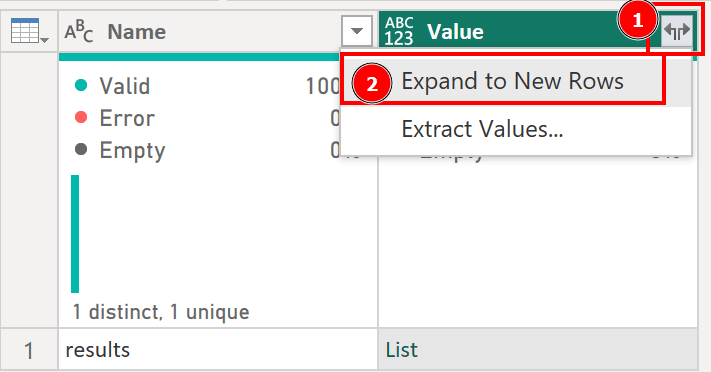
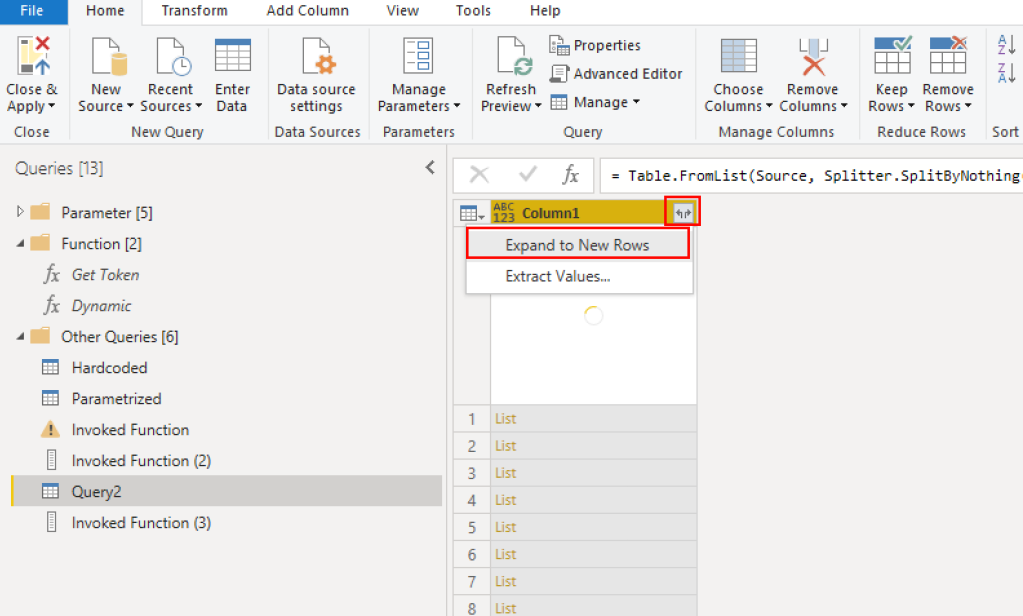
I now hit the “Into Table” button in the Convert Ribbon. Afterwards, I select the two arrows and hit Expand to New Rows.

As a next step, I almost do the same like before by selecting the two arrows, deselect “Use original column name as prefix” as I don’t need that, and hit ok.

Those steps have to be repeated three more times until you get following screen.

Now, we just have to expand it one more time to get our final result!

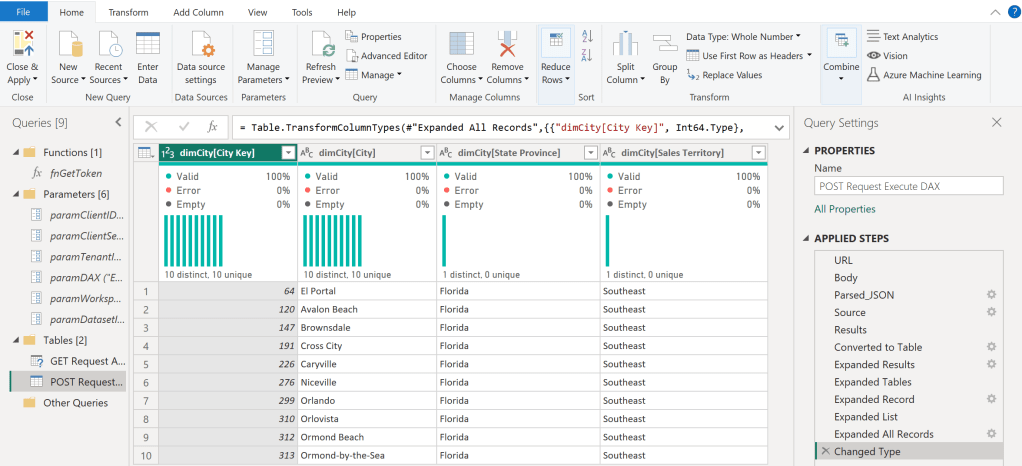
At the end, I wish to give a proper name to my Table (renaming from Query1 to POST Request Execute DAX), specify data types for each column and remove / transform as I wish. My final result looks like following.

And the M-Code behind can be seen below.

let
    URL = "https://api.powerbi.com/v1.0/myorg/groups/" & paramWorkspaceID & "/datasets/" & paramDatasetID & "/executeQueries",
    Body = "
        {
            ""queries"": 
            [
                {
                ""query"": "& paramDAX &"
                }
            ]            
        }",
    Parsed_JSON = Json.Document(Body),
    Source = Json.Document(
        Web.Contents(
            URL, 
            [
                Headers= [
                    Authorization=fnGetToken(), 
                    #"Content-Type"="application/json"
                    ],
                Content = Text.ToBinary(Body)
            ]
        )
    ),
    Results = Source[results],
    #"Converted to Table" = Table.FromList(Results, Splitter.SplitByNothing(), null, null, ExtraValues.Error),
    #"Expanded Results" = Table.ExpandRecordColumn(#"Converted to Table", "Column1", {"tables"}, {"tables"}),
    #"Expanded Tables" = Table.ExpandListColumn(#"Expanded Results", "tables"),
    #"Expanded Record" = Table.ExpandRecordColumn(#"Expanded Tables", "tables", {"rows"}, {"rows"}),
    #"Expanded List" = Table.ExpandListColumn(#"Expanded Record", "rows"),
    #"Expanded All Records" = Table.ExpandRecordColumn(#"Expanded List", "rows", {"dimCity[City Key]", "dimCity[City]", "dimCity[State Province]", "dimCity[Sales Territory]"}, {"dimCity[City Key]", "dimCity[City]", "dimCity[State Province]", "dimCity[Sales Territory]"}),
    #"Changed Type" = Table.TransformColumnTypes(#"Expanded All Records",{{"dimCity[City Key]", Int64.Type}, {"dimCity[City]", type text}, {"dimCity[State Province]", type text}, {"dimCity[Sales Territory]", type text}})
in
    #"Changed Type"

I also created a PBIT file which can be found in my GitHub repo.

This way we created a POST Request to a REST API and got a result back with Power BI – awesome! Nevertheless, I still wouldn’t recommend to go this way as the Client Secret as well the Client ID has to be exposed in a parameter which is definitely not secure. I haven’t crossed an alternative so far to securely store a password in Power BI except of building an own connector.

Please let me know if this post was helpful and give me some feedback. Also feel free to contact me if you have any questions.

If you’re interested in the files used in this blog check out my GitHub repo https://github.com/PBI-Guy/blog
Connect with Power BI to the Power BI REST API with a Service Principal

As you probably know the Power BI REST API is a very handy interface to extract information in an automatic way. I showed already in different posts how to use e.g. Python and Power Automate to achieve various things (see https://pbi-guy.com/tag/power-bi-rest-api/). But did you know you can also connect with Power BI to the REST API and get e.g. an overview of all your workspaces? And even better, you can use a Service Principal to do so. Let me walk you through and explain why a Service Principal is more handy in this case.

Prerequisites

To be able to connect to the Power BI REST API there are a few things needed.

  • Power BI Desktop
  • a Service Principal
  • Sufficient permission to call the REST API

In one of my previous posts I showed how to create a Service Principal (https://pbi-guy.com/2022/03/10/power-bi-and-activity-logs-with-python/). On top we have to make sure the Tenant setting is enabled to call the REST API with a Service Principal, see https://learn.microsoft.com/en-us/power-bi/enterprise/service-premium-service-principal

Let’s start

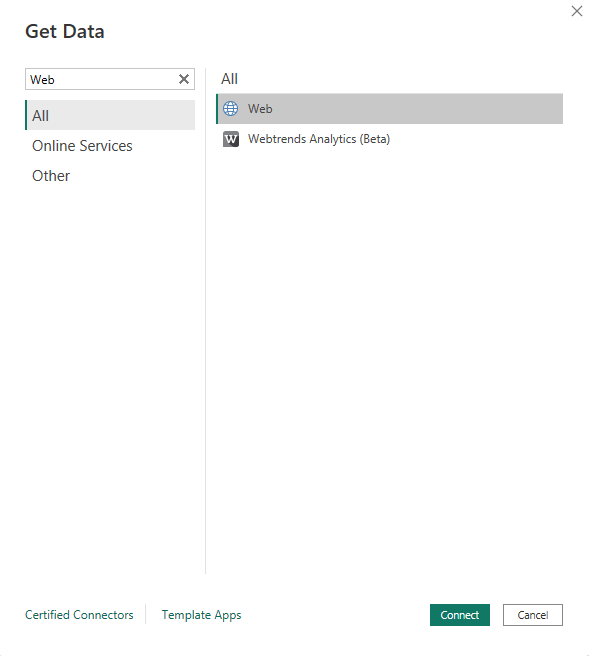
Checking the documentation, we see there is a bunch of different APIs we could call and extract various details. In my case I wish to have an overview of all Workspaces I have access to. Therefore, I’m going to use the Get Groups call. To do so, I open Power BI Desktop, choose Get Data, and select the Web connector.

Next, I add the URI (without “GET”) provided in the doc.

https://api.powerbi.com/v1.0/myorg/groups

If I would now hit OK I would get an error message saying “Access to the resource is forbidden” because we didn’t and can’t authenticate automatically to the REST API. We have to provide a so-called Bearer Token so that the REST API knows we are allowed to access it and get the details we’re looking for. But how to get one? There are two easy ways, let me show you both.

Get a Bearer Token

On one hand, you can use PowerShell to get a Token on behalf of your user. To do so, you would first need to install the Power BI PowerShell cmdlet (see here) and execute two line of code. The first line is to login to Power BI and the second one to show the Access Token as text resp. string format. If you execute it, PowerShell will automatically open a new window in which you can provide your user and credentials. Afterwards, the Token will be generated and visible in the output.

Login-PowerBI
Get-PowerBIAccessToken -AsString

On the other hand, you can also use the the Power BI REST API documentation as there is a Try It button.

Once clicked, a new window pane on the right hand side will expand where you can log in with your user. Afterwards you’ll find a Bearer Token in the HTTP request which you can copy.

Use the Bearer Token in Power BI

Now that we copied our Bearer Token, let’s switch back to Power BI and hit Advanced in the Web Connector Window pop up. As we can see in the above screen shot, the “HTTP” request includes an “Authorization” parameter with the Bearer Token. This is exactly what we have to provide as well in Power BI. Make sure “Bearer” with a space afterwards is also included.

If you copy & paste the Bearer Token from the PowerShell output make sure no “Enters” are included.

Hitting the OK button, I’ll get now an overview of all workspace I have access to (not the Service Principal, as we used our Token so far). But to be able to refresh the Report we would need to make sure the Bearer Token is newly generated and active as per default the Token expires after 60 minutes. For such a case a Power BI function comes very handy to generate a new Token each time we refresh the report. Unfortunately, there is another “but” in the current scenario. Power BI resp. Power Query can’t handle Multi-Factor-Authentication (MFA), which is best practice and enabled in my demo tenant. For such a case a Service Principal comes very handy! SPs don’t have MFA and we would be able to connect to the REST API.

Create a function to get a Token with a Service Principal

As I love to work with parameter because they make my life much easier once some changes are needed, let’s create three in this case – one for the Client ID (Service Principal ID), Client Secret, and Tenant ID which are needed to create a Token. All three are of type Text. As current value I put in the details of my Service Principal.

Next, I create a function by hitting New Source – Blank Query. Afterwards, I select Advanced Editor and paste the code below into it. In short, it’s using the three defined parameters and call the URL to generate a Token with the Service Principal we provided. As we want to connect to Power BI the Scope / Authority is also given (analysis.windows.net/powerbi/api). We use the response body to extract the Access Token out of it and save it into our last step “Bearer”

() =>
let
   TenantGUID = paramTenantID,
   ApplicationID=paramClientID,
   ApplicationSecret=paramClientSecret,

   OAuthUrl = Text.Combine({"https://login.microsoftonline.com/",TenantGUID,"/oauth2/token"}),
   ClientId = Text.Combine({"client_id",ApplicationID}, "="),
   ClientSecret = Text.Combine({"client_secret", Uri.EscapeDataString(ApplicationSecret)}, "="),
   GrantType = Text.Combine({"grant_type", "client_credentials"}, "="),
   Body = Text.Combine({"resource=https://analysis.windows.net/powerbi/api", ClientId, ClientSecret, GrantType}, "&"),

   AuthResponse= Json.Document(Web.Contents(
       OAuthUrl,
       [
           Content=Text.ToBinary(Body)
       ]
   )),

   AccessToken= AuthResponse[access_token],
   Bearer = Text.Combine({"Bearer", AccessToken}, " ")

in
   Bearer

Before I continue, I rename the function to fnGetToken. Once done, my last step is to make sure the “groups” table will call the function to generate a Token every time I refresh my Power BI report. To do so, I select the table, hit Advanced Editor, and replace everything between the quotation marks as well as the quotation marks itself with the function fnGetToken()

That’s already it! If everything done correctly, the table should already be updated with all the Workspaces the Service Principal has access to. To make sure that it works, you can hit the Refresh button.

If the table is now empty, this means the Service Principal wasn’t added to any workspace. Make sure to add the Service Principal to each workspace you wish to see.

That’s already it! This way, you can call all “GET” REST APIs from Power BI with a Service Principal.

Keep in mind this way you are exposing the Service Principal ID as well the secret. Unfortunately, there is no way to hide or anonymous this info or parameter in Power BI.

Please let me know if this post was helpful and give me some feedback. Also feel free to contact me if you have any questions.

If you’re interested in the files used in this blog check out my GitHub repo https://github.com/PBI-Guy/blog

Create a custom partition in Power BI and trigger a refresh with Python

Working with large datasets I almost always get the question if an incremental refresh can be configured within Power BI and yes, this is possible as described here. Especially if you have a date or datetime column it makes sense to set up an incremental refresh to reduce your dataset refresh time. Once set up, Power BI will create automatically some partitions behind the scenes making sure the data is stored as configured. For example if you wish to have 5 years of archived data, each year will represent one partition. But what if you don’t have a date/datetime column or you wish to create your own partition? Can you still create your own, custom partitions and trigger some kind of incremental refresh? Yes you can! Let me show you how.

Let’s quickly demystify the term “partition”

Asking chatGPT what a partition in Power BI is, we got following reply:

In Power BI, a partition is a way to break up a large dataset into smaller, more manageable chunks based on a set of defined criteria. This can be particularly useful when working with datasets that contain millions or billions of rows, as it can help to optimize performance and reduce the time it takes to load and process the data.

Partitions are essentially subsets of the data that are stored separately from the main dataset, based on specific conditions such as date ranges or other data attributes.

By dividing a large dataset into smaller partitions, Power BI can improve query and report performance, and also reduce the resources required to process and manage the data. This can lead to faster report rendering times, reduced memory usage, and improved overall user experience.

Overall, using partitions in Power BI can be a powerful way to optimize large datasets and improve the performance of your reports and visualizations.

chatGPT on “Explain what partitions are for Power BI datasets”

I must admit I don’t have anything to add here.

Let’s get started

For my demo purpose I’m going to create a dummy table in Azure SQL on which I can test custom partitions in Power BI. Further, I’ll need the open-source tool Tabular Editor (regardless if version 2 or 3) in which I’ll create my partitions. If you prefer, you can also use SQL Server Management Studio (SSMS) to create your partitions. Lastly, I’m going to use Synapse Notebooks to run my Python script at the end to trigger a partition refresh.

So let’s start and create a dummy table. I created a SQL script which will create a table with an ID, Country, Region, and a random Revenue. To update which country should be involved, you can add, delete, or modify the countries starting from line 28. If you wish to modify the schema and table name, just update it on line 36 & 37. Lastly, I specify how many rows per country should be added. In my case I add 10 rows per country but if you need more (or less) update the CounterMax variable on line 39.

Once executed, I got 70 rows in my case in my newly created SQL table. Now, let’s connect with Power BI Desktop to it and switch to Power Query (Transform Data button once connected to the SQL table). Why Power Query? Because I’ll prepare my first partition there and will reuse the code for my other partitions.

As you can see in the screen shot above I don’t have a filter applied yet and see the full list of all my countries. To make my solution as configurable as possible, I add a new parameter called “Europe” and one called “America”. I choose Text as type and add the Europe resp. America as Current Value.

The parameters screen shot shows two further parameters called “SQL Server Name” and “Database Name”. I parametrized my data source for reusability and is considered as best practice but it’s not mandatory.

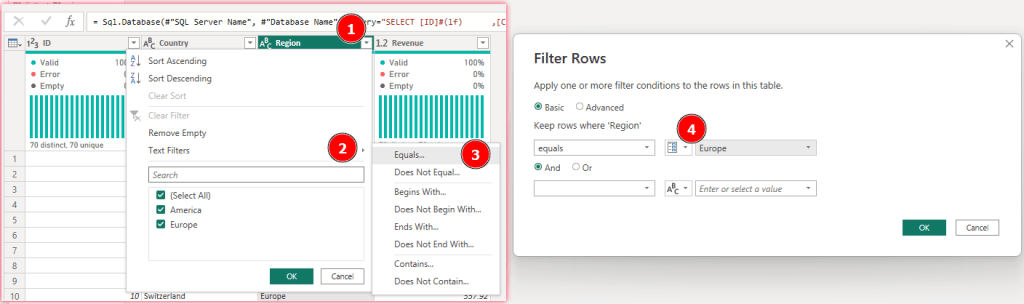
Next, I select my table, choose the little arrow in the right corner of the column, select Text Filters – Equals… and choose my Europe parameter. Once done, I confirm by selecting OK.

Now, I select Advanced Editor in the ribbon and copy the whole code behind. Making sure I’ll not lose the code I paste it into Notepad.

Lastly, I close the Advanced Editor and confirm everything by hitting “Close & Apply” to load the data into Power BI. After data has loaded, I publish my Power BI report to a Premium workspace (PPU or Embedded works as well).

Once published, I switch to Power BI Service, select the workspace in which the report has been published, head over to settings, and copy the workspace connection.

Next, I open External Tools, connect to my workspace, and select the custom partition dataset. In there, you will find one partition if you expand Tables – Your Table Name (Custom Partition in my case) – Partitions. If you select it, you’ll find the M-Code in the Expression Editor on the right hand side.

Let’s now build our own partition with the same approach but in Tabular Editor. All I need to do is right-click on Partitions, select New Partition (Power Query), click afterwards my newly created partition, and paste the M-Code into the Expression Editor. Lastly, I just need to update the “Europe” parameter to “America”. Make sure the name matches exactly with your parameter name. If you wish to double check it, just expand “Shared Expressions” which represents your defined parameters in Power BI.

To make the partitions more user-friendly, let’s rename them as well by just selecting it and hit F2. I renamed it to “Europe” and “America”. Once done, save your data model.

If I check my report now, nothing has changed as I haven’t refreshed my dataset yet. So let’s trigger a manual refresh in Power BI Service and check the report if something has changed. As we can see, all countries from the region America are now also included. Nice!

Let’s now try to trigger a partition refresh instead of the whole table. In one of my previous blog posts I showed how to refresh a Dataset with Python. I’m going to use the same code and just adjust it a little bit. Checking the documentation we can add a body to our POST request and define which partition should be refreshed. Therefore I adjust my Python script by adding following parameter before calling the REST API.

body = {
    "type": "full",
    "commitMode": "transactional",
    "maxParallelism": 3,
    "retryCount": 1,
    "objects": [
        {
            "table": "Custom Partition",
            "partition": "Europe"
        }
    ]
}

After I executed the script and check the Refresh history of the dataset in Power BI Service, I’ll see Via Enhanced Api as Type.

But how do I know that only one partition is now refreshed and not the whole table? I can check that either with Tabular Editor or SSMS. In Tabular Editor I just connect again to my Dataset, select my Europe partition and check the “Last Processed” Date and Time. If I compare the Date and Time with my America partition I see a difference – so it worked!

With SSMS I have also to connect to my Dataset, right click on my Table, select Partitions, and then I will be able to see the different Partitions as well as the Last Processed Date and Time. By the way you could also manually trigger a Partition Refresh from this view by just selecting the process button (it’s the small one with the three green arrows) and confirm on the next screen with OK.

As a final step let’s test a little bit the performance as well as what would happen if we add a new region. Let’s first add the Asia region with some countries. To do so I open my SQL statement again and add China, Japan, and India as Asia countries.

Once successfully executed, I have 100 rows in my Custom Partition table as each new country added 10 rows. Let’s refresh the Power BI Dataset and check if I’ll see the newly added countries in my report. And as expected, nothing has changed in my report meaning the Asia region is not included! This makes sense as the two created partitions only include America and Europe, therefore everything else will be filtered out. This means I need to create another partition either for each Region or I create “everything else” partition. In my case and for the demo purpose, I choose the second option. To do so I open my report in Desktop, switch to Power Query, click the gear icon in my Filtered Rows step under Applied Steps, and configure the filter to does not equal to Europe And does not equal to America parameter.

Once applied with OK I’ll see a Preview of my Asia countries coming from SQL. Following the steps described above, I just copy the whole M-Code from the Advanced Editor window, switch to Tabular Editor (or SSMS), and create a new Partition with this code called “All other Regions”. After saving my data model I switch back to Power BI Service and trigger a full refresh manually. And now my three new countries are also included in my report.

As we have now three different partitions and making sure we’ll get all data which are added to the SQL table, let’s do some performance testing. I’ll always follow the same approach:

  1. Add the same number of rows to each partition (I deleted France from my SQL table making sure each region has 3 countries)
  2. Do a single partition refresh and check how long it takes
  3. Refresh all partitions at the same time and check how long it takes
  4. Do a full refresh and check how long it takes

As I’m interested if there is a difference refreshing the whole data model or explicitly calling the REST API and trigger all partitions at once, I decided to differentiate step 3 and 4.

You can also trigger multiple partition refreshes through the API by adjusting the body. In my case I used the below body.

body = {
    "type": "full",
    "commitMode": "transactional",
    "maxParallelism": 3,
    "retryCount": 1,
    "objects": [
        {
            "table": "Custom Partition",
            "partition": "Europe"
        },
        {
            "table": "Custom Partition",
            "partition": "America"
        },
        {
            "table": "Custom Partition",
            "partition": "All other Regions"
        }
    ]
}

To add new rows I’ll use my SQL script and adjust the CounterMax Parameter to different values.

Keep in mind, the bigger the number is, the longer it will run. After having roughly 1 Mio rows I used the INSERT INTO SQL Statement to just duplicate the data instead of running the script as it would take too long to add so many rows.

And here is my result. As you can see trigger a single partition is always faster then refreshing the whole dataset. Well, this is expected. But the time saved varies between 37 – 72%! The bigger the data, the more time you’ll save. Interestingly enough, triggering all partitions via the REST API to refresh is also faster, but the bigger the data gets the less time you’ll save with it but still worth considering from my point of view.

Please let me know if this post was helpful and give me some feedback. Also feel free to contact me if you have any questions.

If you’re interested in the files used in this blog check out my GitHub repo https://github.com/PBI-Guy/blog

Trigger Python script from Power BI and get result in near-real time back to Power BI

Working with Data Scientist I got quite often the question if Power BI is able to trigger a Python (or R) script to recalculate scenarios and show the result more or less immediately in Power BI again. On top it would be great to be able to pass parameters from Power BI to Python so an user can influence the script. As you guessed it right – because I’m writing this blog post – it is possible! But not purely with Power BI but rather in combination with other (Microsoft) services.

First things first

Before I deep dive into a solution, I want to make sure a common understanding of the issue is given. First of all, Power BI is a reporting tool. As such, it relies on data sources to be able to connect to some kind of table and visualize the result. It is a purely “read-only” visualization and not a “writeback” tool. Therefore having some kind of input mechanism, to be able to pass parameters to a Python script in our case, does not work with purely Power BI.

Further and as already mentioned, it has to connect “to something”. This means we can not execute a Python script on the fly and check the result. Yes, you can use Python in a visual and do some kind of visualization on the fly, but that’s in most cases not sufficient as just a few libraries are supported (https://learn.microsoft.com/en-us/power-bi/connect-data/service-python-packages-support). Yes, you can also have Python as Data Source, but to be able to recalculate a new scenario you would need to refresh the Dataset every time. Imagine multiple users accessing the same report and one of them is triggering a Dataset refresh – this will for sure lead to confusion for other users if the data changes while accessing the report. Therefore we’re looking for a way to independently run a script, store the result in a way Power BI can access and show it in near-real time, and on top pass parameters from Power BI to the script.

Which services to choose

Let’s go step by step and see which service we can use. First of all, we need a Python script. As you probably have noticed, I’m a big fan of Azure Synapse so let’s use the Notebooks from there and write our Python code in PySpark. The result has to be stored somewhere so Power BI can access it in near-real time. This means the data source has to support DirectQuery, otherwise we would need to refresh the Dataset every time the script runs. Thus, Azure SQL dedicated pool would be a great choice, but on the other hand I would need to make sure it’s running while users are accessing the report. So I’ll focus on a more cost-effective way and try to use SQL Serverless. As you can connect to files through SQL Serverless and run SQL queries on top, I will save the result from my Python script as parquet files in my Azure Data Lake Storage Gen2.

Next, I have to make sure my Python script can be executed whenever needed. This requirement can be fulfilled by using Synapse Pipelines. This way I can call the Synapse Pipeline REST API and trigger a run whenever needed. Further, Synapse Pipelines can be parametrized and those parameters can be passed further to the Python script. On top, I can also pass the Pipeline Parameters through the REST API – perfect!

As a last step, I need some kind of input mechanism in Power BI to be able to influence the parameters and trigger a Synapse Pipeline run. For such scenarios, Power Apps is the right choice! Microsoft offers an out-of-the-box visual which can be used to integrate a Power Apps app providing input fields. Further, a button can be defined which will trigger a REST API call or – even better and more scalable – trigger a Power Automate flow which will trigger the Synapse Pipeline.

Here’s an overview of all the services mentioned and used in this solution:

  • Power BI
  • Power Apps
  • Power Automate
  • Azure Synapse
  • Synapse Pipeline
  • Synapse Notebook
  • Azure Data Lake Storage Gen2
  • SQL Serverless Pool

The main idea of this blog post is to showcase that, in general, it is possible to trigger a Python (or R) script from Power BI. Looking from a performance point of view, I wouldn’t choose Synapse Pipelines but rather Azure Functions as it will execute the Python script much faster. Further, in a production environment, I would store the result in a SQL Dedicated Pool (or Azure SQL) and not go through the Serverless one as the performance can be influenced much better rather then connecting to parquet files. Lastly, creating multiple, small parquet files in ADL Gen2 is also not considered as best practice but rather creating fewer but bigger files. On the other hand going through Synapse Pipelines showcase the scalability of the whole solution.

Let’s roll up our sleeves and get started

Let’s start by creating a simple Python script which takes two numbers as parameter and add them up. Because the report will be used by multiple users at the same time, I have to make sure on one hand that the different calculated scenarios will be stored properly and on the other hand users will identify their scenario. For that reason I create three more parameters for User Name, UPN, and timestamp. Those parameters have to be influenced from outside as they are changing depending on the user. But before defining the parameters, I also add the necessary libraries.

#Import necessary tables
from datetime import datetime
import pandas as pd
#Define standard parameters which can be called from outside
firstNumber = 7
secondNumber = 1
user = 'Chewbacca'
upn = 'chewbacca@kbubalo.com'
timestamp = datetime.now()
timestamp_string = timestamp.strftime('%Y_%m_%d_%H_%M_%S')

In my next block of code I define further parameters which should not be influenced from outside. This includes my ADL Gen2 storage account, my container, folder, and file name. I decided to create a folder for each user in which each scenario should be saved to be able to differentiate between the users.

adlgen2 = '...'
container = 'dev'
folder = '15 Demo/Trigger Python from Power BI via Power Platform/' + user
fileName = 'Scenario'

Next, I create a DataFrame to store the parameters as well as the result (adding number 1 and 2).

#Create dataframe with provided data
d = {'firstNumber': [firstNumber], 'secondNumber': [secondNumber], 'result': [firstNumber + secondNumber], 'user': [user], 'upn': [upn], 'timestamp': [timestamp]}
df = pd.DataFrame(data=d)

Lastly, I store the DataFrame as parquet file in my configured ADLS Gen2.

#Store Dataframe as parquet file
df.to_parquet('abfss://' + container + '@' + adlgen2 + '.dfs.core.windows.net/' + folder + '/' + fileName + '_' + timestamp_string + '.parquet')

To make sure my defined parameters can be influenced “from outside” (this means form Synapse Pipeline in this case), I have to mark them as such. Therefore I select the three dots to the block of code and select Toggle parameter cell.

If done correctly, you’ll see a “Parameters” in the bottom right corner of your code block.

Once done, let’s test the script by running it and check if a parquet file is created as wished – looks good! A parquet file is created in my ADLS Gen2 and the result is as expected.

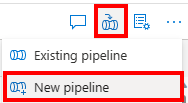
My next step is to create a Pipeline and pass parameters from the Pipeline to my Notebook. In Azure Synapse there is a small icon at the top right to automatically create a Pipeline out of your notebook. I just select it and hit New Pipeline.

The Azure Synapse Pipeline window will open up. I rename my Pipeline to “PBI Guy Trigger Python” and add 4 Parameters by hitting the + New in the Parameters section of the pipeline. Make sure you’re not selecting the Notebook but the Pipeline. I name my parameters like the one in the Notebook and give them a proper type as well as a default value because I want to test my pipeline afterwards making sure the parameters are passed.

The Parameter name do not have to match the names from my Python code but it makes sense to name them the same way.

Next, I select the Notebook activity, choose Settings tab and expand Base parameters. Again, I add 4 parameters and assign the correct type to them. Keep in mind, these parameters have to match exactly with the names from your Python Notebook. Once done, I select Add dynamic content and select my Pipeline Parameter to the corresponding Parameter and hit ok.

Once done, let’s test the Pipeline as well by hitting “Debug” at the top. If wished, you can change your parameters now as a Pane will pop up on the right hand side of your screen. I just confirm by clicking OK. After roughly 3 minutes in my case the Pipeline run successfully and I see a folder with my name including a parquet file has been created. By right-clicking on it and selecting New SQL Script – Select TOP 100 rows I can check the result making sure my parameters has been used in thy Python script – looks good so far! Don’t forget to publish the Pipeline now.

Now, I have to trigger the Pipeline through the REST API. Luckily, Microsoft provides a great documentation here which highlights the REST API call. As we see it’s a POST call to {endpoint}/pipelines/{pipelineName}/createRun?api-version=2020-12-01. {endpoint} in this case means the Development endpoint of my Azure Synapse workspace which can be found in Azure Portal by selecting the workspace in the overview section. You can easily copy it by selecting the copy button right next to it.

To trigger the Pipeline through the REST API I’ll create a Power Automate flow which will be triggered from Power Apps. As I wish to connect the Power BI Dataset with my Power Apps app I have to start in Power BI and create a report on top. For that, I just open Power BI Desktop, create a dummy table by entering a random number into the table, and add the Power Apps Visual. If you need a step-by-step guidance how to create a Power Apps starting in Power BI check my previous blog post here: https://pbi-guy.com/2021/11/17/show-secured-images-in-power-bi/ It will walk you through the most important steps. Further, I’ll focus on connecting to the right data in a later stage therefore the dummy table.

If you have issues in Power BI Desktop and the Power Apps app won’t load try it in the Service. You can easily publish the empty report and modify it from the browser. Once done, you can download the PBIX file again.

Once done, I just add my dummy column into the fields section and hit Create New in the Power Apps visual. This will open a the Power Apps studio where you can create your app. I will not walk you through on each step how I created my app but rather focusing on the most important parts on a high level. If you’re interested in the final solution, you can check my GitHub repo.

I add two Text Input objects as well as two labels making clear what the input should be. Further, I add a button which will trigger a Power Automate flow and provide the values from the Text Input fields as parameters to the flow. Once added, I rename each object making sure each one of them has an appropriate name – this will help me referencing it later on.

In the screen shot above you’ll see some further objects. Those are added to make the app more appealing and are not crucial for the whole process.

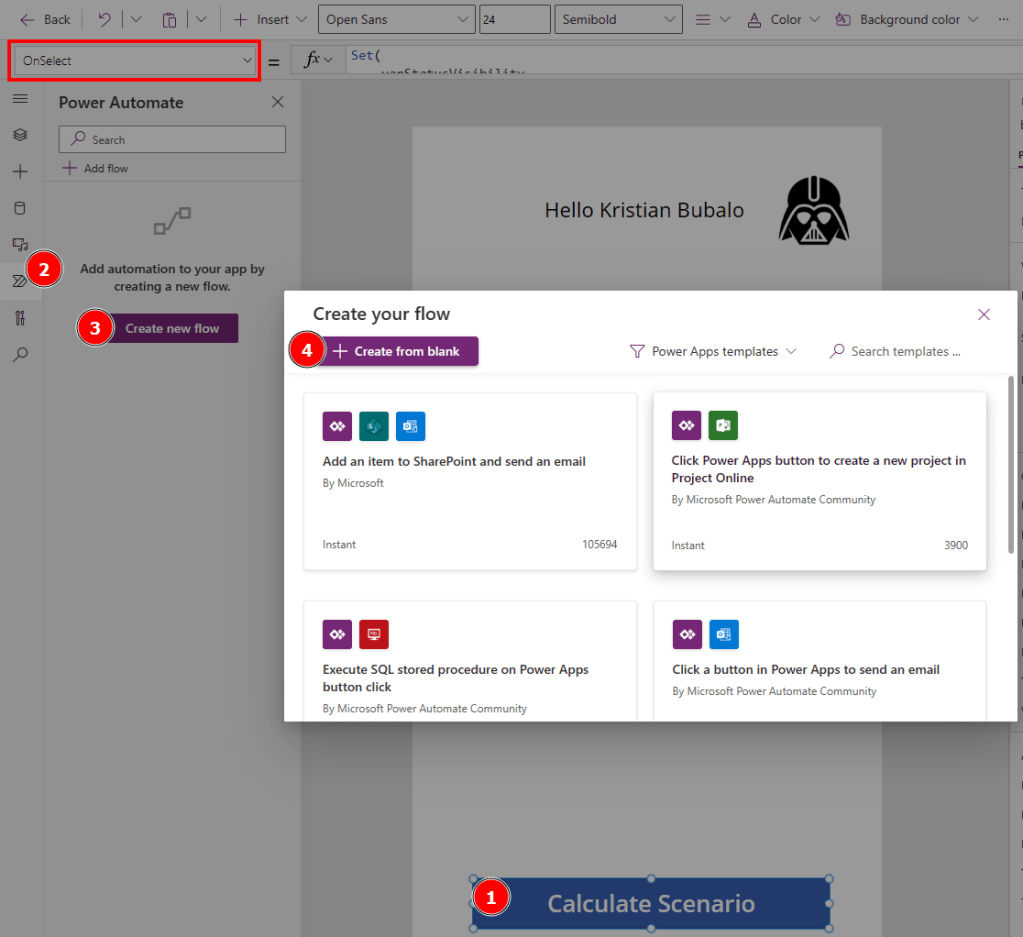
Next, I select the button and make sure the OnSelect property is active (see red box), head over to Power Automate on the navigation pane, hit Create new flow and select + Create from blank.

A new pop up window will appear where a flow can be created. Again, I will not walk you through the whole process of creating the flow but rather focusing on the most important steps. A step-by-step guide how to create a flow and to familiarize yourself with it can be found in one of my previous blog posts here.

The first thing I do is to specify all needed variables. As I wish to call the REST API with a Service Principal, I create one in the Azure Portal (how to create a Service Principal can be found here), give no API permission but rather add the Service Principal as Synapse Credential User in the Synapse Portal (see Synapse RBAC roles for further details about permissions).

Therefore, I create following variables in my flow:

  • Tenant ID
  • Client ID
  • Audience for Azure Synapse (can be found in the documentation here)
  • Azure Synapse Development Endpoint
  • Synapse Pipeline Name (this is the name of the Pipeline, in my case PBI Guy Trigger Python)

I also specify an action to get the secret of my Service Principal from Azure Key Vault as I have stored my secret there. Otherwise you can also just store it in a variable but this is not the recommended way.

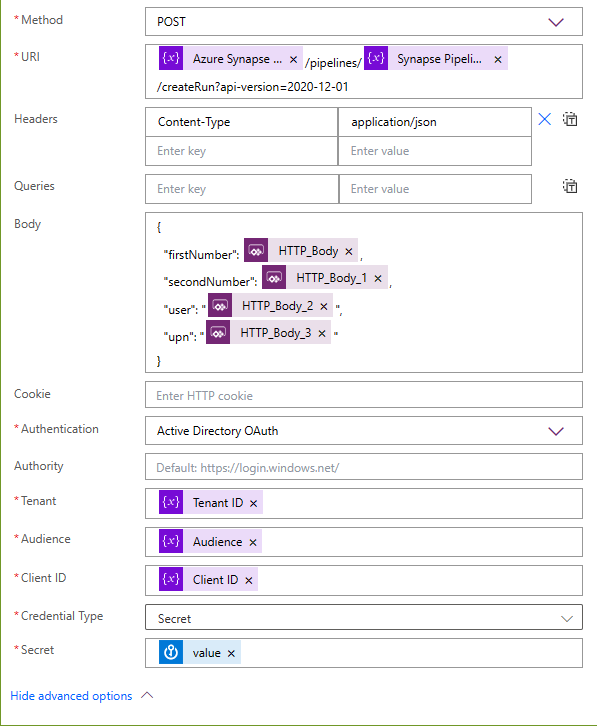
As a next step I add a HTTP request which looks like following:

I choose POST as Method, put in the REST API URI but replace the hardcoded parameters with my variables from the previous steps. In the body I specify my Pipeline Parameters. To get them from Power Apps, I place my cursor to the right position and select from Dynamic content “Ask in PowerApps”. This will create automatically the necessary dynamic content. As Authentication I choose Active Directory OAuth and provide the necessary variables.

This is already enough to trigger our Synapse Pipeline. Now, we just have to provide the input from Power Apps input fields to the Power Automate flow. So let’s save our flow, select the button, and on the OnSelect property specify what should happen. We can reference to the flow by name and select Run as attribute. In the brackets we can now add values to the variables we specified in the body of our HTTP action in the flow. To do so just reference to the input object and add Text as attribute. On top I’m using the out of the box User object to provide the full name and email. In my case the code looks like following.

'PBIGuy-TriggerPythonfromPowerBI'.Run(
    txtinp_number1.Text,
    txtinp_number2.Text,
    User().FullName,
    User().Email
)

Now let’s test it by running the app, provide some numbers and hit the button. If everything is set up correctly, the flow as well as the Synapse Pipeline will run successfully. In my case it took roughly 1 minute and I can see the result in my ADLS Gen2. This is great! As everything works I save and publish my app.

To make the app more user friendly, I modified the flow further to call the REST API to get a current status of the Synapse Pipeline. I do a loop until the Pipeline gives a Succeeded message which I give back as response to the Power Apps app. On top I’m using a loading gif while the whole flow is running. Once finished, the gif will disappear and I trigger a Dataset refresh making sure the latest data will be loaded.

Note that your Service Principal needs additional permission to be able to read the status through the REST API, for example the Synapse Monitoring Operator.

One of my last steps is now to connect the dots with Power BI. Through SQL Serverless Pool I can read parquet files with the OPENROWSET statement, but this is not supported with Power BI. As we need a way through DirectQuery to access the files, I create an External Table in my SQL Serverless Pool by just going to my file, right click on it, select New SQL script, and choose Create external table.

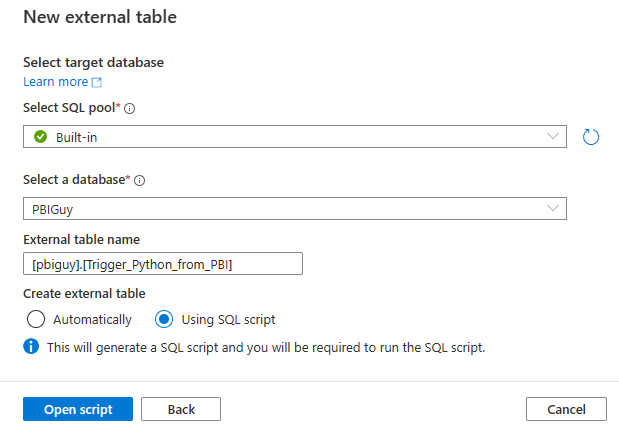
In the pane on the right hand side I select to continue. Afterwards I configure in which SQL Pool as well as which database my external table should be created, give it a name, and choose “Using SQL script” to get the full control of the script.

As I haven’t created the pbiguy schema yet, I just add a line of code to do so. Further, I modify the location to not point to a single file but rather to the overlaying folder by adding two * at the end.

If everything worked as expected you will get a table with all scenarios for all users so far.

Now we can connect with Power BI through the SQL Serverless Endpoint. This one can be found in the Azure Portal in the overview of our Synapse workspace.

Back in Power BI Desktop I select Azure Synapse Analytics SQL, configure the connection, choose DirectQuery, and paste a SQL Statement to select all columns and rows. Once done, I create a simple table visual right to the Power Apps visual. This way we can make sure the scenario will be visible once the whole process has finished. Now let’s do a final test and provide some data and calculate our scenario. Once I add some numbers and hit the button, I have to wait till my process has finished. In my version I added a rocket as gif to indicate the process is running (see comment above).

Once done, I see immediately the result in my table!

That’s it, it works! This way multiple users can access the same report, calculate their scenarios and through filter options (or even with RLS) you can make sure that each user can select his or her scenario.

Some last thoughts

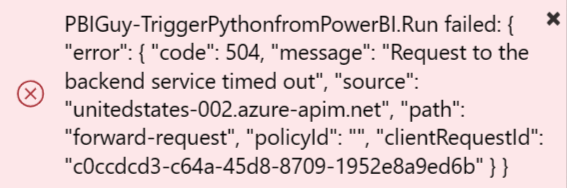
As much as I love the whole solution there are still some things to consider. As written above, the main idea was to prove that from Power BI you can trigger a Python (or R) script and get the result back in near-real time. With Azure Synapse you have unlimited scalability. On the other hand it takes quite long to process the whole request and the bottle neck is the Synapse Pipeline. If you, like me, add a “Respond to a Power Apps” action at the end of your Power Automate flow, it could be that you get an error in the app if the flow runs longer than 120 seconds (this is the timeout limit of the action) like the one below.

Especially if you run it for the first time, Synapse Pipeline will take longer as it has to spin up. Therefore I would suggest to try Azure Functions as I’m expecting a much faster process time.

Further and as well mentioned at the beginning, instead of storing individual and multiple small parquet files, I would rather store it directly into an Azure SQL DB.

Please let me know if this post was helpful and give me some feedback. Also feel free to contact me if you have any questions.

If you’re interested in the files used in this blog check out my GitHub repo https://github.com/PBI-Guy/blog

How to loop through an API with Power BI without knowing last page

Recently a customer reached out to me with a challenge because he knows I love challenges and especially solving them. In his case he got access to the Clarksons Research API, and he would like to connect with Power BI to it. So far so good, pretty straight forward. But in his case the API provides a maximum number of rows per page, and it doesn’t provide you how many pages they are in total. And obviously this can change in future as more data will be available through the API, so he’s looking for a dynamic approach to loop through the API, get all data from all pages, and import it into Power BI. Now we have a challenge and I’m happy to walk you through my solution approach and how it can be solved.

Setting the scene

As described above, we’re going to use the Clarksons Research API. Our goal is to connect with Power BI to it and get all data available in a dynamic approach. Meaning if more (or less) data will be available in future, the automatic refresh should dynamically react and get everything available.

First Steps

My first step was to connect with Power BI to check if a connection is in general possible. Once logged in in the Clarksons Research API we can even find an example code how to connect with Power BI to it – nice!

Following this approach, we first have to set up a dynamic authentication. This means we have to request a token which can be used to authenticate against the API. Because the token expires after a while, we have to create a function which will be called to generate each time a new token. This is also well documented above in the “Set up a dynamic authentication”, so I’m going to use the same code. To create the function I’m opening Power Query, select Get Data, and choose Blank Query. Once loaded, I select Advanced editor and copy & paste the code.

let
    Source = () => let
        url = "https://www.clarksons.net",
        body = "{""username"": ""YOUR_USERNAME"",""password"": ""YOUR_PASSWORD""}",
        Source = Json.Document(Web.Contents(url,[
                
            Headers = [#"accept"="application/json" ,
                        #"Content-Type"="application/json"],
            Content = Text.ToBinary(body) ,
            RelativePath="/api/user/ApiAuthentication/GenerateAuthenticationToken"
                ]      
            )),
        access_token = Source[token]
    in
        access_token
in
    Source

First thing I do is to test if I get a token from my newly created function. So, I select it, rename it to “Get Token” and hit Invoke. We got a big string back which represents the token, so my function works.

Obviously, I have to provide a username and password in the function (I marked the part red in the screen shot above). To make my life easier, so that I don’t have to update username and password every time in the code once I change my password, I created two text parameters which will hold my values. To have a better structure in Power Query I created two folders to hold Parameters and Functions. This is purely for structuring my Power Query and has no effect on the code. Afterwards, I add the two new parameters in the function replacing the hardcoded values.

A quick test by invoking the function again shows that the function still works, and I get a token back. I copy the token as I need it in a few seconds again.

As a next step I can now call the API and authenticate with the token from the function. I used the Web connector, entered the example URL https://www.clarksons.net/api/vessels?Page=1&PageSize=20 and selected Advanced at the top. The reason is we have to add a HTTP requests header parameter and provide the embed token. This is simple done choosing advanced, add Authorization as parameter name at the bottom, and add the value “Bearer ” followed by the token copied previously. Attention, there is an empty space after Bearer which is required!

Once done, I hit ok and choose Anonymous to connect. Now I got the first 20 rows coming from the API.

My first test worked perfectly fine, but I need to add one more parameter into the M-Query. I hardcoded the token in the request, but I want to get it dynamically as it can expire, and I don’t want to provide it manually every time. So, I choose Advanced Editor and add the function into the header’s details of my request. On top, I have to specify a RelativePathURL otherwise my dataset will not refresh. This means my whole M-Code looks now as following (top is how it looked, bottom shows my new code):

So far so good. This means I can now connect to the API, get a result, and the embed token will be dynamically created and provided. Now I have to get all the data and not just the top 20 rows.

Understanding the API

As I don’t get an indication how much pages there are and how many results per page I can get (unfortunately the documentation is not really good…), my next step is to further parametrize the request so I can test out the limit of the API. To not lose my work done so far, I copy the whole M-Query of my request, select Get Data, choose Blank Query, and paste the whole Query. This way I have now two tables. I rename one to “Hardcoded” and the other one to “Parametrized”. This way I can always check the result and make sure the API provides me the right data.

As my next step, I create two new Parameters called Page Number and Rows, both are Decimal Number value Parameters. For Page Number I enter 1 (for first page) and for Rows I enter 20. This are the values we see in the Relative Path URL. In my first try I want to make sure I’ll get the same result as the Hardcoded one. Afterwards I update the M-Code and parametrize the RelativePathURL as following:

Once I hit enter, I got an error message saying Power Query can’t apply the & operator to type Text and Number.

Because we decided to set our Parameters as Numbers, Power Query can’t combine now a Number and Text. This means we have two options now: modify the Parameter to be Text or transform in our M-Code the Parameter to be text. I choose the second option, as there is a Number.ToText() function in M so I update my code as following:

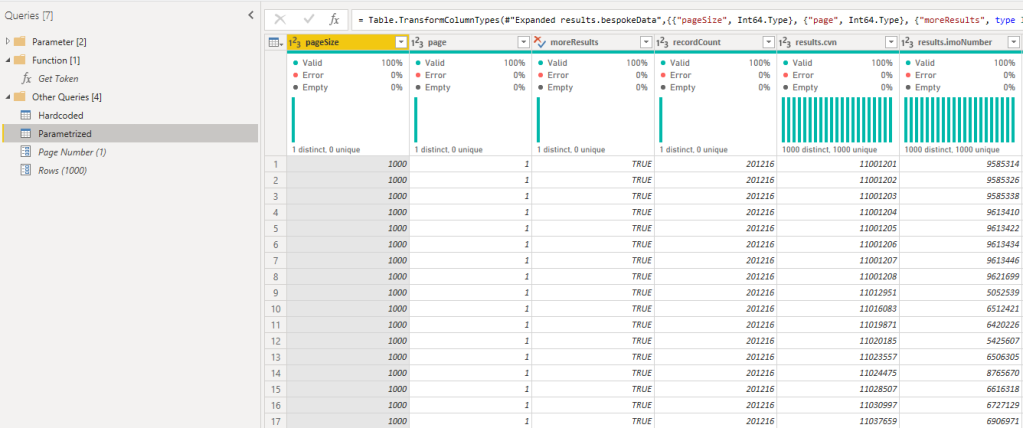
After hitting the done button, I see the same result as the hardcoded one – perfect! Now let’s test how many rows I can back per page. By just updating the Parameter “Rows” with a new number, I see a bigger result set. Once I add a too big number Power Query will return an error. After trying some different numbers, I figured out the maximum rows per page is 1000 in this case. So, I let the parameter Rows be 1000.

Next, we have to figure out which is the last page currently. Same procedure, I update the Page Number Parameter until I get an error or empty result and figure out what the maximum number is. In this case the last page is 202. This means if I get 1000 rows per page, there are 202 pages in total (so roughly 202’000 rows), and if I configure the parameter to 203 pages, I get not a “real data row” back.

Now I know how I can call the API, how many rows per page I can get back, and how many pages there are currently.

The dynamic approach

Till now I’m calling the API hardcoded through parameters. But what if I can call the API multiple times and combine the output together to one, big table? Of course, this would work manually by adding for each new page a new query, but that’s not really efficient (as Patrick LeBlanc from Guy in the Cube says: I’m not lazy, I’m efficient!). Therefore, I’m going to create another function which will call the API. In the function itself I’ll provide a parameter which will define which page I wish to call. For example, if I provide the value 1, the first page of the API should be called giving me the first 1000 rows back. If I provide the value 2, the second page of the API should be called giving me the second 1000 rows back, etc. To not lose my process so far, I create another Blank Query (select New Source, Blank Query), rename it to Dynamic, and open the Advanced Editor. In there I copy and paste the first line of the Parametrized table M-Code – see screen shot below. The upper M-Code shows the Parametrized table, the lower shows the new Dynamic M-code.

Now I’m going to create a function out of it by simply putting (page as number) => at the top. This means my new function will expect a number parameter called page as input.

Lastly, I have to make sure the provided input will be hand over to my API call. Therefore, I have to update the piece of code where I’m providing the Page Number as previously created Parameter and replacing it with the page parameter from the function.

Now I have a function and if I enter a number, a new table will be created with the current data from the provided page.

As we can see there is still some work to do to get one, nice, and clean table. I’m interested only in the “results”, so I select “List” to navigate further. And because I’m efficient, I open again the Advanced Editor and copy the newly created step to paste it into my function as well. This way I don’t have to navigate in my table, but the function gives me already back what I’m looking for. If you do this, don’t forget to add a coma at the end of the “Source” line.

To make sure it works I test it by invoking the function again and yes, it works.

As next step I create a list with one row, each row with one number counting onwards. In Power Query there is a function for that called List.Generate() Let’s test it by creating a list with number from 1 – 10.

First line defines where the list starts (number 1), where it should end (10), and in which steps it should increment (+1 for each new row). Once done, we have to convert the list to a table. This is pretty straight forward in Power Query by selecting the List, hit Transform Menu in the Ribbon, and choose “To Table”.

On the next screen we just confirm by selecting OK.

Now I want to test the Dynamic function by invoking it in my new generated table. This way the function will be called for each row, therefore each number will be provided to the function as page, and if everything works as expected I’ll get 10 pages back each containing 1000 rows. To do so I select Add Column in the Ribbon and choose Invoke Custom Function. I name my new column “Result”, select Dynamic as function query and hit OK.

Awesome, I got a result per number (page) as List. This means now I would just need to transform my data to extract the result into one big table, but I still have the issue that my approach is not dynamic. I hardcoded the list numbers to start at 1 and end by 10 but we have 202 pages. Of course, I could hardcode that (or pass the parameter) to create a list, but it’s still hardcoded. I wish to create a list until no pages are available. Luckily, the List.Generator() provides a function to test against a condition and until this condition is true, it will create new rows. Once condition is not true anymore, it will stop. In this case my condition should be something like “create a new number / row per page coming from the API until I don’t receive any rows / page from the API anymore”. Let me first test what I get back if I provide the number 203 in my Dynamic function because it doesn’t exist. Once done, I see the result is empty.

This means I can check if the result is empty and if so, stop creating new rows. In M-Code this will look as following:

List.IsEmpty([Result]) = false

Further List.Generator() asks where to start the list. I wish to provide that dynamically coming from the API but also want to make sure that if no page is available no error will occur during refresh. So, I have to try if I get something back for page number 1 (that’s where I start) calling my Dynamic function and if not, give me null back. On top I have to create a parameter indicating that I start at page number 1 which I’ll use afterwards to count onwards until we reach the end. I’m saving the whole result in my step called Result. This piece of code looks as following:

[Result = try Dynamic(1) otherwise null, pagenumber=1]

The next function in List.Generator() is creating the next row in the list if the condition is met. Again, I’m wrapping the Dynamic function around Try Otherwise to make sure no error will occur if somehow the API is not reachable and providing now the pagenumber parameter. And if successful, please count +1 in my pagenumber parameter for the next page. This piece of code looks as following:

[Result = try Dynamic(pagenumber) otherwise null, pagenumber = [pagenumber] + 1]

Lastly, I wish to get the Result back, so I provide the optional function in List.Generator() providing just [Result]. This means my whole code now looks as following:

let
    Source = List.Generate(
        () => [Result = try Dynamic(1) otherwise null, pagenumber=1],
        each List.IsEmpty([Result]) = false,
        each [Result = try Dynamic(pagenumber) otherwise null, pagenumber = [pagenumber] + 1],
        each [Result]),
    #"Converted to Table" = Table.FromList(Source, Splitter.SplitByNothing(), null, null, ExtraValues.Error),
    #"Changed Type" = Table.TransformColumnTypes(#"Converted to Table",{{"Column1", Int64.Type}}),
    #"Invoked Custom Function" = Table.AddColumn(#"Changed Type", "Result", each Dynamic([Column1]))
in
    #"Invoked Custom Function"

If I hit now Done, Power Query should loop through the whole API, going through each page and create a new row for each page in my automatic created list. For each row it will call the API to get the data. Let’s test it.

Once finished (this can take a while now!), I get an error in my query. The reason is because I did some transformation and Power Query can’t do them anymore. So, I’m deleting all steps until I see no error and extract now everything to New Rows by hitting the two arrows icon in the column.

Next, I expand the Records by again hitting the two arrows icon, select all columns I wish to include (in my case all of them), and uncheck the “Use original column name as prefix”. By hitting ok, I have now my complete table with all data from the API!

Obviously, I can do now all kind of transformation I wish and need to do, and – even more important – set the correct data types for each column as well as following best practices approach once it comes to data modelling. Before I hit the Close & Apply, I rename my “Dynamic” function to “Get API Page”, delete the unnecessary Invoked Function lists, and rename my finale table to “API Table”. Of course, you can choose another name, whatever suits you best. Lastly, I right click on my Hardcoded and Parametrized table and deselect the Enable load option to not load the data into my data model but still to keep my queries. If you don’t wish to keep them, just delete them as well.

Once done, I hit the Close & Apply button and wait until the table is loaded. If you keep an eye on the data load dialog, you’ll see the rows loaded are increasing every time by more or less exactly 1000. This means or paging from the API works (remember our Rows parameter in Power Query?).

One last tip before you leave. If the data load takes too much time and your token expires (remember, we have to get a token to authenticate against the API and this token has a lifespan) during the refresh, you can probably test the timeout of the token in the request. This means you have to update the function by adding the timeout at the end of your URL request and increase the lifespan. In my case this would work as the API provides a timeout function and therefore it would look like following (don’t forget to add the coma after the relative path):

Please let me know if this post was helpful and give me some feedback. Also feel free to contact me if you have any questions.

If you’re interested in the files used in this blog check out my GitHub repo https://github.com/PBI-Guy/blog

The Power BI Championship Switzerland

For the first time in Switzerland, we organized the Power BI Championship which crowned the top 3 teams based on their solution. In this post I’m going to share what the Championship is all about, what the challenge was (feel free to challenge yourself and create a report on your own), and how the jury scored all the amazing solutions we got. Lastly, I’m going to share the Top “10” solutions in the GitHub repo so everyone can get inspired about the different ideas and solutions.

What is the Power BI Championship

The whole idea of the Championship was to enable everyone to work with Power BI and get to see what’s possible within just a few days. We organized a Briefing Session on the 20th of May 2022 to explain everyone who registered how the Championship will look like and how – even if you’re a new enthusiast – you can skill yourself during the upcoming days and weeks. Starting from the 20th we posted every day for the upcoming two weeks a new enablement Guy in a Cube video to make sure you know the basics about Power BI and how to create reports. (See All Enablement Videos from Guy in a Cube down below).

On the 2nd of June we finally had our Kick-Off where we introduced the Dataset which all Champions have to use. We gave each individual and team the choice between the GHO OData API (https://www.who.int/data/gho/info/gho-odata-api) and the Swiss Open Data about rent prices (https://opendata.swiss/en/dataset/durchschnittlicher-mietpreis-pro-m2-in-franken-nach-zimmerzahl-und-kanton2). The goal was to use at least one of these two datasets and create a report on top. Everyone was free to add more, publicly available data to enhance the report and provide a solution until midnight 7th of June.

Once all teams have submitted their solution a jury of three technical Microsoft FTEs went through the PBIX files to score the solution based on a scoring system. This made sure scoring was as objective as possible and the winner was really determined based on neutral criteria, not personal preferences. All three jury members scored different aspects of each report and the average was taken as final points, e.g. How is the Layout? How is the Data Model? Did the team follow Best Practices? Are all columns / tables from the Data Model used? How is DAX structured? How complex is the DAX used? Did they think about a mobile layout? And so on. Nevertheless, some criteria are still more important than others. Therefore, we decided to weight the different categories. An overview can be found in the image below.

The main idea was to determine a Top 10, announce them on the 10th of June, and invite them to the Finals on the 17th of June. But there was one “issue” – the different solutions have been so amazing and the scoring so close we just couldn’t do a hard cut and invite only the Top 10! We decided during the scoring that we invite even the Top 14 plus 3 Golden Buzzers to the Finals! Golden Buzzer in this case means that each jury member had a Golden Buzzer to vote for a solution once to see them in the Finals regardless of their score. This way we had 17 great teams presenting their solution on the 17th of June.

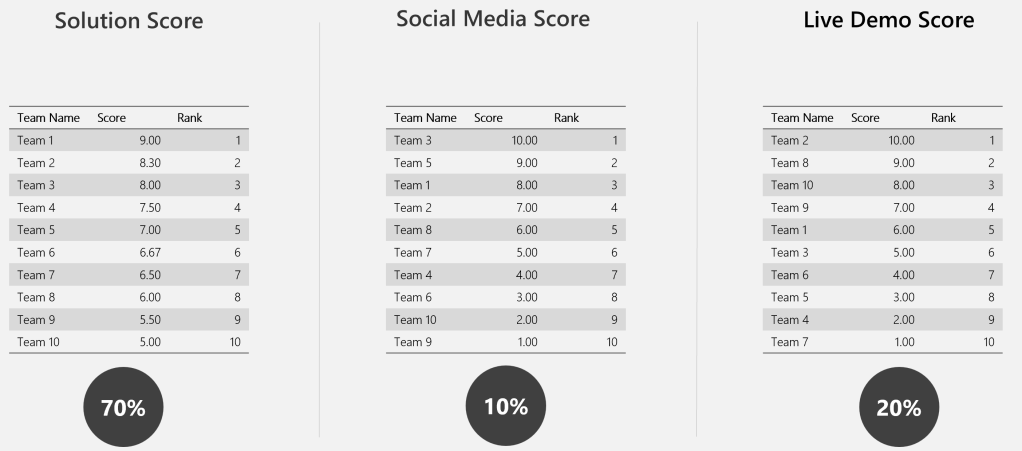
Once the teams have been announced they had seven days to prepare for the live demo and also collect some extra points through LinkedIn. This means each team had to collect Likes, Comments, and Shares to score more points at the end. Idea behind this was to check if others also like the team’s solution or was it only the jury. But again, we wanted to make sure that just because someone had a huge LinkedIn community, they will not win based on this. So, we weighted again all Teams. The team with the most Likes, Comments, and Shares got 10 points, the second best got 9 points, etc.

Lastly each Team had to sell their solution to the jury who represented a CEO, CIO, and CMO within a 10min live demo. Again, all teams have been scored and weighted (best team 10 points, second best team 9 points, etc.) to make it as fair as possible.

In a last step, we weighted each score (Solution Score 70%, Social Media Score 10%, Live Demo 20%) to determine the Top 3.

This is just an example and not the real scoring during the Championship

Based on these criteria, the winners of the Power BI Championship Switzerland 2022 are:

1st Place: Team BIdventure, Members: Karim Abdrakhmanov & Anthony Haberli
2nd Place: Team Clouds on Mars, Members: Greg Stryjczak & Wojtek Bak
3rd Place: Pascal Kiefer

I want to highlight one more time that this doesn’t mean the other solutions haven’t been good – contrary! All finalists have delivered awesome and outstanding reports and it made the jury’s life really hard to have “only three winners”! But the small details in the end decided the scoring – like a Championship should be. If you’re interested in how close it really was, check the GitHub repo with all the final solutions and write in the comments which was your favorite one.

All Enablement Videos from Guy in a Cube

Please let me know if this post was helpful and give me some feedback. Also feel free to contact me if you have any questions.

If you’re interested in the files used in this blog check out my GitHub repo https://github.com/PBI-Guy/blog

Multilingual Reports in Power BI

Creating Power BI reports in Switzerland can be challenging when it comes to the question: In which language should we display the report? The reason behind is that Switzerland has 4 official languages and if we consider English, it’s even 5. Therefore it’s not easy to fulfill this requirement with one report – or is it? Let me walk you through different scenarios how you can create multilingual reports with Power BI.

Possible Solutions

As in most scenarios in Power BI there are different ways to achieve the same goal. Therefore let me list some solutions:

  • Create a separate report for each language
  • Create one report and translate data through a service (like Azure Cognitive Services)
  • Create a Datasets for each language
  • Create a report, use a “translation table”, and work with bookmarks
  • Create one report and a “translation table” to display the right language

Of course each scenario has his pros and cons so let me go through some of them quickly and focus afterwards on the main solutions I’m going to present in this post.

Create a separate report for each language

Creating a separate report for each language is from my point of view a maintenance nightmare. Imagine having 5 different languages, therefore having 5 “different” reports (which all look the same but using only a different language), and now you have to customize a visual. Not only you have to do the work multiple times, you have to do it every time a modification is required! Besides that you have to keep an overview which users has access to which report making sure they have access to the right language. Therefore I wouldn’t recommend to go this path and look into other ways to fulfill the multilingual report requirement.

Create one report and translate data through a service

Using a Service to translate your data is a nice and handy solution. The good side of this approach is that you do not have to create your own translation for each word and sentence for each language. This can be done automatically through an API. On the other hand the translation itself could lead to unexpected results, sentences could be translated in a wrong or misleading way which can cause other, unexpected issues which could be avoided in the first place. Therefore it’s not a perfect solution but for sure one worth trying if you do not have a “translation table” which can be used. If you’re interested in how to call an API to translate your data let me know and I’ll be happy to post about it in future.

Create a Datasets for each language

Chris Webb wrote a great article (see https://blog.crossjoin.co.uk/2021/02/21/implementing-data-as-well-as-metadata-translations-in-power-bi) how you can create multiple Datasets – one for each language – and use the DirectQuery Mode (not Live Connection! 😉 ) to connect to the needed Dataset. This approach has also his benefits as the data and meta data like column name and title can be translated. On the other hand it’s again a maintenance effort for all the different Datasets and PBIX files.

Create a report, use a “translation table”, and work with bookmarks

I saw a post from Greg Philips how you can handle Multilingual Reports with a translation table and multiple pages and bookmarks. Everything is described here: https://blog.enterprisedna.co/create-a-multilingual-power-bi-report/

This solution gives you the full flexibility to translate data, columns, titles, etc. in your report. On the other hand you would need to create a separate page for each language and maintain the bookmarks on top of it. If changes will occur you would need to change it on every page. Still better than having multiple reports, but could lead to a lot of maintenance hours. Nevertheless it’s a really nice solution to work with different languages in one report.

Create one report and a “translation table” to display the right language

Another approach is to have a “translation table” within Power BI which is used to translate the needed data in the right language. Let me walk you through how this could look like in Power BI.

As an example imagine we have a table with some fruits, numbers, and an ID for each fruit. Further we have a second table with the fruit ID, display language, and the translated value.

Once in Power BI imported you can create a relationship between the two tables through the ID if that’s not already automatically done during the import process.

As a next step you can add a Slicer Visual using the Language column from the Language table and add a Table Visual with the Number Column from the Fruits table and Value Column from the Language table.

If you select now a language in the slicer the Table Visual will filter it to the selected language. You can even force a selection through the slicer in the settings by turning on “Single select”.

To enhance this solution and apply automatically the correct language you can even build a third table matching the language with an user and use RLS to apply the right language. In my simple solution I created following table.

Tip: I blogged about RLS a while ago and if you’re interested in how to implement it check it out here: https://pbi-guy.com/tag/row-level-security/

As you can see the table contains the language, name and UPN of each user. Once in Power BI imported create a relationship between the language column from the User Language table and the Language column from the Language table. Our whole relationship model looks now as following.

Our next step is to create a role and set a rule so users can only see their specific language. We’re going to user the USERPRINCIPALNAME() to identify which user is logged in and match the mail address with the User Language table.

Once this is set up the Slicer Visual is not needed anymore as through RLS the data is already filtered. I just added a card visual showing the current language and the USERPRINCIPALNAME (I created a DAX measure for this). If we test now RLS on behalf of another user – let’s take Luke – we see following.

If we change it to Chewbacca the language will apply automatically.

This approach is very good if you do not have a lot of data and languages. As you can imagine if you add a new fruit your language table will need three more lines for the three languages in this case. If you add a new language your language table will increase even more which leads to a bigger data model size in both cases. Further performance can decrease due to the implemented RLS rule. On the other side user experience can increase as the language will automatically apply but users can’t change it on their own if RLS is in place (e.g. in my personal case I prefer to display everything in English even if I’m based in the German-speaking part of Switzerland).

Besides data translation Power BI offers ways to translate field and table names automatically as well. Let me show you how to add different languages into your model.

Translate Power BI field and table names

To be able to add multiple languages into your model you’ll need to work with third-party tools. This could be Visual Studio, Tabular Editor, or anything else that can handle and configure a tabular model. In my case I like to work with Tabular Editor because as soon as you install it you’ll have it integrated in Power BI Desktop to open it directly from the ribbon connected to your model.

Once opened you’ll find a “Translations” folder in your model. Right-click on it and hit New Translation.

A new window will pop-up where you can choose which culture you wish to add. In my case I select de-DE and hit OK. This means once translations are implemented in de-DE language Power BI will recognize the Browser or Power BI Desktop Language Settings and display automatically the translation of my tables and columns in this language.

You’ll notice how the Translation folder has now two different languages. In my case en-US and de-DE. Now I can expand the Tables folder, select a table or column, scroll down to Translated Names Properties and add for each language a translation. As you can see in my example below I choose the table Fruits and translated it to Früchte in German.

To make the translation easier Chris Webb has a very useful and easy-to-use tool which is available for free here: https://www.sqlbi.com/tools/ssas-tabular-translator. To be able to use it export the translations as json file and import it afterwards by right-clicking on the Translations folder in your model.

Once everything is translated as wished save your model and publish the report to Power BI Service. In there you have to change the browser language or choose through Power BI settings your preferred language and your table and column names will be display accordingly. If you wish to test in in Power BI Desktop keep in mind that since March 2021 release Power BI Desktop will not reflect the model translations so you would need to have an earlier version if you wish to do so.

Edit: Further keep in mind that this works only with Premium. Therefore you’ll need Power BI Premium, Premium per User, or an Embedded capacity.

Please let me know if this post was helpful and give me some feedback. Also feel free to contact me if you have any questions.

If you’re interested in the files used in this blog check out my GitHub repo https://github.com/PBI-Guy/blog

Power BI and Paginated Reports – beyond usual use

A lot of customers are asking me what are the differences between Power BI and Paginated Reports, why should they use one OR the other. My answer is mostly: It’s not one OR the other, why not combine and get the most out of both worlds?! I suggest in many cases that Power BI can be used as interactive dashboard “entry-tool” for end users to analyze dynamically their data. But once a pixel-perfect report should be created as PDF (it’s mostly PDF so we’re going to focus on this format) Paginated Reports are simply better. So why not creating a button within your Power BI report to take all the selected filters automatically and create out-of-the-box a Paginated Report PDF print-out? Most customers are first wondering that this kind of scenarios are possible and of course wondering how it can be done. Let me walk you through how to add such a button within a Power BI report in this blog post.

Prerequisites

  • Power BI Report
  • Paginated Report
  • Power BI Desktop
  • Power BI Report Builder (recommended)
  • Power BI Premium / Power BI Premium per User / Power BI Embedded
  • Basic understanding of both worlds

I already have a Power BI and a Paginated Report ready to combine it. If you’re not familiar how to create a Paginated Report or from where to get a simple demo file I can highly recommend the Power BI Paginated Reports in a Day Course. In this course you’ll learn the differences between Power BI and Paginated Reports, how to start and build your first report, and how to publish it afterwards to Power BI.

Further Paginated Reports are only supported with Premium. Therefore you will need a Power BI Premium capacity, Premium per Use license, or Power BI Embedded.

How to

The very first thing we need to do is to publish our Paginated Report to Power BI to get the unique ID of the report from the Service. In my case I open the RDL file with Power BI Report Builder and publish it to a workspace backed up with a PPU license. I name it Sales Analysis.

Once done the report will be available in Power BI Service. If we open it we’ll see the URL pointing to our specific workspace with a unique ID (1a8b6910-c4a2-4611-ae75-5d0b968eb6d3) and pointing to our Sales Analysis Paginated Report which has as well a unique ID (66a1a70a-89cf-4d48-80c1-39d766f9892b). This means we can use this URL to get to our just published Paginated Report.

If we check the Microsoft Documentation about Power BI and how the URL is build (see https://docs.microsoft.com/en-us/power-bi/paginated-reports/report-builder-url-parameters) we see that the URL can be enhanced to provide values for parameters, to provide commands to get a specific format, and many more. So before building something in our Power BI report let’s try the URL to understand what’s possible.

Let’s first try to give a value to the parameter. To initialize a parameter we have to add “?rp:parametername=value”. In our case the internal parameter name of the Paginated Report is called DateFiscalYear and can be checked in Power BI Report Builder. Checking the properties we also see that the parameter is a data type text.

If we’re looking for possible values we can check the “Available Values” and see if a query is used or something is hardcoded within the parameter settings. Alternatively we can also open the Report in Power BI Service and check the drop down list of the Parameter. If we do so we can see that following values are expected.

Let’s try to build the URL now with what we got so far:

URL to Reporthttps://msit.powerbi.com/groups/1a8b6910-c4a2-4611-ae75-5d0b968eb6d3/rdlreports/66a1a70a-89cf-4d48-80c1-39d766f9892b
Initializing Parameter?rp:
Parameter NameDateFiscalYear
Parameter ValueFY2019
Whole URLhttps://msit.powerbi.com/groups/1a8b6910-c4a2-4611-ae75-5d0b968eb6d3/rdlreports/66a1a70a-89cf-4d48-80c1-39d766f9892b?rp:DateFiscalYear=FY2019

If we call the URL now the parameter is automatically set to FY2019 and the report is loaded.

Let’s go further and try to get a PDF automatically. To do so we only need to add “&rdl:format=PDF” at the end of our URL. The “&” symbol combines different commands and to get a PDF automatically the rdl:format=PDF is necessary. Therefore our whole URL looks now as following:

https://msit.powerbi.com/groups/1a8b6910-c4a2-4611-ae75-5d0b968eb6d3/rdlreports/66a1a70a-89cf-4d48-80c1-39d766f9892b?rp:DateFiscalYear=FY2019&rdl:format=PDF

If we call this URL Power BI will automatically generate a PDF.

So far so good! Now that we understand how the URL of a Paginated Report works and how we can modify it let’s try to implement it in our Power BI Report.

After opening the Power BI Report in Power BI Desktop we can add a simply DAX measure with our hardcoded URL to call the Paginated Report.

Paginated Report URL = “https://msit.powerbi.com/groups/1a8b6910-c4a2-4611-ae75-5d0b968eb6d3/rdlreports/66a1a70a-89cf-4d48-80c1-39d766f9892b?rp:DateFiscalYear=FY2019&rdl:format=PDF”

Once added make sure to mark it as Data Category Web URL.

If we add now the measure to our report we see our hardcoded URL. If we click on it the Paginated Report will open. Unfortunately it’s not “connected” with our Power BI Report so far. Meaning if I change the Slicer for example to FY2020 the URL will still point to FY2019. Let’s fix this with some DAX magic.

I add a new Measure to get the selected value of the slicer. In this case I use following formula:

Selected Fiscal Year = SELECTEDVALUE(‘Date'[Fiscal Year])

Now I just replace the hardcoded FY2019 from the first Measure with my second Measure. The DAX Measure looks now as following:

Paginated Report URL = “https://msit.powerbi.com/groups/1a8b6910-c4a2-4611-ae75-5d0b968eb6d3/rdlreports/66a1a70a-89cf-4d48-80c1-39d766f9892b?rp:DateFiscalYear=” & KPIs[Selected Fiscal Year] & “&rdl:format=PDF”

Now every time I select another FY my URL will automatically adopt. That’s very simple with a single selection but what if I wish to have a multi selection, will it still work? Let’s try it out. But before testing the URL we need to make sure the Slicer is enabled for Multi Selection as well as the Parameter in our Paginated Report. Therefore I change the settings of both.

Don’t forget to republish the Paginated Report once the Property has been modified.

Let’s test our URL now in Power BI if we select two FY. I added the Paginated Report URL Measure into a Table visual to see it and select two different FY. Unfortunately the URL do not show both years, even worse it just disappeared. The reason behind is that the SELECTEDVALUE function expects one value.

Luckily we can also give an alternative to the SELECTEDVALUE function in which we can concatenate multiple values. To make sure we got the each value just once we need to use the DISTINCT function as well. Our Selected Fiscal Year Measure looks now as following.

Selected Fiscal Year = SELECTEDVALUE(‘Date'[Fiscal Year], CONCATENATEX(DISTINCT(‘Date'[Fiscal Year]), ‘Date'[Fiscal Year]))

Unfortunately it combines now FY2019 and FY2020 into one string and the URL contains now FY2019FY2020 which will not work. Even if we separate the two fiscal years with a comma or something else it will still not work as Paginated Report will recognize it as one value (e.g. “FY2019, FY2020” is one value and the report will not load). Therefore we need to add for each value the parameter again like in the Documentation described (see https://docs.microsoft.com/en-us/power-bi/paginated-reports/report-builder-url-parameters#url-access-syntax). The syntax looks as following:

powerbiserviceurl?rp:parametername=value&rp:parametername=value

In our case this means we have to have rp:DateFiscalYear=FY2019&rp:DateFiscalYear=FY2020 after the question mark. Let’s adjust our Selected Fiscal Year Measure to get the right URL needed. If we closely look to the syntax we see that the Delimiter can be specified. We’re going to use this and add “&rp:DateFiscalYear=”. In this case every time two ore more values are selected the values will be separated with the right expression. Our final DAX measure looks now as following:

Selected Fiscal Year = SELECTEDVALUE(‘Date'[Fiscal Year], CONCATENATEX(DISTINCT(‘Date'[Fiscal Year]), ‘Date'[Fiscal Year], “&rp:DateFiscalYear=”))

We can also see that the URL is changing dynamically based on the FY selection. If we click now on the URL the Paginated Report will open with the two FY selected and print out a PDF automatically.

Our last step is now to create a button in our Power BI Report and publish it afterwards.

In my case I choose the Pentagon Row shape and add it into my report. Of course you can modify it as wished or even use a visual instead of a shape / button to achieve the same result (open the paginated report).

Position the shape and configure it as needed. Lastly modify the Action property, set the Type to Web URL and configure our DAX Measure to be used as Web URL.

Now just publish the Power BI Report and use the button to open the Paginated Report based on your Slicer selection in Power BI.

Conclusion

As we see we can use Power BI as entry point and use it to set filters to open a Paginated Report afterwards. Due to the flexibility of the Paginated Report URL we can also specify in which format the report should be exported. This could also be a dynamic selection in Power BI. There are further integration possibilities thanks to the Paginated Report Visual in Power BI to display a Paginated Report directly in Power BI.

Please let me know if this post was helpful and give me some feedback. Also feel free to contact me if you have any questions.

If you’re interested in the files used in this blog check out my GitHub repo https://github.com/PBI-Guy/blog
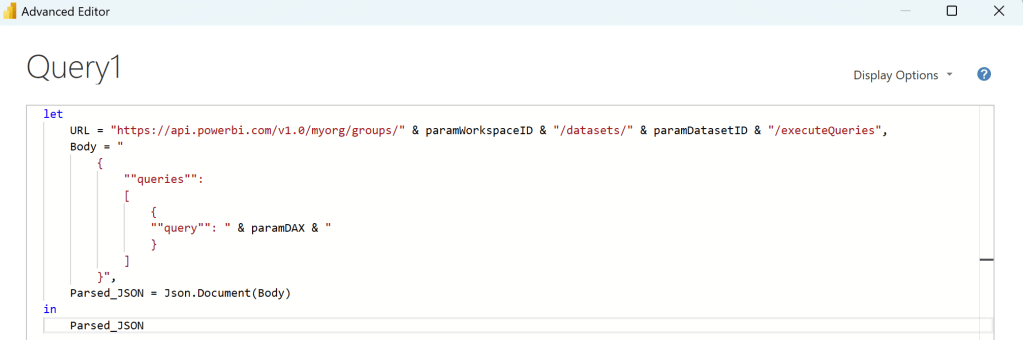
Power BI Object-Level-Security

Many users are aware that Power BI offers Row-Level-Security to secure their data. As example you can use RLS so users from a specific country can only see the sales numbers from this country and not others. I did already a blog post about the different possibilities (see https://pbi-guy.com/2021/10/12/power-bi-row-level-security/ & https://pbi-guy.com/2021/10/15/power-bi-row-level-security-organizational-hierarchy/ & https://pbi-guy.com/2021/10/15/power-bi-rls-configuration-in-service/). But many customers don’t only want to secure on a row-base they also want to secure their data on a “column-” or “table-base”. And exactly for this purpose Power BI offers Object-Level-Security. Let me walk you through how to set up OLS in Power BI.

Prerequisites

  • Power BI Desktop
  • Power BI Service Account
  • Tabular Editor

How to

To enable OLS we start in Power BI and create first a data model. I’m going to use my standard Sales Report with Wide World Importers sample data. Further I created three visuals with Text boxes to show the different OLS options – No OLS applied, only on one specific column (customer), and on the whole table (dimEmployee). Every visual shows the Profit by different dimension. First one by Sales Territory, second one by Buying Group, and the third one by Employee.

As a next step we have to create the different Roles so OLS can be applied to it. Go to the Modeling Tab in the Ribbon and select Manage Roles.

In here I created two different roles – one where only the OLS for the column Customer should be applied and one where the whole Table dimEmployee should be secured. No DAX expression or anything else is needed – just the two empty roles. Once done hit the Save button.

After the test page and the roles are set up I connect to my model with Tabular Editor by selecting it through the ribbon External Tools.

Pro Tip: If you open Tabular Editor directly from Power BI Desktop you’ll be automatically connected to your data model.

Once Tabular Editor has opened you should see a similar screen like the below.

As a next step I expand the Roles and select first the “OLS on Table dimEmployee”. Once the role is selected in the property pane you see a property “Table Permissions” in the “Security” section. Expand it and configure “None” to the table which should be secured. In our case it’s dimEmployee. This means that every user who will be added to the “OLS on Table dimEmployee” role afterwards will not see any data coming from the dimEmployee table.

Now I select the other role and instead of “None” I set the dimCustomer Table to “Read”. The reason is we just want to secure one specific column and not the whole table. Therefore the table can be read in general but we have to configure specific columns which should be secured. After you set the dimCustomer table to read the role can be expanded on the left hand side which lists all tables in “Read” or “None” mode.

Next select the dimTable below the role, head over to “OLS Column Permissions” under “Security” in the property pane and set the column “Customer” to “None”. Every other column will use the Default behavior of the table which is “Read”.

After we set up everything now in Tabular Editor we can save our model and close Tabular Editor. Back in Power BI Desktop let’s test our roles. First I test the “OLS on Table dimEmployee” role by going to Modeling – View as – selecting OLS on Table dimEmployee – and hit OK.

We see that our OLS works because the right hand visual is not showing anything. Further the whole table dimCustomer is also not visible.

That’s exactly what we expected – great! Let’s test the second role. After we switched the view every visual is showing up but the “Customer” field in the table “dimCustomer” is hidden. This is also expected as we’re not using the Customer field in our report so far therefore everything can be shown.

Let’s turn of the role view and replace the “Buying Group” column with “Customer”.

Than we enable the role view again to see if security applies.

And as we can see yes it does! Because the visual is using the column Customer now it’s not showing up.

As a last step you would need to publish the report to the Service and assign user / groups to the desired role. One user / group can also be added to multiple roles if needed like with RLS.

Personally, I find the OLS very useful to secure your data model but the message which appears to end user is not very user friendly. I would love to see an update here which says at least it’s secured instead of “Something went wrong” because as an admin it’s expected behavior and not wrong. Best option would be if I could configure the message as I wish.

Please let me know if this post was helpful and give me some feedback. Also feel free to contact me if you have any questions.

If you’re interested in the files used in this blog check out my GitHub repo https://github.com/PBI-Guy/blog