You have created a semantic model using Direct Lake on OneLake, added it to a deployment pipeline, and now want to point it to a different Lakehouse in your test or production environment. Sounds straightforward, right?
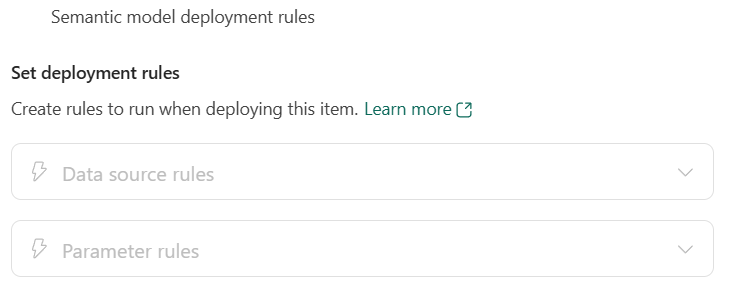
However, when you open the deployment rules, the options are grayed out. This was exactly the situation I recently investigated.
The good news is that I was able to make it work by creating a text parameter and referencing it in the semantic model’s source expression. The deployment pipeline can then use a parameter rule to change the OneLake location for the target environment.
In this blog post, I will walk you through the approach, explain why the Direct Lake type matters, and highlight a few things that were not immediately obvious during testing.
This walkthrough is based on the behavior I tested in October 2026. The parameter-based approach worked in my test environment, but it should not be confused with native data source rule support for Direct Lake on OneLake. Validate it in a non-production environment, especially because the web modeling experience behaved differently after the change.
Direct Lake on OneLake vs. Direct Lake on SQL
Before looking at the deployment rules, we need to distinguish between the two Direct Lake types.
Direct Lake on OneLake references the OneLake storage location directly. It uses OneLake APIs for schema discovery, security checks, and data loading, without DirectQuery fallback.
Direct Lake on SQL uses the SQL analytics endpoint for schema discovery and security information. The important detail is that it still loads data directly from OneLake when queries run in Direct Lake mode. It does not send every query through the SQL endpoint. Depending on the model configuration and query, it can fall back to DirectQuery.
Why does this matter here?
In my tests, the model using Direct Lake on SQL exposed the data source rule option. The model using Direct Lake on OneLake did not. This is a known limitation right now.
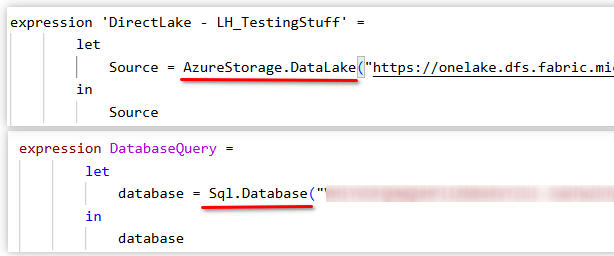
An easy way to check your model is to inspect the shared source expression in TMDL view:
| Direct Lake type | Source connector |
|---|---|
| Direct Lake on OneLake | AzureStorage.DataLake(...) |
| Direct Lake on SQL | Sql.Database(...) or OneLake.SqlAnalytics(...) |
Microsoft explains these differences in the documentation on developing Direct Lake semantic models.
Why Are the Deployment Rules Grayed Out?
There are two different mechanisms in the deployment rules pane:
- Data source rules replace supported data source settings for the target stage.
- Parameter rules replace the value of a parameter that already exists in the model.
These are not interchangeable.
The standard data source rule experience did not expose my Direct Lake on OneLake source. At the same time, my newly created model did not contain a parameter, so there was nothing to select under parameter rules either.
Microsoft’s deployment rules documentation lists the supported data sources for data source rules and recommends parameters for other sources.
Also keep in mind that a disabled option is not always caused by the connector. Ownership matters as well: you must be the owner of the item to create deployment rules.
The central principle for this solution is therefore straightforward:
Keep the model structure the same, but let a text parameter control the OneLake source location.
Step 1: Prepare the Source and Target Environments
For this example, I use a development workspace and a production workspace assigned to stages in a deployment pipeline. If you also have a test stage, apply the same principle there before promoting to production.
Before changing the model, make sure that:
- The source semantic model uses Direct Lake on OneLake.
- The target Lakehouse exists and contains the required tables and data.
- The tables have compatible names, schemas, and columns.
- You can edit the source model and create rules for the target item.
- The identity used by the target model can access the target data.
Deployment does not copy the Lakehouse’s table data into the next environment. Preparing and loading that data is a separate task.
For simplicity, this walkthrough uses one Lakehouse source. If your model references multiple OneLake locations, inspect every source expression. Changing one location does not repoint the others.
Step 2: Create a Text Parameter
Open the semantic model in the Fabric web modeling experience and switch to Editing mode.
In the experience I tested, I could then open Transform data and create a parameter.
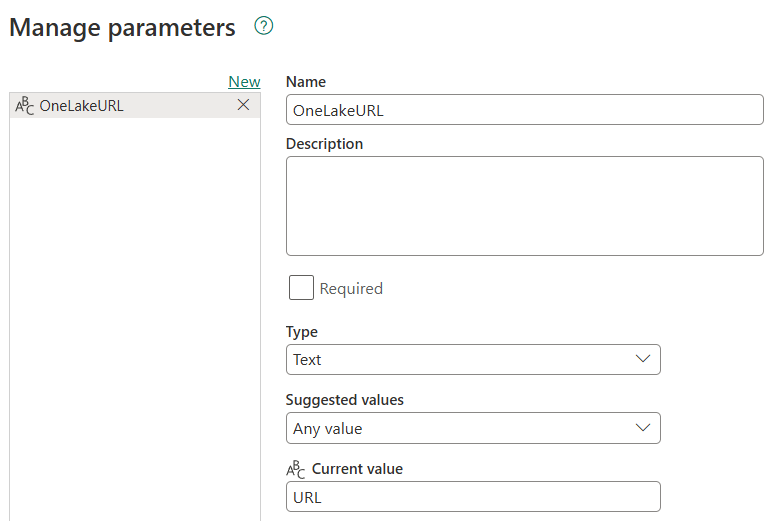
I called mine OneLakeURL and configured it as follows:
| Setting | Value |
|---|---|
| Name | OneLakeURL |
| Type | Text |
| Current value | The existing development OneLake source location. If not available, just put in some random text for now |
Use the exact location from your model’s current source expression. This avoids introducing a connection change while you are only trying to parameterize the existing source.
Save the change.
At this point, we have a parameter, but the model does not use it yet. Creating a parameter alone does not change the source connection.
Step 3: Reference the Parameter in TMDL View
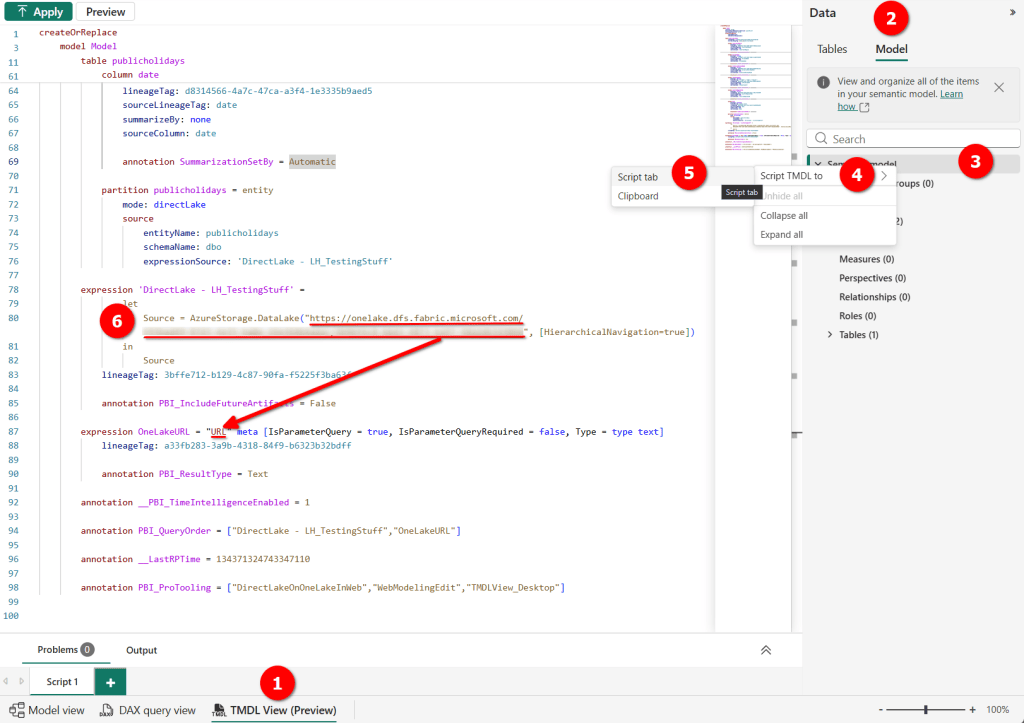
Next, open TMDL view.
In my test, I used the model explorer to script the semantic model into a script tab. This exposed both the existing source expression and the newly created parameter.
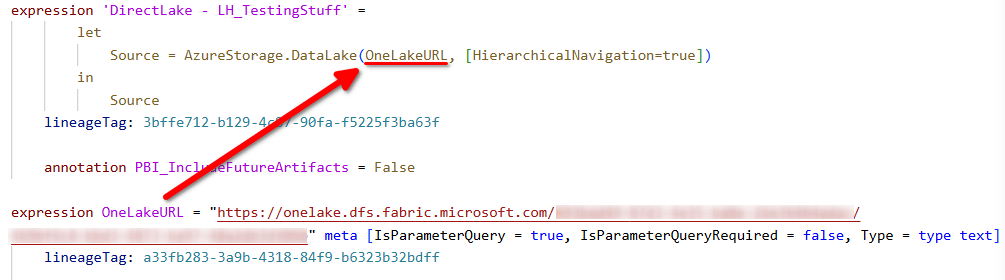
Locate the shared expression containing AzureStorage.DataLake.
The change is to replace the hard-coded URL argument with a reference to OneLakeURL. Conceptually, the connector call changes from:
AzureStorage.DataLake("https://onelake.dfs.fabric.microsoft.com/<workspace-id>/<lakehouse-id>")
To:
AzureStorage.DataLake(OneLakeURL)
These are illustrative connector-call fragments, not a complete replacement for your model’s expression. Preserve any existing connector options, navigation steps, and other model metadata. Use your model’s actual source location rather than copying the placeholder above.
Notice that the parameter reference is not in quotation marks. "OneLakeURL" would be a literal string, not a reference to the parameter. If your parameter name has a space (e.g. “OneLake URL”) you need to reference it like this: #”OneLake URL”.
Apply the TMDL changes.
The parameter now holds the environment-specific location, while the source expression consumes that value.
Step 4: Refresh and Validate the Source Model
This was one of the important details during testing.
After applying the change, I created a report to validate the model. Initially, the expected table was not available. Refreshing the semantic model resolved this in my test.
Therefore, before moving on:
- Refresh the source semantic model, using Refresh now or the corresponding table refresh action available in your experience.
- Wait for the refresh to complete successfully.
- Open or refresh a report connected to the model.
- Verify that the expected tables and measures work.
For Direct Lake tables, refresh is not the same as importing the full dataset into the model. It updates the model’s framing of the underlying Delta data.
If this validation fails, stop here and check the expression, source location, and permissions before deploying.
Step 5: Deploy the Model and Create the Target Parameter Rule
In my test, I first had to deploy the semantic model to the target stage before I could configure its deployment rule there.
Be careful with this initial deployment. Until the target rule has been applied through another deployment, the target model can still reference the development source. Do not expose it to production users as a validated production model yet.
Once the item exists in the target stage:
- Open Deployment rules for the target stage.
- Select the semantic model.
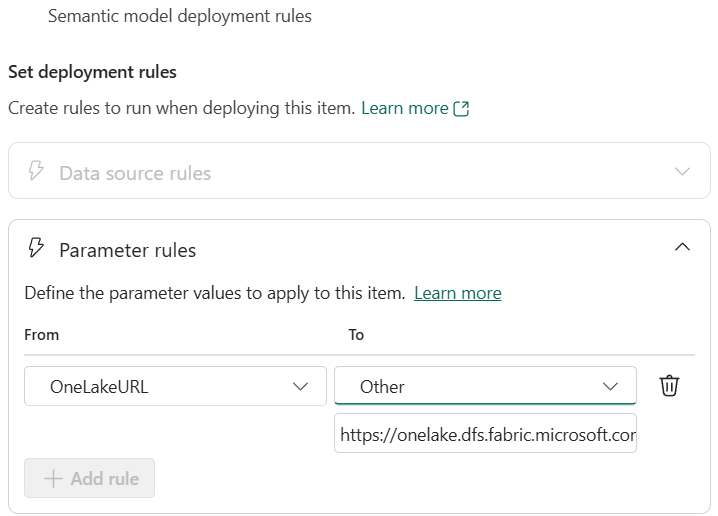
- Expand Parameter rules and add a rule.
- Select
OneLakeURL. - Enter the target environment’s OneLake source location. In the UI I tested, I used Other to enter a custom value.
- Select Save.
The source location in my example included both the workspace ID and the Lakehouse ID. When preparing the production value, make sure both identify the correct target environment. Do not paste the Fabric browser address; use the OneLake storage location in the same format as the original source expression.
Step 6: Deploy Again and Verify the Target
Now deploy the semantic model again from the source stage into the target stage.
This time, the deployment pipeline applies the parameter rule and replaces the parameter value in the target model.
After the deployment completes, open the target semantic model and inspect its definition:
- Does
OneLakeURLcontain the target environment’s location? - Does the source expression still reference
OneLakeURL? - Are the workspace and Lakehouse identifiers correct?
The development model should retain its development value.
Next, refresh the target semantic model and validate a report against it.
In my initial target deployment, I again needed a refresh before the expected table appeared in the report. I would therefore include a refresh and functional check after the initial deployment and after source-location changes, rather than assume that a successful deployment means the model is ready.
For the final test, use something that distinguishes the environments. For example, check a known record that exists only in the target Lakehouse, or compare a known business total.
This is much stronger evidence than simply checking whether a visual renders. A working visual could still be reading development data.
An Important Side Effect: Editing the Model
After introducing the parameter, I noticed another behavior in the web modeling experience: I could no longer add a DAX measure there, and the UI appeared to identify the model differently.
This was an observation from my test, not proof that parameterizing the location had converted the model to Direct Lake on SQL. Changing a connector argument is not the same as replacing the connector.
My way to continue developing was to use live editing in Power BI Desktop:
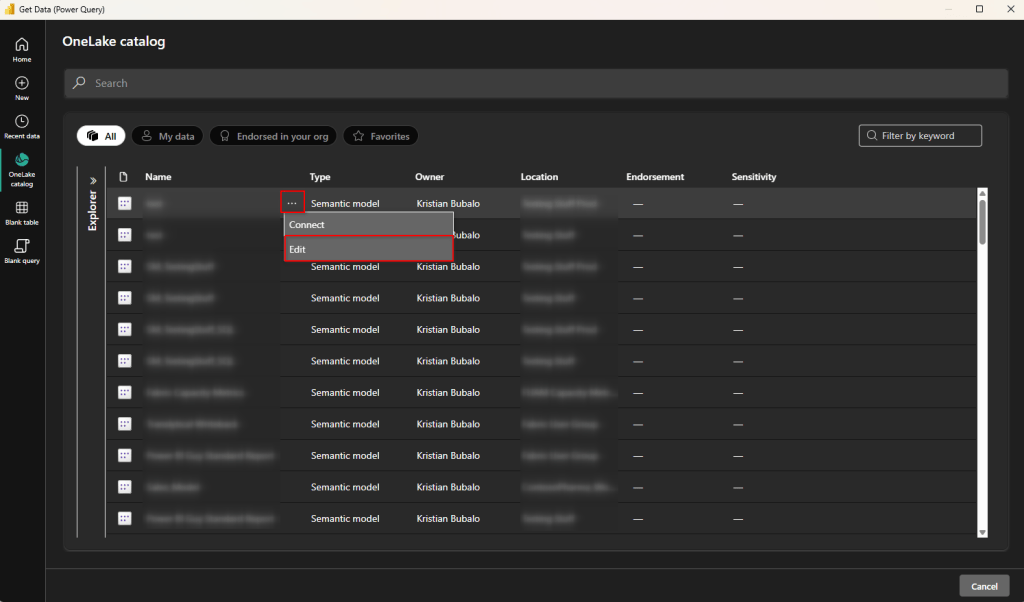
- Open Power BI Desktop and browse to the published semantic models through the OneLake catalog.
- Find the semantic model in the development workspace.
- Open its three-dot menu and select Edit rather than Connect.
- Make the required modeling changes.
The distinction matters. Connect creates a report connection to the semantic model; Edit opens the live model editing experience.
As useful as this is, be cautious: you are editing the published model directly. There is no separate Publish step that protects the service model from your changes. Microsoft documents this behavior in Direct Lake in Power BI Desktop.
I recommend doing this in the development workspace and promoting validated changes through the deployment pipeline, rather than live editing the production model.
What I Would Check Before Using This in Production
Before relying on this approach, I would validate the following:
- The parameter is of type Text and is actually referenced by the source expression.
- Every relevant source location is covered.
- Each target stage has its own parameter rule.
- A second deployment has applied the saved rule.
- The target identity has the required access to the target data.
- Refresh completes successfully.
- A report returns verified target-environment data.
- The team can continue modeling through its chosen editing experience.
- A later deployment preserves the intended environment-specific binding.
Also avoid casually renaming or deleting the parameter once rules reference it. Microsoft notes that changing or removing a parameter used by a rule can invalidate that rule and cause deployment to fail.
Do not rely on automatic rebinding to fix the source location for you. Microsoft’s deployment process documentation specifically calls out Direct Lake binding considerations and explains that parameter-controlled connections do not use autobinding.
Final Thoughts
The main roadblock in this scenario was not deploying the semantic model itself. It was making sure that the deployed model used the correct OneLake source.
The approach that worked in my test was to move the source location into a text parameter, reference that parameter in the existing source expression, and let a deployment pipeline parameter rule provide the target value.
Just as importantly, the process did not end with a green deployment status. Refreshing the model, verifying the target data, and checking the editing experience were all part of making the solution usable.
Have you already used parameter rules with Direct Lake on OneLake semantic models? I would love to hear about your experience and whether you have seen the same behavior in the web modeling experience.
If you’re interested in the files used in this blog check out my GitHub repo https://github.com/PBI-Guy/blog
Please let me know if this post was helpful and give me some feedback. Also feel free to contact me if you have any questions.

