One of the questions I recently received was whether it’s possible to refresh a semantic model connected to a SharePoint site without using a personal account, stored credentials, or a traditional Service Principal.
The answer is: Yes.
With Microsoft Fabric Workspace Identity, you can authenticate directly against SharePoint using an automatically managed service principal. Combined with Sites.Selected, this provides a secure, least-privilege approach that avoids granting tenant-wide SharePoint permissions while still enabling scheduled refreshes. Workspace Identity is an automatically managed service principal associated with a Fabric workspace and can be used for authentication scenarios across Fabric items.
In this blog post, I’ll walk you through the complete setup. The same walk-through can be used for a Service Principal, but I’d highly recommend using a Workspace Identity as it’s much easier to manage.
Why Use a Workspace Identity?
Traditionally, Power BI Semantic Models connected to SharePoint are often refreshed using user credentials. While these approaches work, they are not always ideal from a governance and security perspective. A Workspace Identity gives you:
- No credential management
- Automatic secret rotation handled by Microsoft
- Clear ownership tied to the Fabric Workspace
- Support for least-privilege access using Sites.Selected
- Better alignment with enterprise security requirements
When a Workspace Identity is created, Fabric automatically creates a corresponding App Registration and Service Principal in Microsoft Entra ID and manages the credentials for you.
Step 1: Create a Workspace Identity
Navigate to your Fabric workspace and open: Workspace Settings → Workspace Identity
Click:+ Workspace Identity
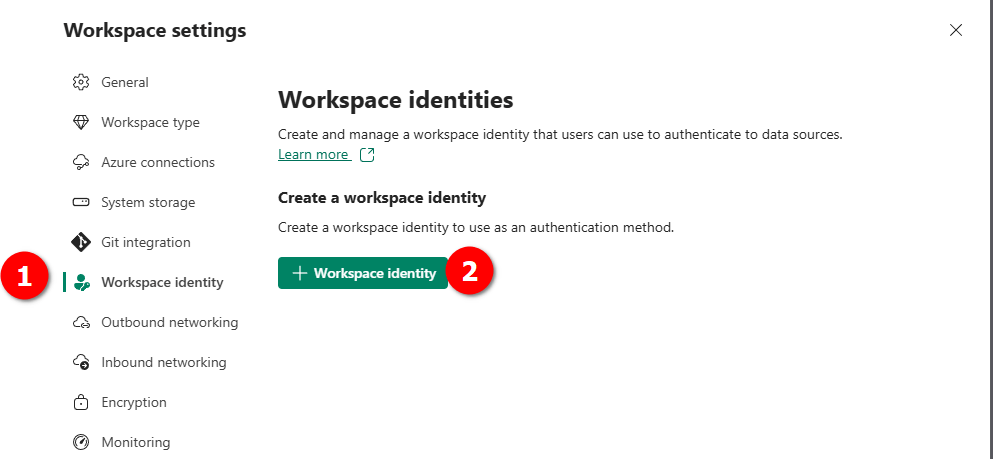
Once created, you’ll see details such as:
- Name
- Identity ID
- State
The identity name automatically matches the workspace name. Fabric also creates a corresponding App Registration and Enterprise Application in Microsoft Entra ID. You can verify this by opening: Microsoft Entra ID → App Registrations and searching for your workspace name.
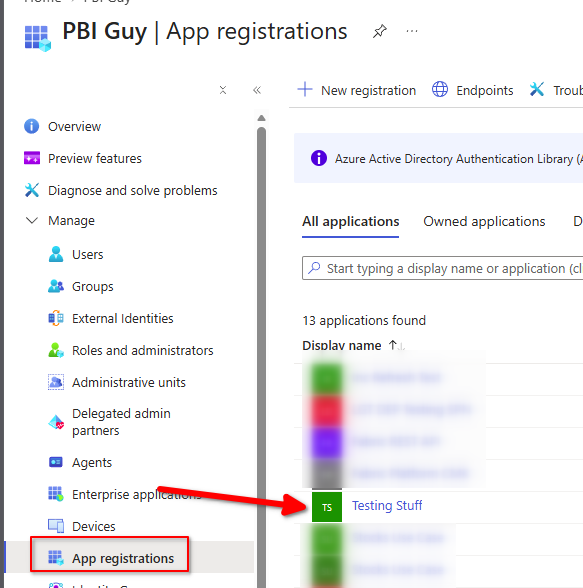
Step 2: Configure SharePoint Permissions
At this stage, the Workspace Identity exists but has no access to SharePoint. Many examples online use: Sites.Read.All in the API Permissions section. However, this grants access to all SharePoint sites in the tenant. Instead, I highly recommend using: Sites.Selected which follows the principle of least privilege.
Add the following permission to the Workspace Identity application:
| Setting | Value |
| API | SharePoint |
| Permission Type | Application |
| Permission | Sites.Selected |
| Admin Consent | Required |
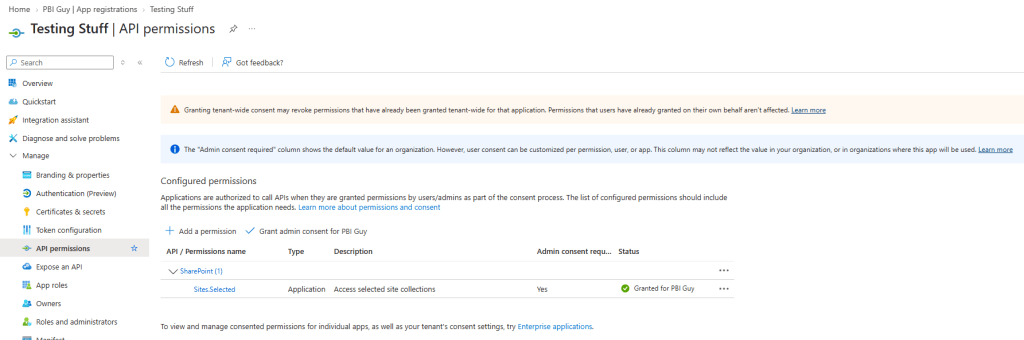
Important: For the SharePoint connector used by Power BI and Fabric, the SharePoint API permission is required. A Microsoft Graph Sites.Selected permission is not needed unless you intend to directly access SharePoint through Microsoft Graph APIs.
Step 3: Retrieve the SharePoint Site ID
Since Sites.Selected provides no access by default, you must explicitly grant access to the target SharePoint site. As there is no nice UI to do so easily, we go through REST APIs. For that, I leverage the Microsoft Graph Explorer as you can easily login through the website and just execute REST APIs against Graph API.
GET https://graph.microsoft.com/v1.0/sites/{tenant}.sharepoint.com:/sites/{SiteName}
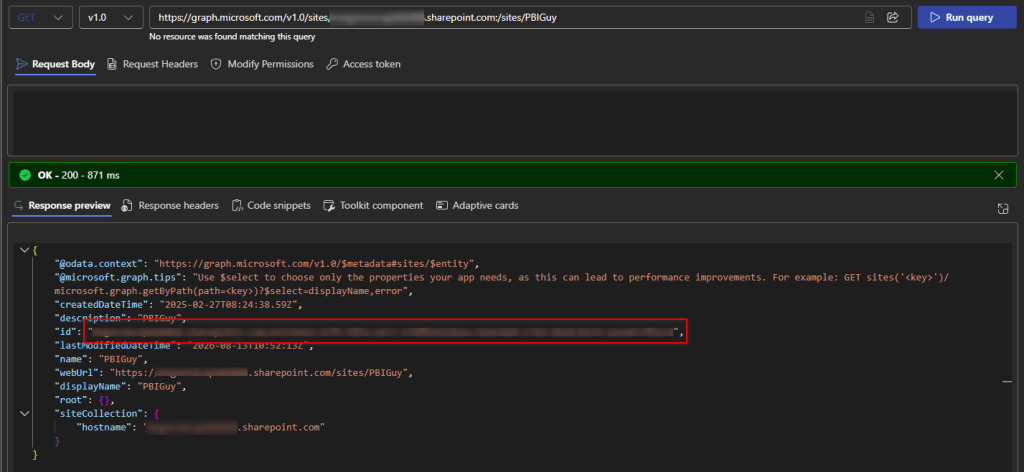
The response will contain the Site ID. Save that value for the next step.
Step 4: Grant the Workspace Identity Access to the Site
Now grant the Workspace Identity access to the specific SharePoint site. Execute the following Graph API request:
POST https://graph.microsoft.com/v1.0/sites/{site-id}/permissions
Request Body:
{ "roles": ["read"], "grantedToIdentities": [ { "application": { "id": "<Workspace Identity Client ID>", "displayName": "<Workspace Identity Name>" } } ]}
Note: If you wish to use a Service Principal instead of a Workspace Identity, paste the Service Principal Client ID in the “ID” field instead of the Workspace Identity one.
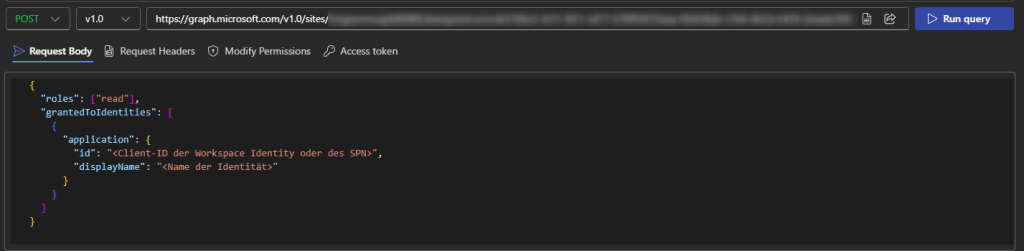
This grants the Workspace Identity read access to the specific SharePoint site and nothing else. A nice benefit of this approach is that security teams often prefer it over tenant-wide access because permissions remain scoped to a single site.
Step 5: Verify the Permission
To confirm the permission assignment, query the site again:
GET https://graph.microsoft.com/v1.0/sites/{tenant}.sharepoint.com:/sites/{SiteName}
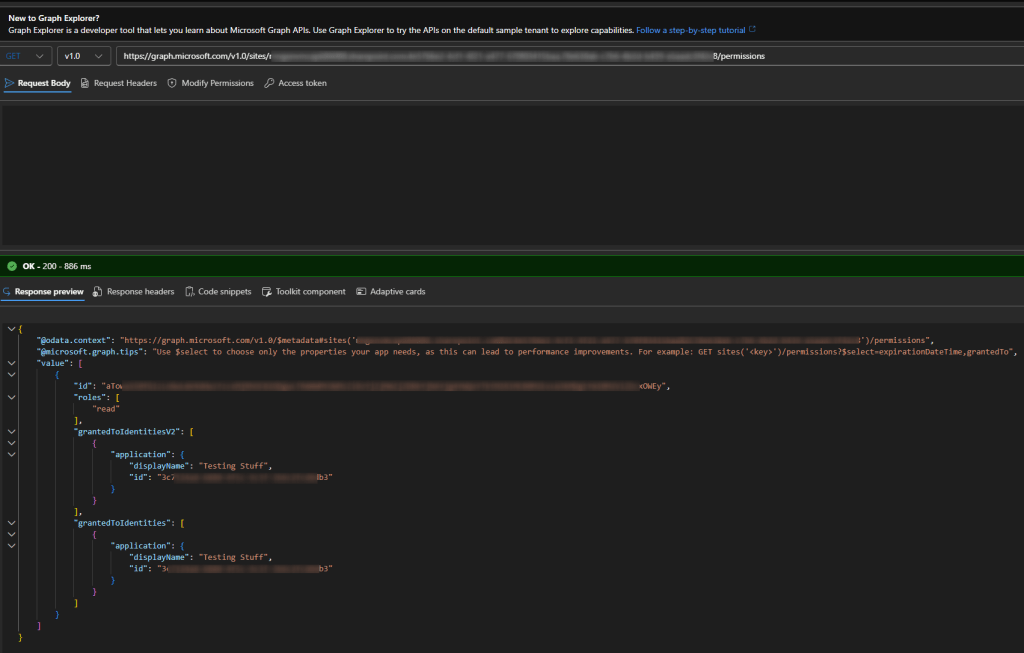
Alternatively, your SharePoint administrator can review the permissions directly through administrative tooling.
Important: To perform the permission assignment, the administrator executing the Graph request requires: Sites.FullControl.All
This is only needed temporarily for the administrative session and does not need to be assigned to the Workspace Identity itself.
Step 6: Create the Fabric Connection
Now switch back to Fabric. Create a new SharePoint connection using the SharePoint URL. When selecting the authentication method, choose: Workspace Identity
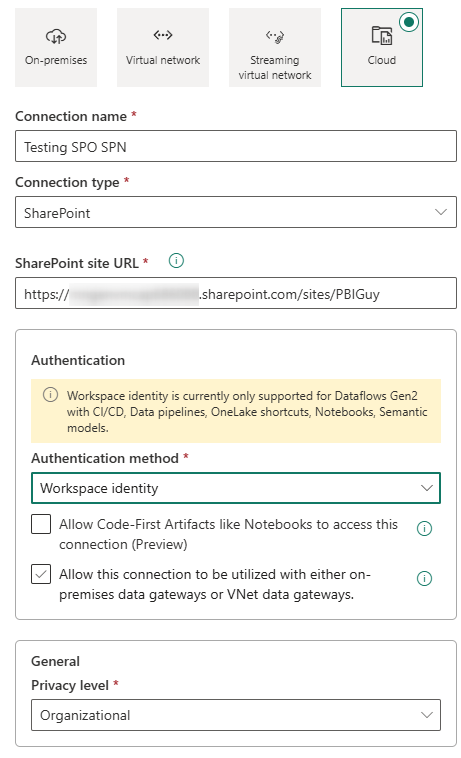
Fabric supports using Workspace Identity as an authentication mechanism for supported connection scenarios and items, including Semantic Models.
Step 7: Publish and Refresh the Semantic Model
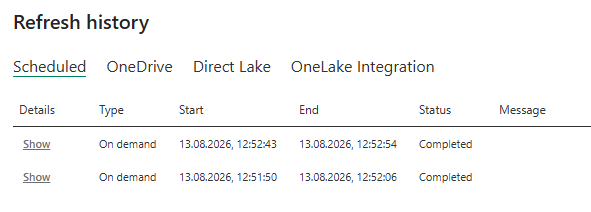
Lastly, you have to bind the connection to your Semantic Model. To do so, publish your semantic model to the workspace. Afterwards, open: Semantic Model → Settings → Data Source Credentials and select as Authentication method: Workspace Identity Test it out by running a manual refresh.
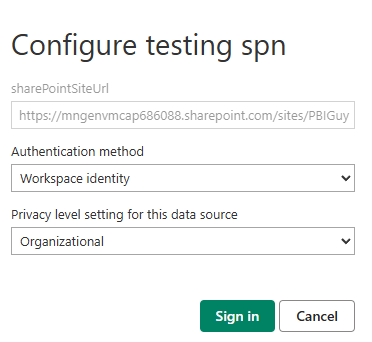
If the SharePoint permissions and connection are configured correctly, the refresh should complete successfully without requiring any user credentials.
Final Thoughts
Workspace Identities are quickly becoming one of my favorite Fabric capabilities. They remove the operational burden of managing Service Principal secrets while enabling secure, enterprise-grade authentication patterns. Combined with Sites.Selected, they provide a clean least-privilege solution for SharePoint-based datasets and semantic models.
If you’re currently refreshing SharePoint-based Power BI Semantic Models using personal accounts or broad SharePoint permissions, it’s definitely worth taking a look at Workspace Identity as a more scalable and secure alternative.
Have you already started using Workspace Identities in Microsoft Fabric? I’d love to hear about your experiences and scenarios in the comments.

