As you probably know Power BI Datasets can be refreshed manually, on a scheduled base or through the Power BI REST API. Depending on the data source you will require a Power BI Gateway to be able to update your dataset. Manually refreshing a dataset can be handy if you need an instant refresh but usually you will at least schedule it to automate this process. But in few scenarios you probably don’t want to wait till a certain, scheduled time or you wish to trigger a refresh immediately but programmatically after your ETL / ELT process has finished. In this blog post I’m going to show how to trigger a refresh with Python.
JFYI: You can also use Power Automate, PowerShell or anything else that can call and authenticate against the Power BI REST API to trigger a dataset refresh and there are plenty good blog posts out there explaining how to do so.
Prerequisites
- Power BI Dataset in Power BI Service
- basic Python know-how
- a registered Azure App
- optional: Azure Synapse Analytics
How to
First of all we need a Service Principal on which behalf we can trigger the Dataset refresh programmatically. You could also use your user and password to log in and call the Power BI REST API (so-called Master User Authentication) but I wouldn’t recommend this approach due to some obvious reasons: Your password can change, what happens to the program if you leave the company, probably too much rights, etc. Therefore we’re going to register an App and give just the needed permissions. A very well how-to-guide can be found here: https://www.sqlshack.com/how-to-access-power-bi-rest-apis-programmatically/.
Checking the doc (https://docs.microsoft.com/en-us/rest/api/power-bi/datasets/get-refresh-history-in-group & https://docs.microsoft.com/en-us/rest/api/power-bi/datasets/get-refresh-history-in-group) we see that in our case we need at least the Dataset.ReadWrite.All or Dataset.Read.All to be able to check the Refresh History, and Dataset.ReadWrite.All to be able to trigger a refresh.
Before we’re going to refresh a Dataset we want to make sure that no refresh is happening right now. That’s the reason why we need the Refresh History API.

Once the app is register you’ll get an App ID and Secret. Store this information somewhere securely as we’re going to need it later on.
To be able to access the Dataset our Service Principal will need sufficient permission on the dataset itself. In my case I’m just going to add the user as admin in my workspace.
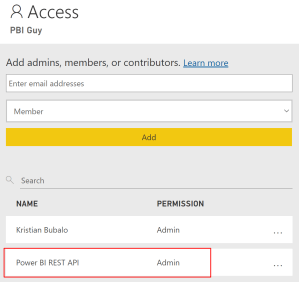
As a next step we’re going to write our Python Code, authenticate against Power BI and call the needed REST APIs. You can choose whatever environment suits you best to write Python. In my case I’m going to use Azure Synapse and create a Jupyter Notebook to run my Python Code.
If you’re interested in how to start with Azure Synapse feel free to check out this link: https://docs.microsoft.com/en-us/azure/synapse-analytics/get-started
I created a folder called PBI Guy and create a new Notebook with the name Power BI Dataset Refresh.

As first step we need to have some code and assign afterwards a Spark Pool to be able to run it. I like to start with importing my needed libraries. Because we need to authenticate against Microsoft Azure Active Directory we’re going to use the MSAL library (https://docs.microsoft.com/en-us/azure/active-directory/develop/msal-overview). Further we will call the Power BI REST API. For this purpose I’m going to use the requests library (https://docs.python-requests.org/en/latest/). Afterwards we would need to convert the output into a JSON format to make it easier to process the data. Therefore we’re importing the JSON library as well (https://docs.python.org/3/library/json.html). Last but not least I’m going to use the Pandas library (https://pandas.pydata.org/) just because it’s so simple to transform and extract the necessary data. Luckily with Python importing libraries is straight forward and our first code snippet looks as following.

I’m sure there are multiple, probably easier ways to achieve the same goal triggering a Power BI Dataset refresh but thinking about future improvements of my code (probably store the refresh history, compare it to other data, etc.) I’ll make it nice and clean from the beginning.
Our next goal is to set up all the needed parameters – and there are a few! We will need:
- Client ID
- Client Secret
- Tenant Name
- Workspace ID
- Dataset ID
After we registered our App / Service Principal we got the Client ID and Secret. If you’re not sure what’s your tenant name just login to your M365 Admin Center, go to Setup, click on Domains, and see your domain name ending – this is your M365 tenant name. The easiest way to get your Workspace and Dataset ID is to head over to Power BI Service, click on your Dataset and check your URL. The red part is the Workspace ID, the blue part shows you the Dataset ID.

Besides that we specify the Authority URL which is needed to authenticate with the MSAL library. Basically it points Python to the right Microsoft Tenant. Further we also need to specify the scope (Power BI in this case). Lastly we also need our Power BI REST API URL. Because we’re interested just in the last refresh history status we filter it in the query to Top 1. With all these information we create following code snippet.

Now it’s time to authenticate and grab an access token which can be used to call the Power BI REST API and get the Refresh History of the Dataset. Once authenticated and an access token is available, we’re using it to provide it to our header of our request statement. After we set up the header correctly we call the API through a GET request providing the URL from above and the header we just created including the access token. As a next step we’re converting the result directly into a JSON format which is used to format it again to a Pandas Dataframe with the columns requestId, id, refreshType, startTime, endTime, status. All these information are provided through the Power BI REST API. Lastly we set the Dataframe Index as the id column. Our code should look now as following.

Let us know check if the code runs successfully. We’re going to execute the whole code to import all libraries, set the parameters, authenticate, and call the Power BI REST API to get the refresh history of our dataset. If everything works fine we should see a result like the one below.

Perfect, this means we got now the Power BI Dataset refresh history and see the last refresh has been executed on demand (meaning manually) and it’s completed. The status in our case is very important because if the refresh is running we can’t trigger a new one and it will fail. From the documentation we can see there are four different status:
| Status | Description |
| Unknown | State is unknown or refresh is in progress |
| Completed | Refresh completed successfully |
| Failed | Refresh was unsuccessful |
| Disabled | Refresh is disabled by a selective refresh |
So to trigger our refresh we want to make sure the status is not unknown. Further we can also specify what should happen if the last refresh status is failed or disabled (e.g. enable it through another API – see https://docs.microsoft.com/en-us/rest/api/power-bi/datasets/update-refresh-schedule-in-group). Due to demo purpose I’m just going to print out a different message based on the status. This means our last code snippet checks the status and depending on it executes a different code.

I added an else section as well if for some reason a new status code will appear so I’m handling every situation separately.
If we now execute the last bit of our code we see the right message has been printed out – so far so good.

But let’s also check the Power BI Dataset Refresh History. If we switch now to Power BI Service, select our Dataset, move on to Settings and check the Refresh History we see following – our Dataset has been refreshed and triggered via API!

Imagine what you can do now – not only calling the Dataset Refresh REST API but as well any other API Power BI offers via Python! Because I’m in Azure Synapse I can even integrate my Python script in Azure Data Factory and trigger a refresh at the end of my ETL / ELT pipeline, and many more! I’m really excited about this opportunity and will definitely elaborate more possibilities in near future.
Keep in mind that the limitation of your licensing can’t be eliminated. This means if you’re using the Power BI Free license you can programmatically refresh a dataset once a day. With a Pro License it’s eight times a day, and with Premium or Premium per User it’s 48 (see https://docs.microsoft.com/en-us/power-bi/connect-data/refresh-data#data-refresh).
Please let me know if this post was helpful and give me some feedback. Also feel free to contact me if you have any questions.
If you’re interested in the files used in this blog check out my GitHub repo https://github.com/PBI-Guy/blog
 PBI Guy
Hey Kristian,
I am trying to run step 3 and its throwing an error on line 12.
Key Error: ‘value’
Do you know why?
LikeLike
Hi Faaz
I guess you don’t get anything from the API call in first place therefore try to print out the api_call to see what kind of response you get (I assume error 401, unauthorized, and if so please make sure your App has sufficient rights). The error message says that there is no “value” in the parameter api_call which can be converted to JSON. But printing out the api_call parameter will give you better hints what kind of error you have.
LikeLike
Hello,
Thanks for the detailed steps, it is very helpful!
I’ve done the setup, and can trigger the refresh via postman app, however when I try to run the script with pycharm or jupyter notebook it fails with an SSL error:
SSLCertVerificationError: [SSL: CERTIFICATE_VERIFY_FAILED] certificate verify failed: self signed certificate in certificate chain
Any thoughts on why this might be and how to fix it?
LikeLike
Hi Vaidehi
Assuming that you’re running Python 3.4.3 or later, and if you’re okay with not verifying your target, you could try disabling certificate and hostname checks:
headers = {“authuser”:user, “authpass”:pass}
conn = http.client.HTTPSConnection(url, context=ssl._create_unverified_context())
conn.request(“POST”,requestpath, headers)
Found this suggestion here: https://stackoverflow.com/questions/55907813/how-to-fix-ssl-certificate-verify-failed-error-only-thrown-in-pycharm-python
Hope it helps!
LikeLike
Hello, thank you for the great post. I am a little confused regarding the frequency and number of times I can refresh using the Pythion script.
I have a Pro account. Does it mean that even with Python I can only trigger the report 8 times a day?
LikeLike
Hi
Thanks!
Yes, the limitation still applies, regardless how you refresh it – through Python (REST API) or scheduled refresh, with Pro you can do it 8 times a day. If you need more, you would need to manually refresh it or switch to Premium, Premium per User, or Embedded.
Greets
PBI Guy
LikeLike
Got it!
However, when I embed a PBI report in a 3rd party application, isn’t there a way to be able to refresh as many times as we want?
LikeLike
If you backup a workspace with an Embedded Capacity, it gives you the full functionality like a Premium capacity. Difference is that Embedded is meant to embed afterwards the report into your own app but you can still access the report via PowerBI.com but would need a Pro license (that’s one of the differences to Premium). Therefore you can refresh the Dataset like you do now via Python, but would be able to do it without limitation. Keep in mind, Embedded needs to run to be able to refresh the dataset and as well to be able to access the report. If you pause the capacity, the report / dataset is not accessible anymore.
LikeLike
Thank you! I will get familiar with the topic 🙂
LikeLike
Where can you find the client secret and other information from the power bi dashboard?
LikeLike
The Client Secret and ID is not something from the Power BI Dashboard but rather an app that you register in Azure Active Directory. I show the whole process at the top how to register an app, if you follow it, you’ll get a Client ID as well the secret.
LikeLike
Does the refresh of a power bi dataset from python take longer to complete compared to a manual refresh , we refreshed a small dataset and it took 20 seconds to manually refresh it and a couple of minutes via the python script
LikeLike
Not that I’m aware of. I also tested different refresh mechanism (manually, via REST API, and via XMLA) and there are some differences, but small ones. Not like in your cases seconds and minutes.
LikeLike
Hi! Thanks for your post. Do we need to specify a redirect URI when registering the app in Azure AD?
LikeLike
no, not that I’m aware of
LikeLike
Hi Can I know if we can trigger power bi dataset from cross tenants .lets say azure databricks is in A tenant and power bi in B tenant.If there is a way what steps are required to perform.
LikeLike
Hi
Yes, you can do that within a Notebook for example, creating a Service Principal in Tenant B (where Power BI is) and authenticate to it through the SP. Once authenticated, you can trigger a Dataset refresh pretty easy. Therefore, from the logic of the script, nothing changes. You only need to point to Tenant B in this case.
LikeLike
I tried this but I’m having issues with the data source credentials part while hitting api the error was
“It looks like scheduled refresh failed because at least one data source is missing credentials. To start the refresh again, go to this dataset’s settings page and enter credentials for all data sources”
So I built that Dataset using Blob so how to pass the datasource credentials from this code if you have any idea please share?
LikeLike
This looks like you haven’t added the credentials in your dataset. To do so, easiest way is to log in to powerbi.com, head over to your dataset, select settings, and configure the credentials –> https://learn.microsoft.com/en-us/power-bi/connect-data/refresh-data#accessing-cloud-data-sources
you can also do it via API, as explained here: https://learn.microsoft.com/en-us/power-bi/developer/embedded/configure-credentials?tabs=sdk3
LikeLike
In Microsoft official documentation they mentioned it is not possible for these sources “:Only these data sources are supported: SQL Server, Azure SQL Server, Azure Analysis Services, Azure Synapse, OData, SharePoint, Teradata, and SAP HANA.”
I Can only update through api Can’t do it manually in power bi service as In api call i can use that user to update but for blob storage we dont have if we need to do it by Update parameters then while publising dataset from desktop we need to pass them or what I need to do.
LikeLike
I’m not really sure if I understand your question. Can you explain your architecture in a high-level manner and what you try to achieve?
LikeLike
I am traying to hit api but i am getting response code 403 and i have added required permissions also like dataset read write i am not getting what to do to clear this
LikeLike
Hi
It’s a little bit hard to evaluate the exact cause without viewing the code or anything. I’d suggest to go through your code step by step and make sure you get the token right and pass it as well as needed. If you’re sure the permissions are set right, double check if you allow Service Principals to use REST APIs in the Power BI Admin portal. If so, I guess the token is not valid you pass to the REST API call.
LikeLike
Hi Kristian,
Great Post. Here I am trying to refresh set of datasets (which are in excel) based on some event.
How Can I modify the above code.
Appreciates your help
Thanks
Prasanna G
LikeLike
Hi Prasanna
What exactly do you need / want to modify? The refresh works regardless which data source you’re using. In your case with Excel, you have to make sure that you’re using a Power BI Gateway and that it’s configured properly. Once done, the refresh will work.
Greets
LikeLike
Hello Kristian,
first of all thank you for your post.
Is it possible to refresh any dashboard, when the related dataset triggered?
I have a connection between azure databricks with power bi and i am getting the same informations as you established it in this post.
So question is again, when the dataset is refreshed, is there any trigger that i can also refresh the dashboard as automated?
Just a short info: In power bi there is no monthly update option, that’s why i am asking it.
Thank you in advance.
Best regards,
Haner
LikeLike
Hi
The Dashboard should automatically get updated within max 1 hour after your Semantic Model has refresh, so no need to update it. The whole process is documented here: https://learn.microsoft.com/en-us/power-bi/connect-data/refresh-data
LikeLike
thank you very much it works. on the other hand I would like to order 2 updates sequentially and only launch the second at the end of the first. do you have an idea?
LikeLike
The easiest would be through a Pipeline in Microsoft Fabric, as you can schedule a Semantic Model refresh. In this case, you just create two different actions and connect one with the other “On Success”. If you wish to do it with Python, you trigger a refresh for the first Sem. Model and create a do until loop to check status of the refresh. If successful, trigger the other Sem. Model, otherwise do not / something else.
LikeLike
how would you get the workspace_id now? it does not appear on url anymore it just says /groups/me
LikeLike
In such a case, you are in your MyWorkspace. Therefore, no GUID needed and you can just use me in your REST API call.
LikeLike